
Automations allow you to streamline ticket handling, enforce service-level agreements (SLAs), and automate routine actions. There are two types of automations: New Issue Automations and Time-Based Automations.
- New Issue Automations: A new issue automation emphasizes workflow management. It runs immediately for each new issue that matches such criteria as: the default language setting on the player’s mobile device, the player’s mobile platform OS and release version and the game release version.
- Time-Based Automations: A time-based automation emphasizes service-level agreement (SLA) compliance, escalations, or general follow-through. It runs for each open issue that matches at least one of its configured time conditions.
Note: To configure an automation that measures time in minutes, your Helpshift subscription must be at the "Growth" package level or higher.
Creating an Automation
To create an automation for your workflow, follow these steps:
- Log in to your Helpshift domain as an administrator.
- On the left Helpshift toolbar, click Settings.
- In the navigation pane on the left, scroll down to the WORKFLOWS section and click Automations.
The Automations page opens. Here, you can search existing automations using the Search Automations bar in the top right corner. - On the Automations page, click either New Issue or Time-Based, depending on your needs.
Automations execute sequentially in the order they are listed on the page. You can change this sequence by clicking the EDIT ORDER button.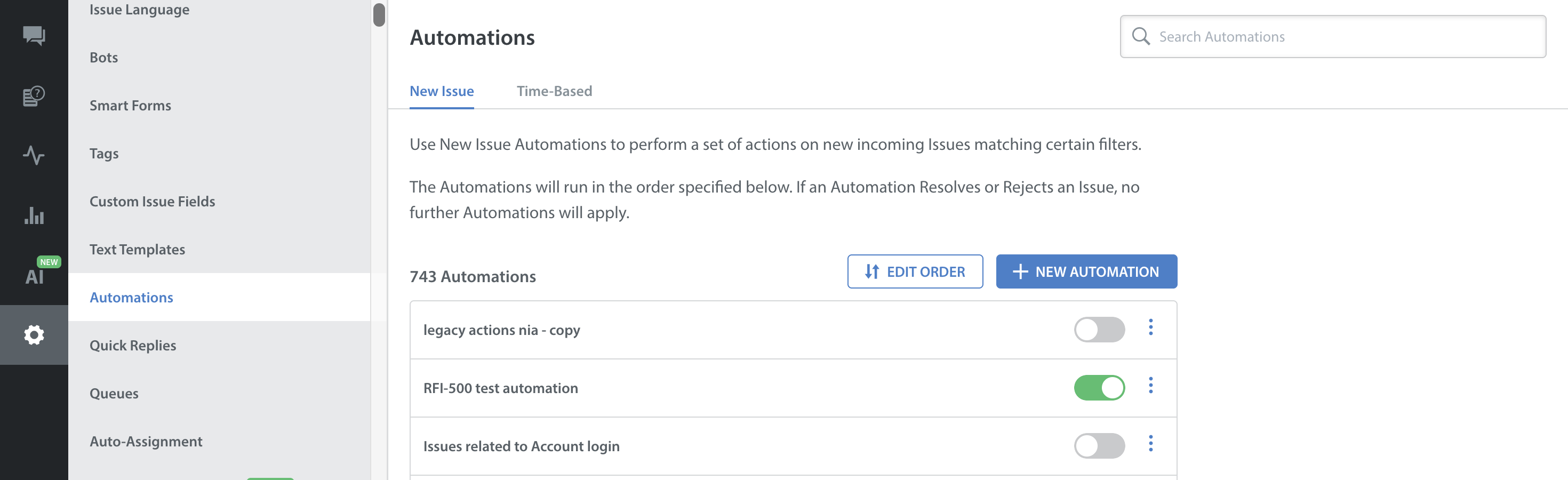
- Click + NEW AUTOMATION.
The Create Automation dialog box opens.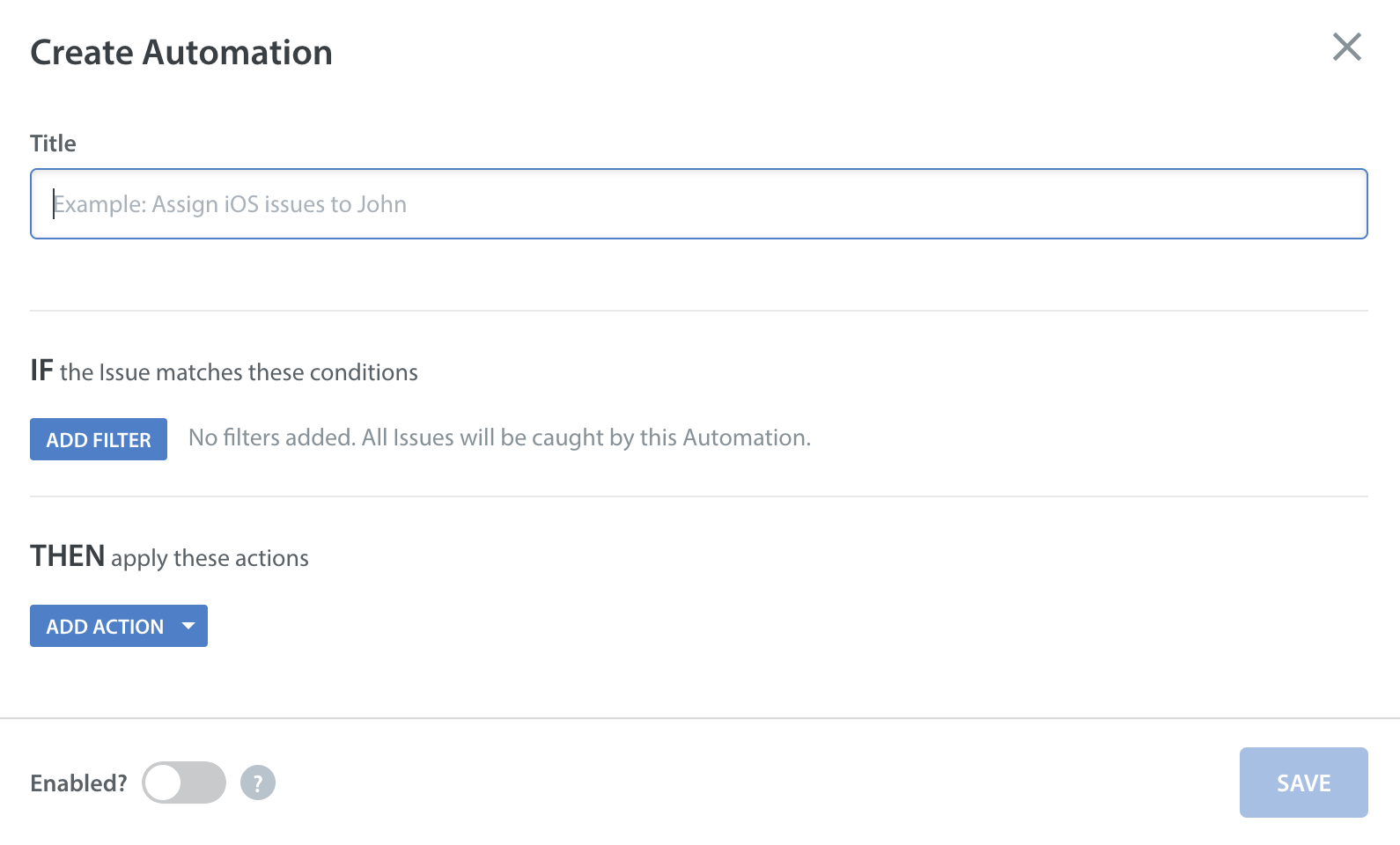
- Configure the following fields:
- Title: Enter a descriptive name for your automation.
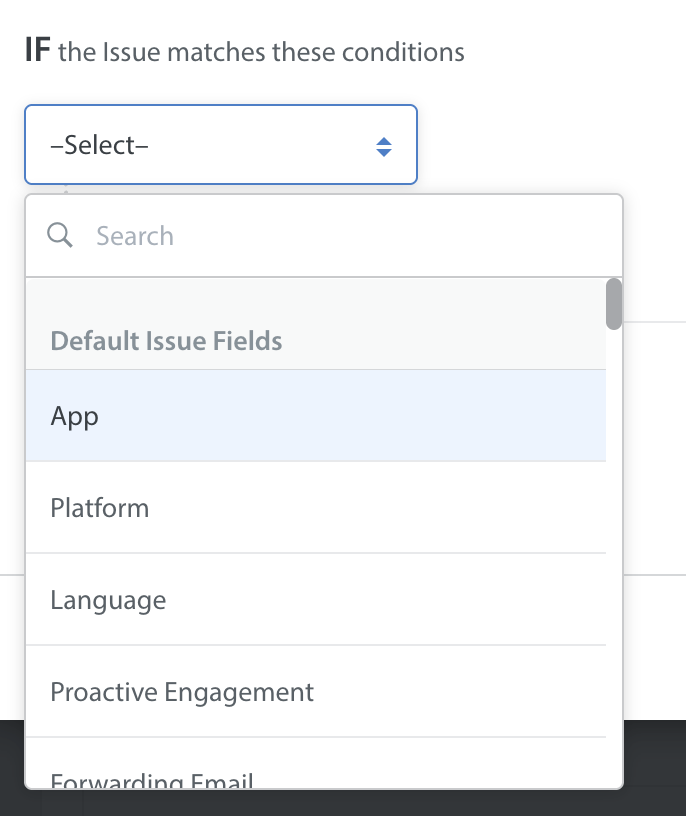
- IF the Issue matches these conditions (Conditions): Click ADD FILTER to define the rules that trigger this automation.
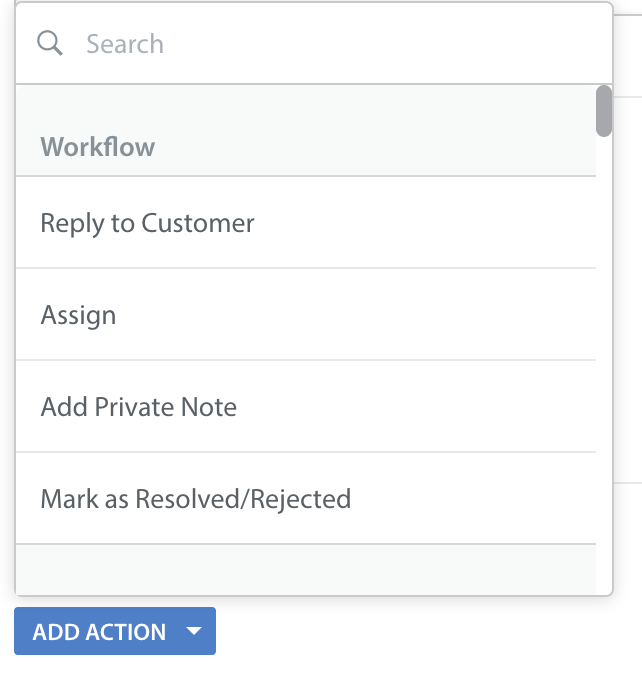
- THEN apply these actions (Actions): Click the ADD ACTION dropdown button to determine what happens when a ticket matches your filters (e.g., assigning to a specific queue, applying tags, or sending an automated response).
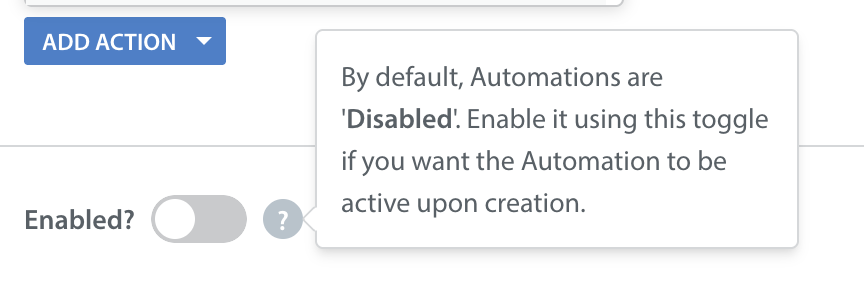
- Enabled?: Toggle this switch On or Off to set the default state of the automation before saving.
- Click SAVE.
You can instantly turn off any saved automations by clicking their toggle on the automations page. Enabled automations display a green toggle, while inactive ones remain grey.
Note: To learn more about adding conditions and filters, refer to: