To get started with the Proactive Engagement feature, your development team must first complete the technical integration using the Developer Guides.
Follow these prerequisites and implementation steps given below:
Note: If your app has never sent push messages to users, you must first integrate FCM/APNS push messages directly into your mobile app.
| Integration Checklist |
Tip: Optimal development implementations can typically be completed in under a couple of weeks. |
Note: If your application already uses third-party marketing tools, these systems may intercept Helpshift push messages. To ensure successful delivery, you must configure your marketing tools to delegate push messages to the Helpshift SDK. Please note that this will require source code manipulation of the marketing tool.
Prerequisites
Before integrating the Proactive Engagement SDK, you must ensure the following steps are met:
- Upgrade your SDK: Ensure your mobile application is updated to SDK X 10.5.0 or later.
- Upload Push Certificates: You must upload active Push Certificates in the Helpshift Dashboard under App Settings for both Android and iOS.
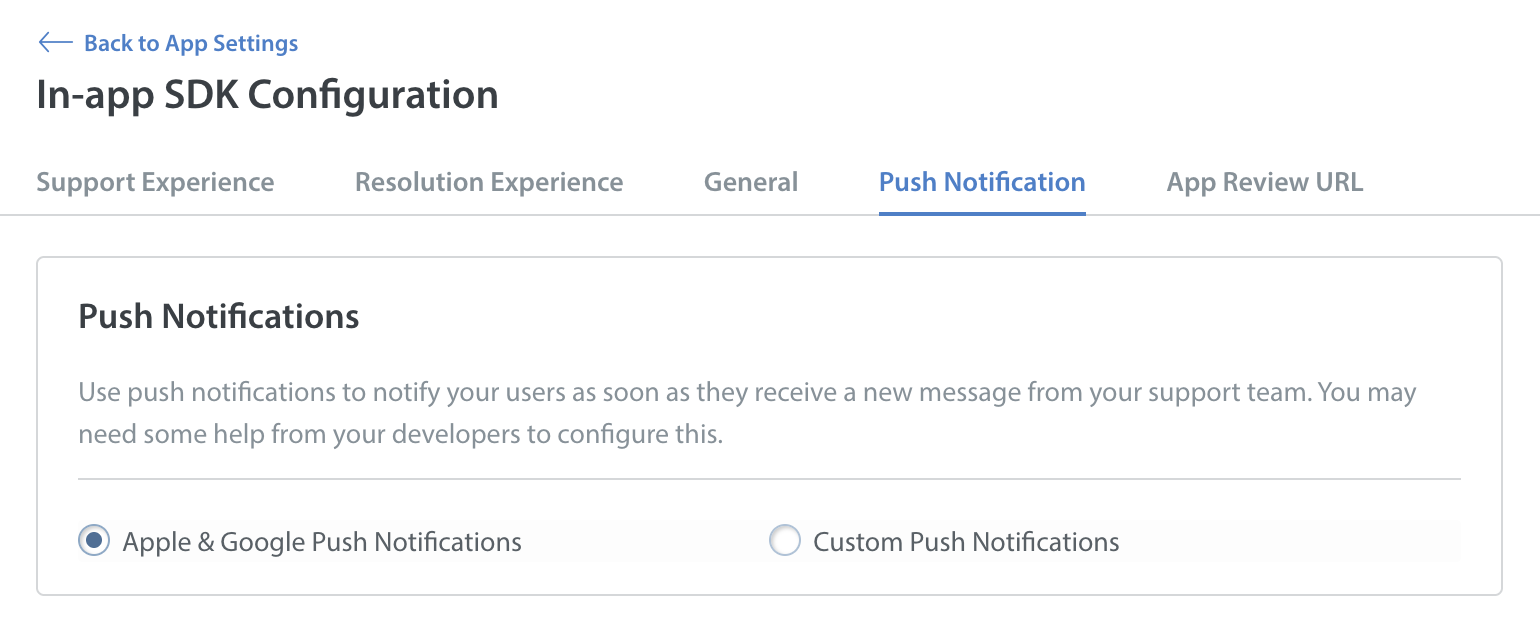
- Enable Apple & Google Notifications: To use Proactive Engagement, ensure you select Apple & Google Push Notifications; Custom Push Notifications do not support Proactive Engagement.
Best Practices:
- Delegating Push Messages: Ensuring the Helpshift SDK is initialized and push messages are properly forwarded to the SDK is crucial for Proactive Engagement to work well.
- Pause/Resume In-App Messages: The SDK does not persist the "pause in-app messages" state across app sessions. You must call the pause/unpause API in every app session based on the real-time application state to prevent interruptions in critical parts of your application.
Integrating Helpshift Proactive Engagement
Once the prerequisites are met, you can begin the core integration for Push and In-App messages.
- Initialize the SDK. All public Proactive APIs must be called after initializing the SDK via the install API.
- Ensure Push Messages are integrated with the Helpshift SDK.
- (Only if using In App) Handle Pausing In-App Message (Crucial for Interruption Handling).
- WHEN: You do not want an In-app message interrupting a player during an active game session or payment screen.
- Use the pauseDisplayOfInAppNotification API
- Campaign Messages received while paused are not lost; they will display immediately once unpaused.
- Call this API twice:
- With TRUE when you want to Pause showing the In App message. Ex: During game play.
- With FALSE when you want to Resume showing the In App message. Ex: In Lobby/after purchase etc.
- Refer API: Android and iOS
- (Optional) Set Defaults for Message Properties (Android)
You can use this API to provide players with granular control over their messages, for example, allowing them to disable engagement alerts while still receiving support conversation message notifications.
By providing your own channel IDs, you can segregate messages and set custom priorities at the OS level. Refer to Setting defaults for notification properties.- How it Works: Passing your own proactiveSupportChannelId and proactiveEngageChannelId will overwrite the default channels provided by the SDK ("Proactive Support" and "Proactive Engage").
- Applicability: These settings apply to standard Device Push messages and Fallback Push messages triggered for In-App messages.
For more detailed developer documentation, refer to Android and iOS.
Note:
- Android Permissions: The Helpshift SDK does not request end-user permissions for you. You must manually request the POST_NOTIFICATION permission from the user; otherwise, campaign messages will fail.
- iOS Rich Content: To support rich content in your push messages (such as images), your iOS app must include a Notification Service Extension (NSE)
Integrating User Hub
When configuring the audience for the engagement campaign on the dashboard, integrating User Hub lets you filter your target audience by real-time User properties collected across your entire application.
Refer to the User Hub Implementation Guide.
Expirations and System Limitations
When building engagement campaigns, be aware of the following platform constraints:
- In-App Expiration (Android and iOS): By default, In-App messages expire 48 hours from the time of delivery. Expired messages will not trigger an action if clicked by the user.
- Rich Text Limitations: When applying rich text formatting to your messages, please be aware of the following system and feature constraints:
- iOS: Rich text is not supported in iOS push messages unless you have implemented a Notification Service Extension (NSE).
- Android: Rich text is generally not supported in push messages on devices running Android 16 and above.
- Language AI Translations: If you use the Language AI (LAI) feature to localize your messages, ensure you review the translated text, as rich text propagation is not yet fully supported during translation.
- iOS Button Limitations (iOS): Interactive buttons within Push messages are not supported on iOS.
- Background In-App Message Handling (Android and iOS): If the SDK receives multiple in-app messages while the application is in the background, it discards older messages and keeps only the latest. However, on iOS, the system will still display all of them in the message center.
Push and In-App Message Behaviors
Refer to the table below to understand how Push and In-App message will appear on Android and iOS devices under various conditions.
| Scenario/Configuration | Android Behavior | iOS Behavior |
| App NOT Registered for Push | No proactive Push or In-App messages received | No EngagementPush or In-App messages received |
| Push messages registered, but NO Permissions granted by the end user | No Push messages. In-App messages will show when the app is next opened | No Push messages. In-App messages appear only when the user is actively on the app screen. |
| Push messages registered AND Permissions Granted | Push messages are displayed in the device tray. In-App messages will be seen the next time the user opens the app. | App in background: Messages appear in the device tray. In-App shows after tapping the tray message or upon opening the app directly. App in foreground: Push message appears in the device tray. In-App message is directly displayed to the user on the current App screen. |
| In-App Expiry Time | 2 days from the time of delivery | 2 days from the time of delivery |
Note: The Proactive Engagement APIs are enabled by default for all accounts. The standard API rate limits associated with your current Helpshift subscription plan will automatically apply to these endpoints.
To get started, refer to Helpshift Developer Guide.
Most Frequently Asked Questions (FAQs)
1. Why is my app missing from the dropdown when creating a Proactive Engagement campaign?
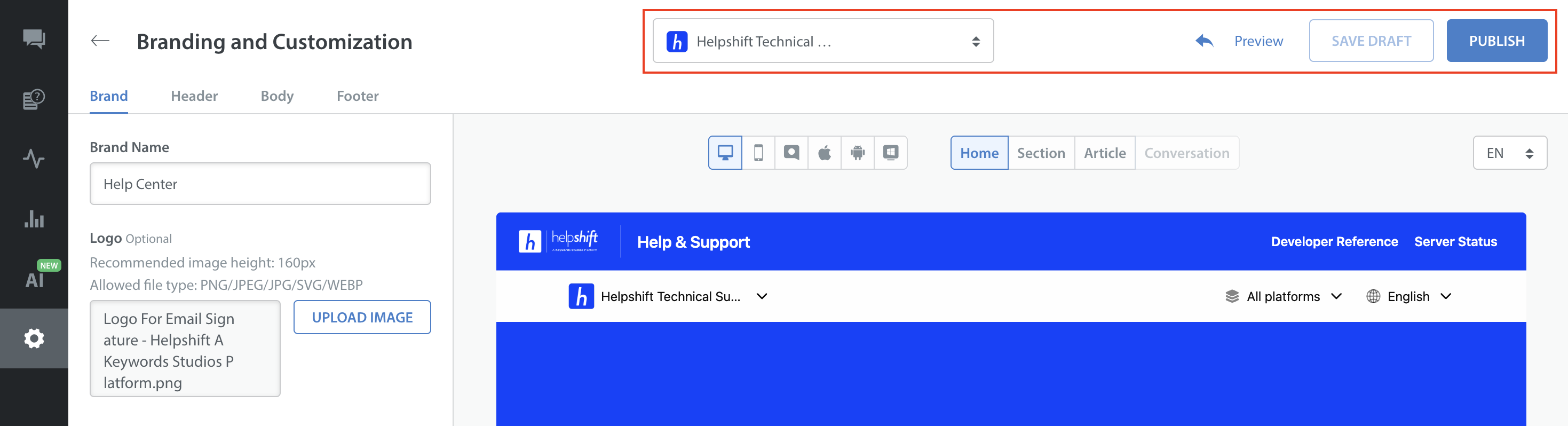
To ensure your app is available for Proactive Engagement campaigns, it must be fully published in your Helpshift dashboard settings.
- Navigate to Settings > Branding and Customization.
- Select the specific app from the list.
- Click Publish.
- Once published, the app will appear in the campaign dropdown.
2. How do I hide an application from the Help Center app selection dropdown?
If an app is showing up on your Help Center that should not be visible to end users, you can hide it via your portal settings.
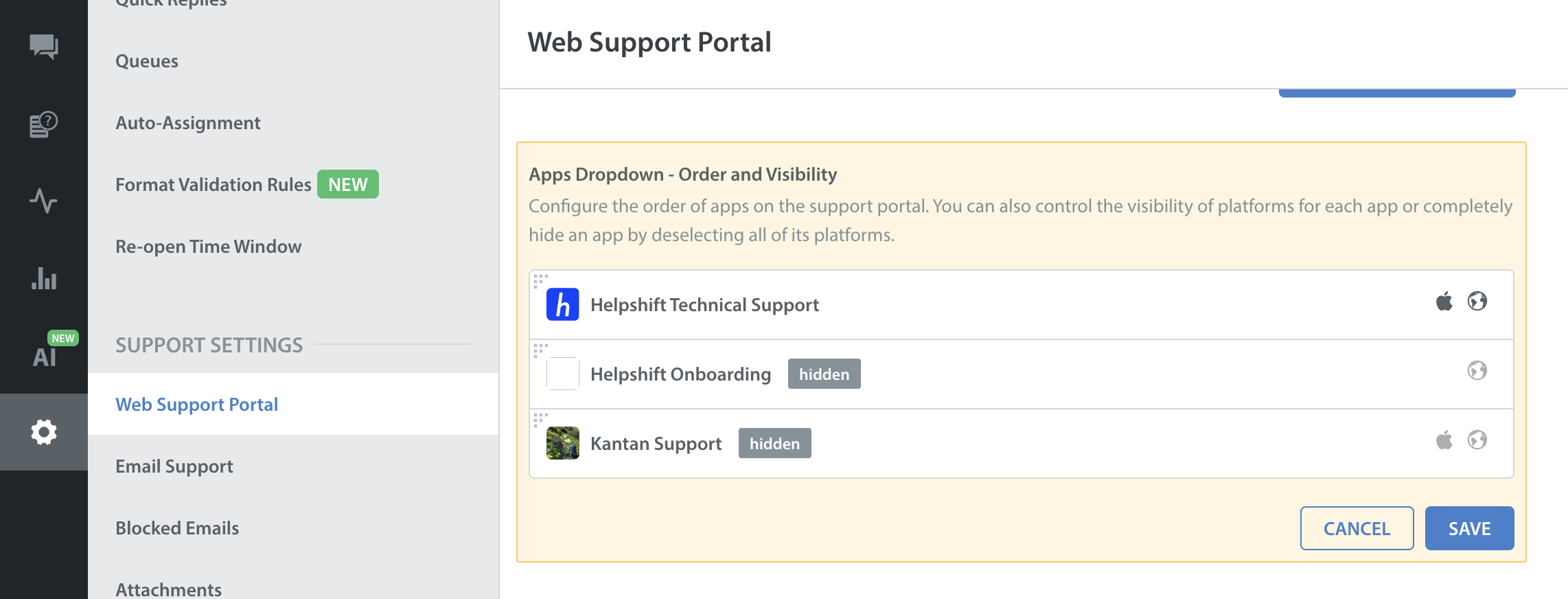
- Navigate to Settings > Web Support Portal.
- Scroll down and click Edit Apps Order and Visibility.
- Click the Android and iOS icons next to the corresponding app to disable it. This will prevent the app from appearing on the public Help Center.