
Learn how to navigate the new Proactive Engagement page, view your existing notification lists, and initiate the creation process for a new campaign.
- Accessing Engagement Campaign
- Viewing Proactive Engagement Page
- Creating Engagement Campaign
- Editing Engagement Campaign
- Duplicating Engagement Campaign
- Deleting Drafts
- Handling Legacy Setups
Accessing Engagement Campaign
The Proactive Engagement page introduces a centralized, single-pane layout that gives administrators and supervisors full visibility into all outbound support efforts. You can easily access Quick Walkthroughs, Use Case Help, and monitor alerts regarding SDK upgrades or missing push notification certificates.
To access the Engagement Campaigns, follow these steps:
- Log in to your Helpshift domain as an administrator.
- On the Helpshift toolbar, navigate to Settings.
- Under WORKFLOWS, click the Proactive Engagement tab.
The Proactive Engagement screen appears.
centralized, single-pane layout designed to give administrators and supervisors full visibility into all outbound support efforts.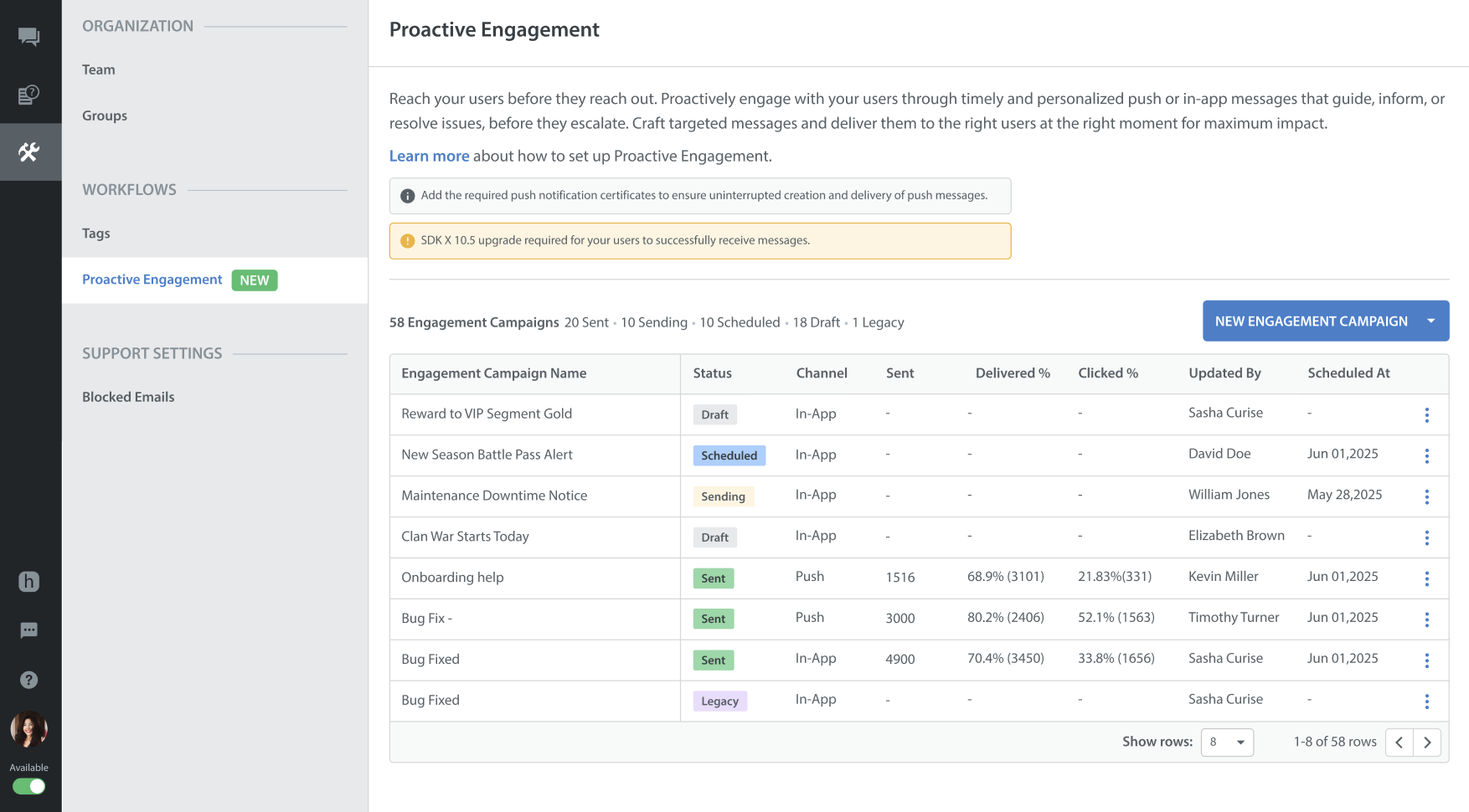
- You can easily access Quick Walkthroughs, Use Case Help, and monitor alerts regarding SDK upgrades or missing push notification certificates.
Viewing Proactive Engagement Page
The Proactive Engagement page features a comprehensive list view of all your engagement campaigns, allowing you to track performance and manage your communication at a glance.
For each engagement campaign, the page displays a quick summary of key delivery and engagement metrics. The columns include:
- Engagement Campaign Name: The internal name of your notification.
- Status: Displays the current status of the engagement campaigns.
- Channel: Indicates whether the message is configured for Push or In-App campaign channels.
- Sent, Delivered%, and Clicked%: High-level performance metrics showing how many users received and interacted with the campaign message.
- Updated By: Displays the team member who last modified the configuration.
- Scheduled At: Displays the scheduled delivery date.
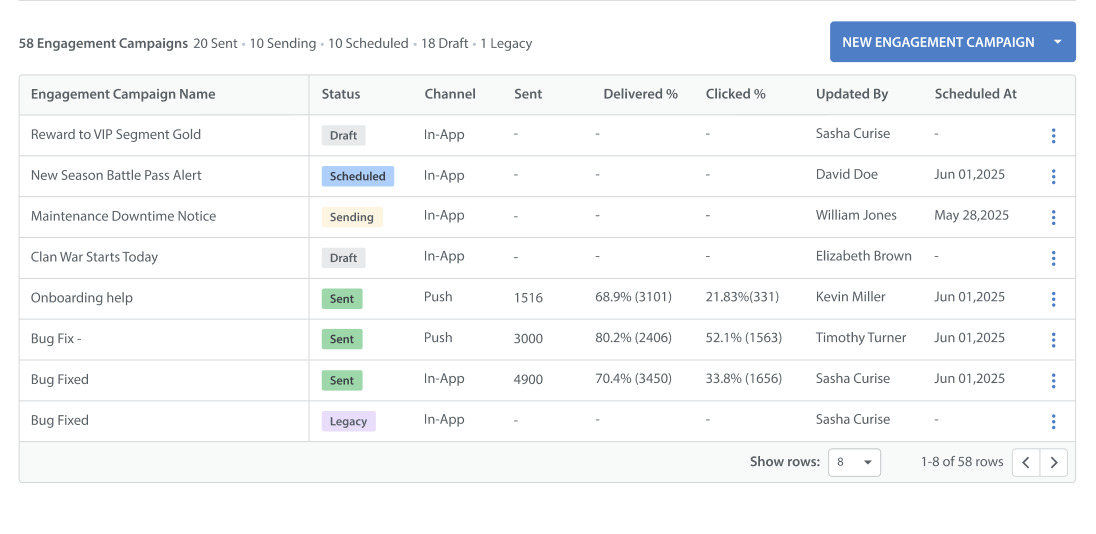
The Engagement Campaign list is categorized by the current Status of the campaign messages, which includes:
- Draft: Incomplete campaign messages that are still being built or edited.
- Scheduled: Finalized campaign messages queued for future delivery.
- Sending: Campaign messages that are actively being processed and delivered to your audience.
- Sent: Campaign messages that have successfully completed their delivery run.
- Legacy: Older configurations retained from previous versions of outbound support.
Creating Engagement Campaign
When you are ready to set up automated triggers and rules to scale your proactive support efforts, you can launch the Engagement Campaigns.
To create a new engagement campaign, follow these steps:
- Log in to your Helpshift domain as an administrator.
- On the Helpshift toolbar, navigate to Settings.
- Under WORKFLOWS, click the Proactive Engagement tab.
The Proactive Engagement screen appears. - Navigate to the NEW ENGAGEMENT CAMPAIGN button.
- Select the type of campaign channel you want to create: In-App message or Push message.
The Create New Engagement Campaign screen appears.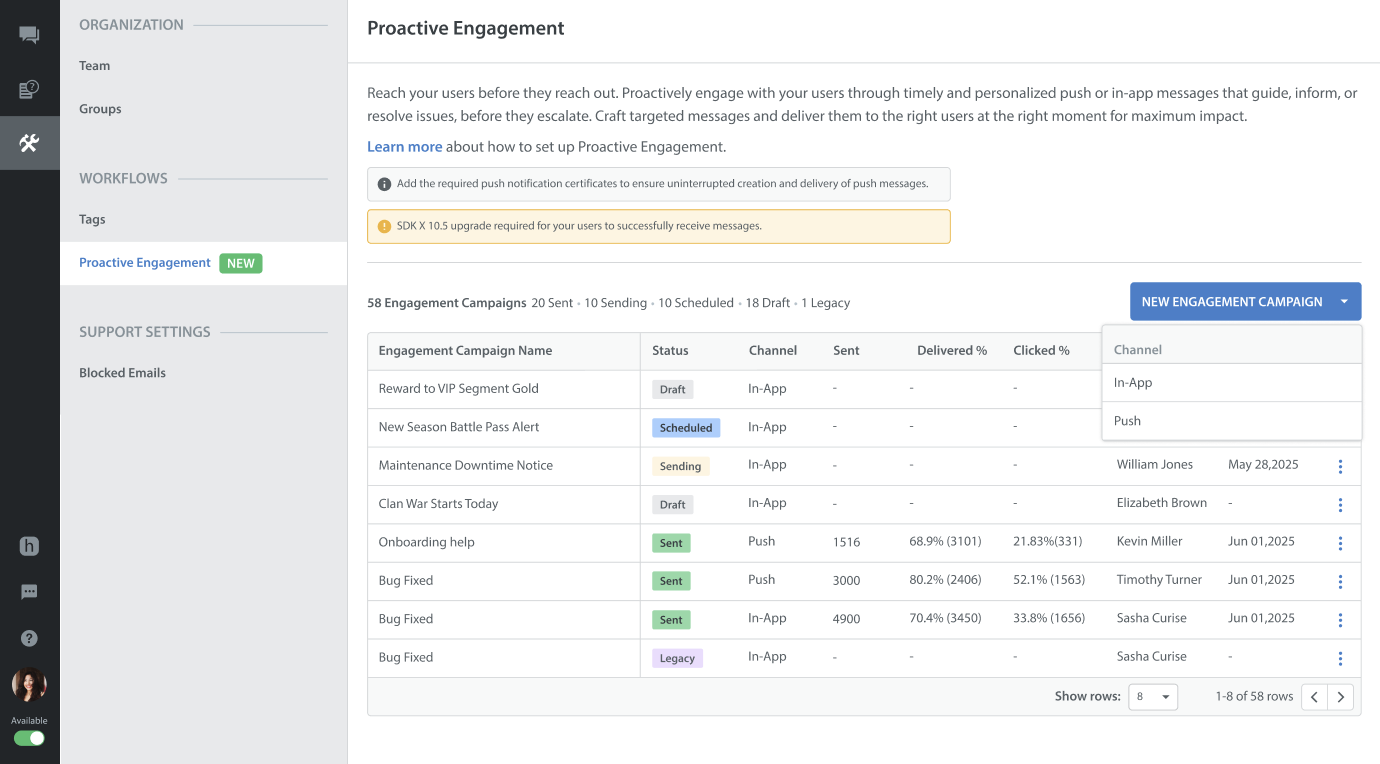
- Enter the Engagement Campaign Name.
- Select App that you want to configure the notification for.
- Choose the Platforms: iOS or Android.
- Add Campaign Context Note (Optional).
A brief description or goal of the campaign, visible only to your team.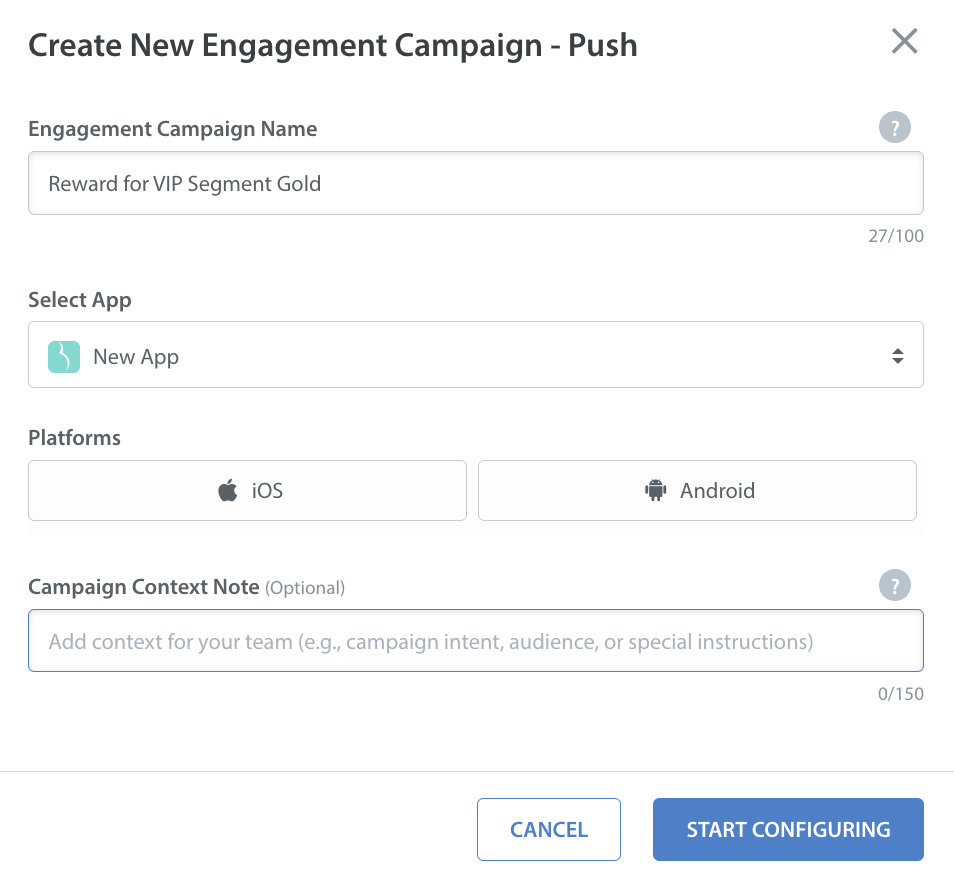
- Click START CONFIGURING.
This will open the 4-step configuration process, where you will design your content (Push or In-App), set your audience targeting rules based on user behavior or tags, and schedule your message delivery. Learn more about Configuring Engagement Campaigns.
Editing Engagement Campaign
If you have an engagement campaign currently in Draft status, you can easily reopen it to resume your work.
To edit a campaign message, follow these steps:
- Navigate to the Campaign message you want to edit.
- Click the More Options button (⋮).
- Click Edit Campaign.
This will open the Proactive Engagement configuration screen.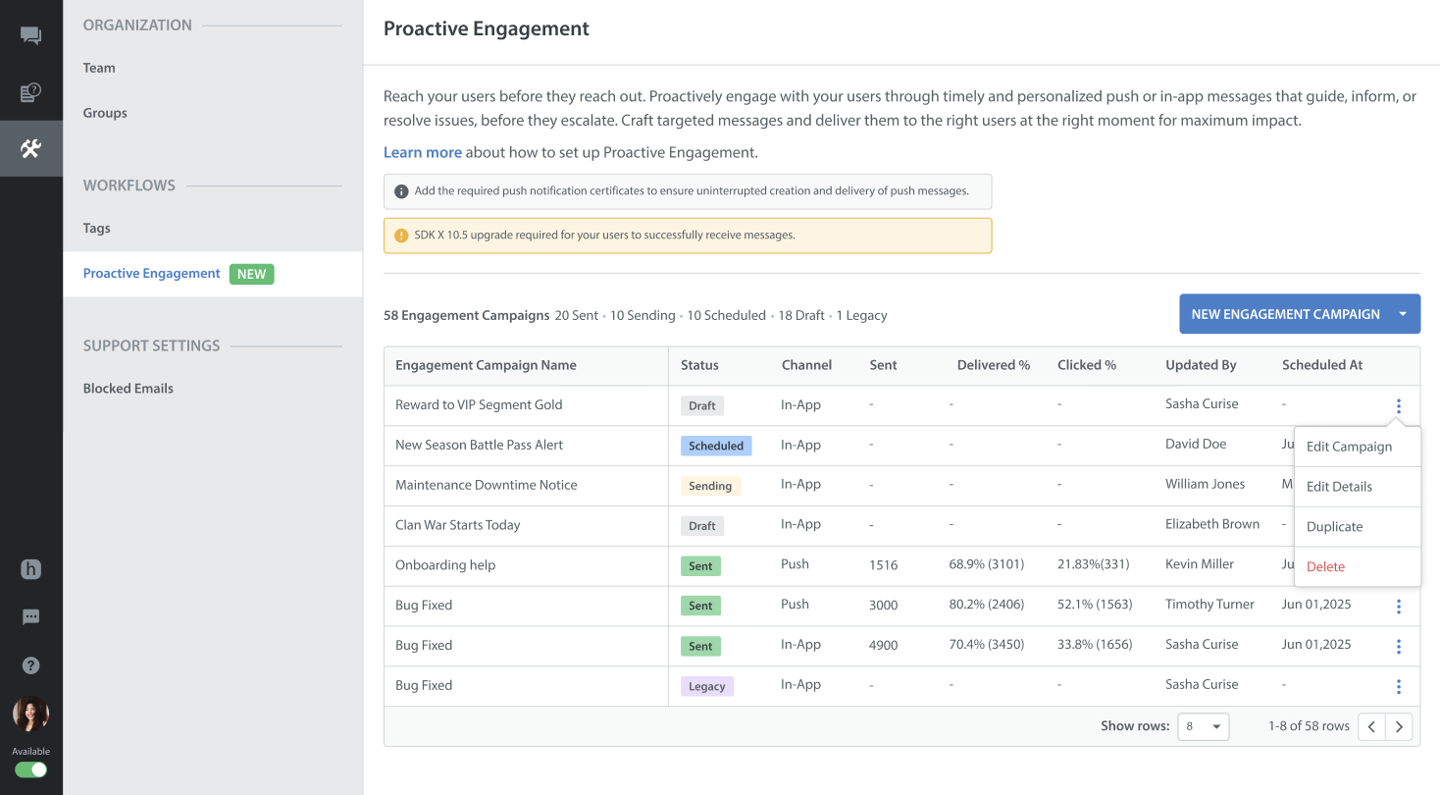
- If you want to edit the details of the Engagement Campaign, click Edit Details.
Alternatively, you can also open an engagement campaign in draft state and click the Settings icon next to the engagement campaign name to edit its details.
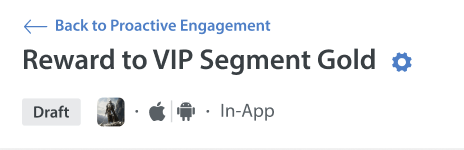
Note: You cannot edit a Campaign message once it has been sent. It can only be viewed.
Duplicating Engagement Campaign
You do not need to build every engagement campaign from scratch. If you have a successful past campaign message, such as a standard VIP welcome message, you can duplicate it.
To duplicate a Campaign message, follow these steps:
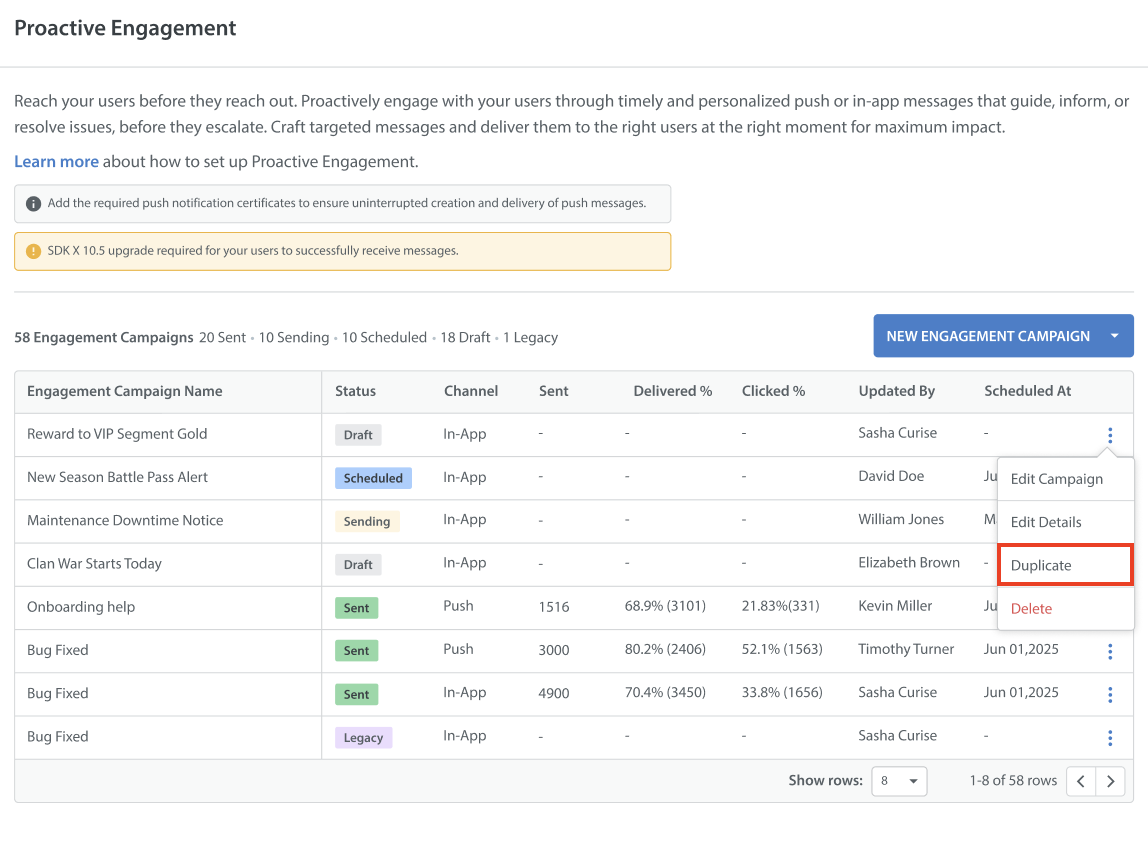
- Navigate to the Campaign message you want to edit.
- Click the More Options button (⋮).
- Click Duplicate.
Deleting Drafts
To maintain a clean and organized dashboard, you can permanently remove any unwanted or canceled campaign messages. Selecting the delete option will completely erase the drafted campaign message configuration from your list view.
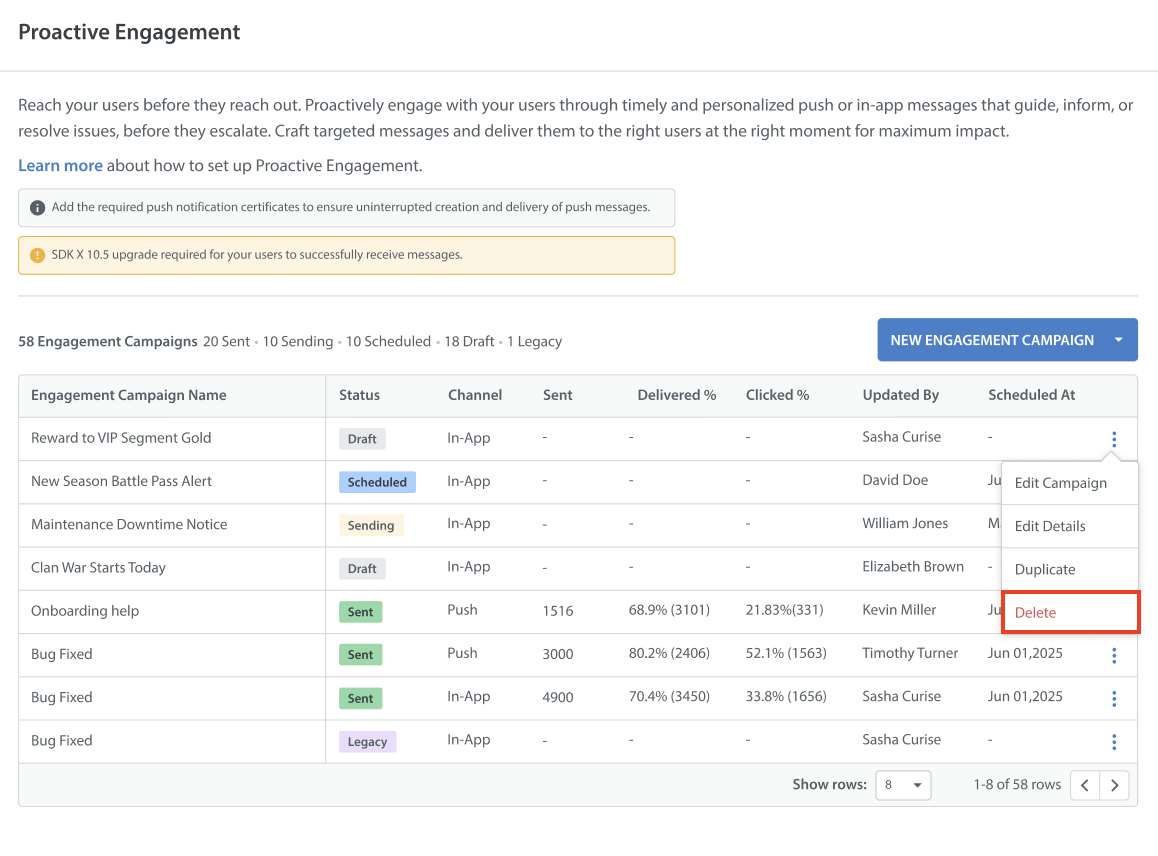
Note: You can only delete campaign messages in the Draft state.
Handling Legacy Setup
If you used previous iterations of the Outbound Support feature, your older configurations are safely preserved and labeled in the list view under the Legacy status. You can use the menu options to review these historical setups as your team transitions fully to the new Engagement Campaigns.
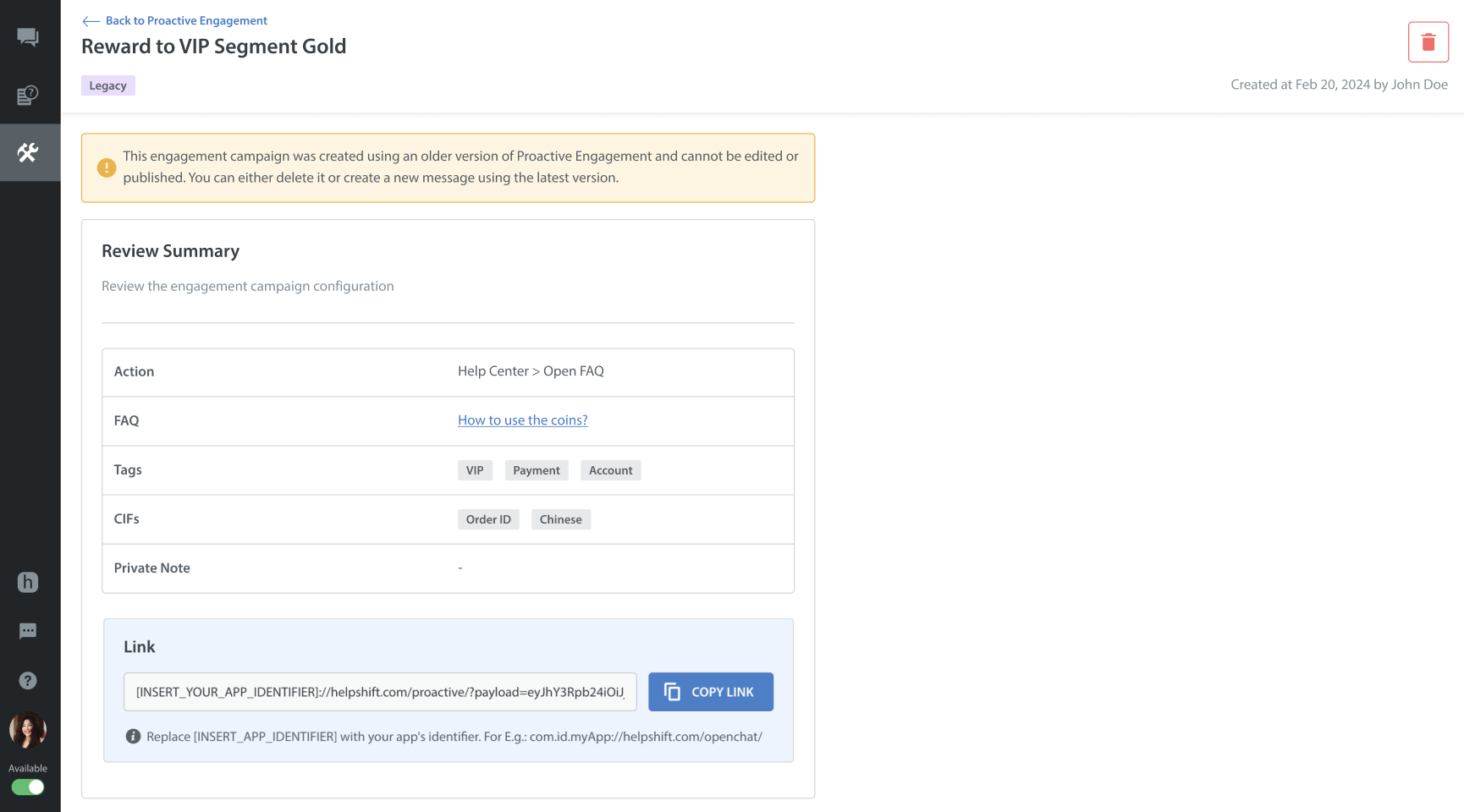
Note: Legacy configurations are read-only. While they cannot be edited or duplicated into new engagement campaigns, any active campaigns will continue to run.