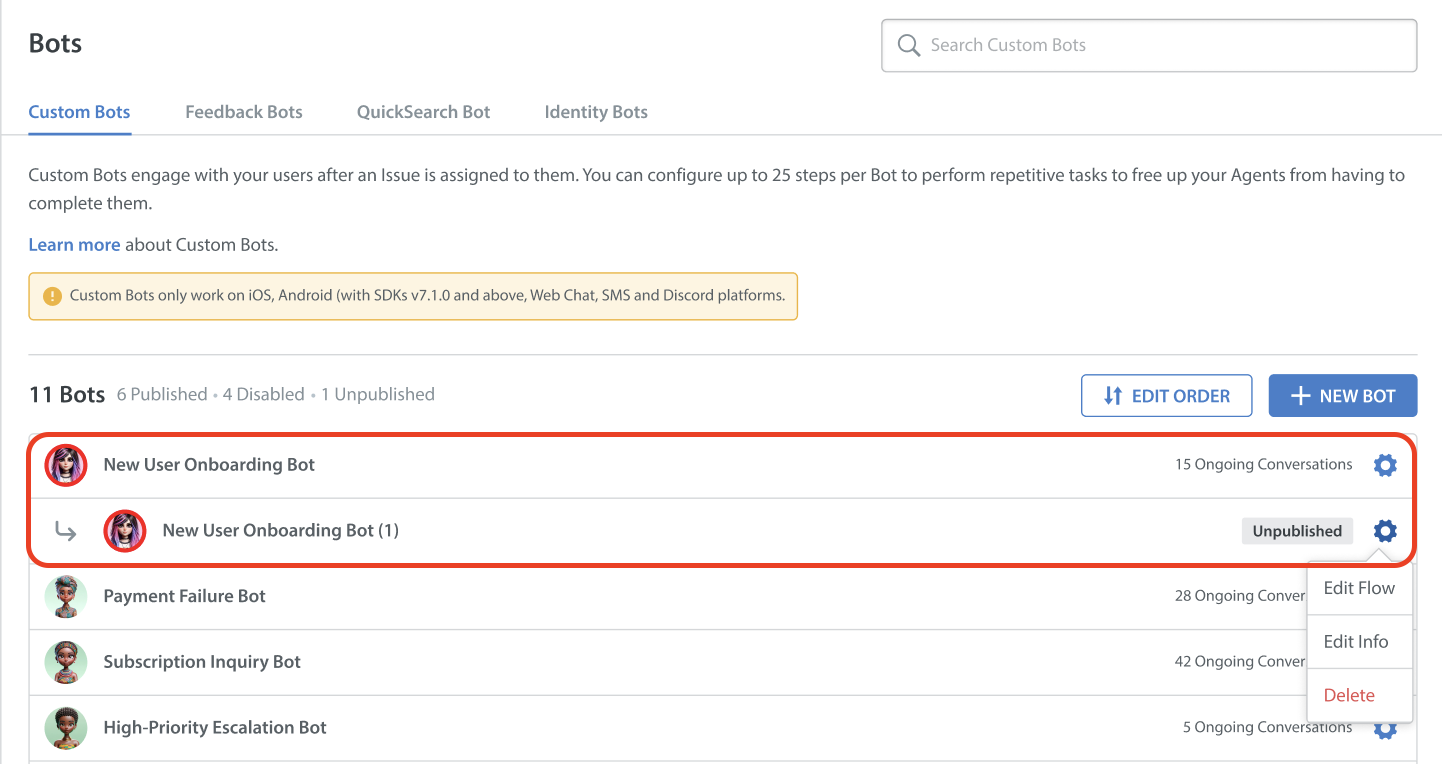
You cannot edit a Custom Bot after it is published. To accomplish the same result as editing a published bot, you can follow these steps. Publishing the duplicate bot will automatically replace the existing bot everywhere.
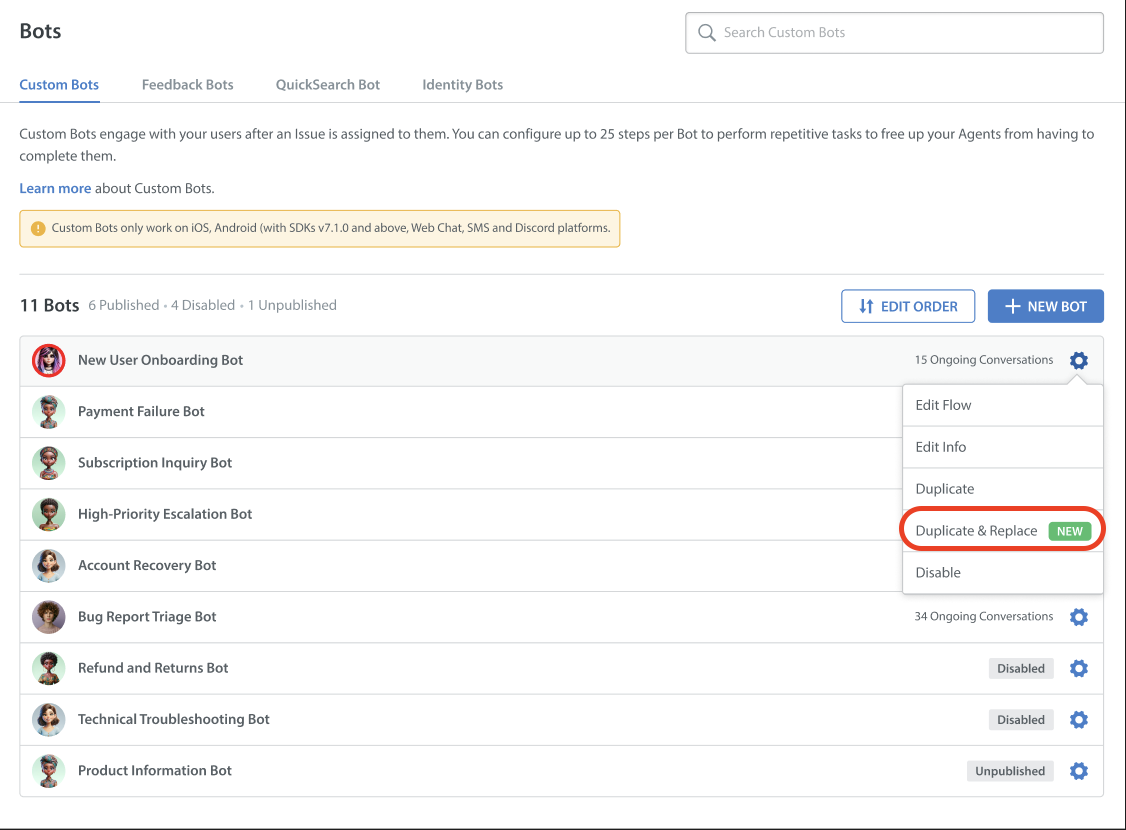
- Navigate to Settings > WORKFLOWS > Bots.
- Click the Settings icon of the bot you want to duplicate and replace.
- Click on Duplicate & Replace.
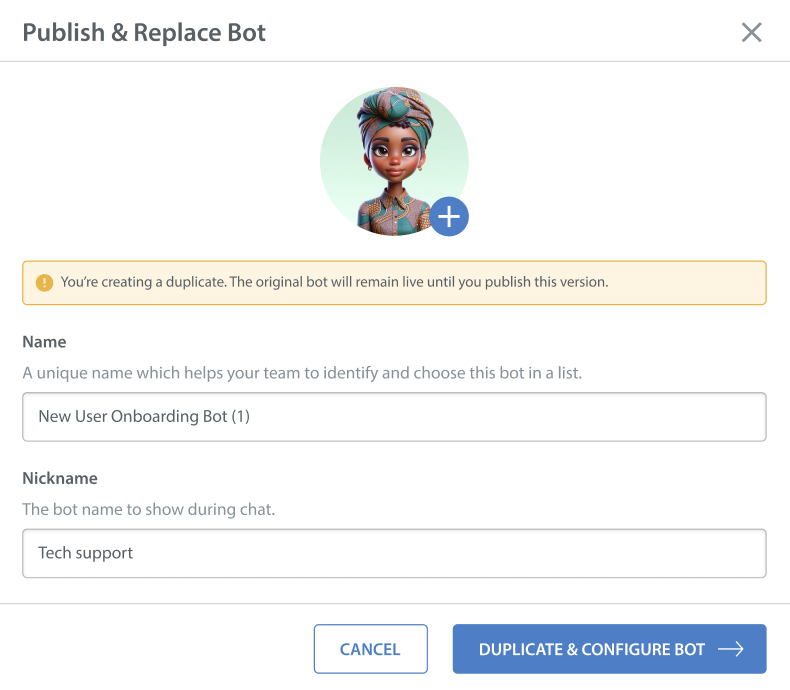
- Update the bot name and nickname accordingly.
- Click DUPLICATE AND CONFIGURE BOT.
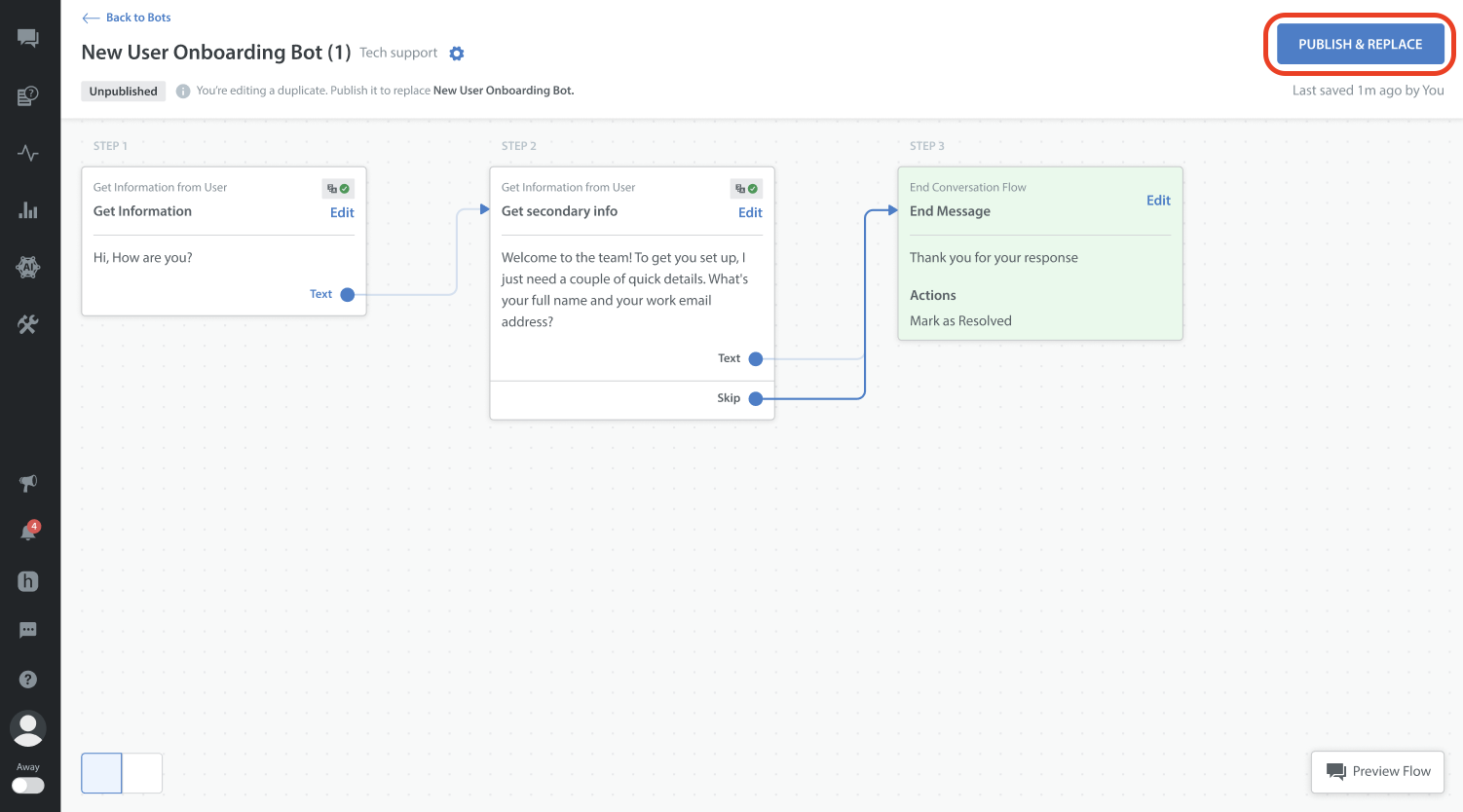
- Make the changes to the bot. Click on PUBLISH & REPLACE.
The Publish & Replace pop-up appears for confirmation. - Click PUBLISH & REPLACE.
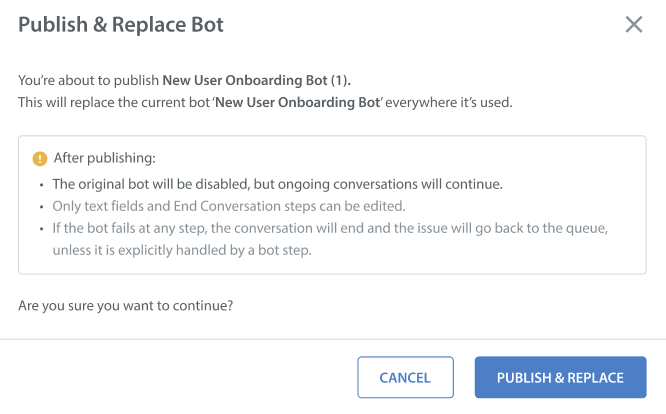
It will automatically disable the old bot and replace it with the new one in all places.
Note:
- If you duplicate and replace a bot and keep it unpublished, it will appear as a linked bot to the original until it is published.
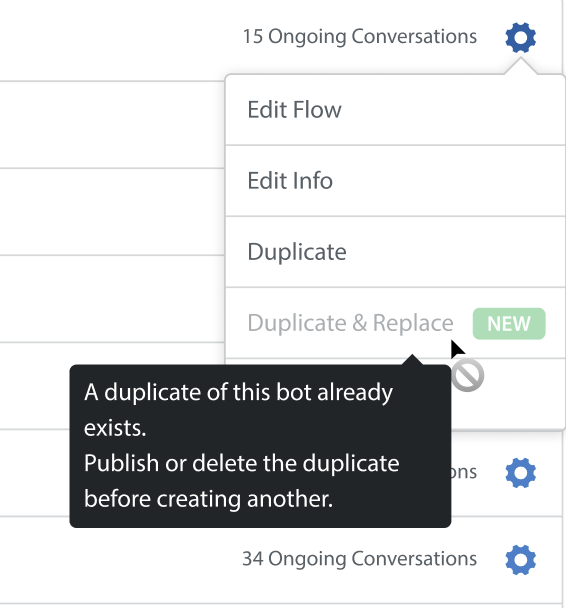
- If the duplicate bot already exists, you will not be able to duplicate and replace a bot.
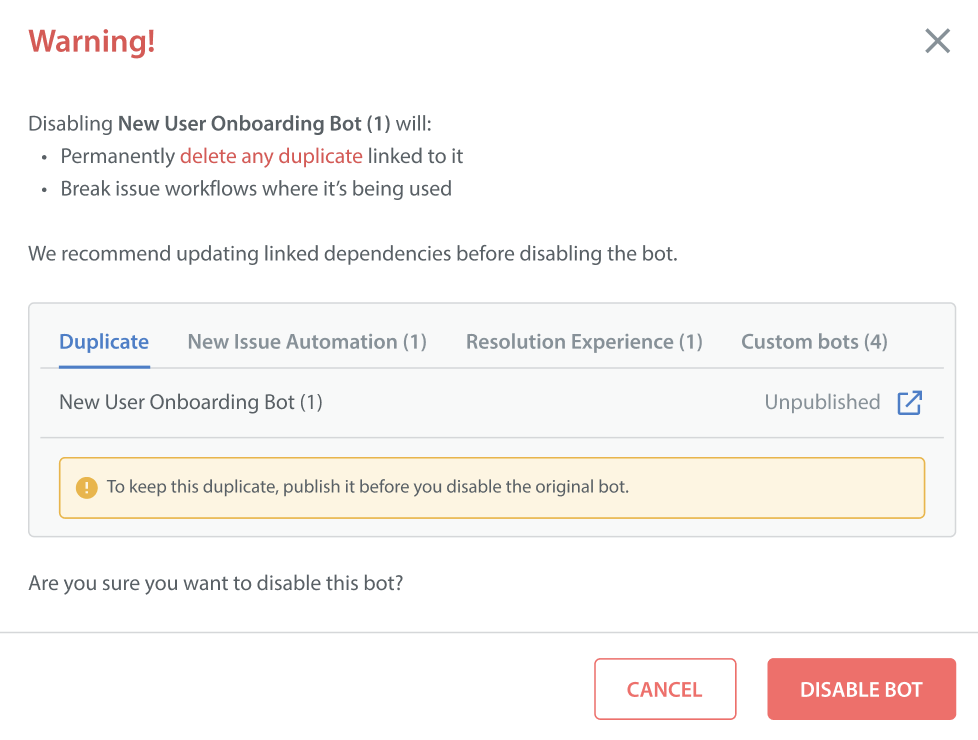
- If you try to disable the original bot without publishing the duplicate bot, its duplicate bot and the workflow will be deleted along with the bot.
- When two or more of your brand's Helpshift administrators attempt to modify a custom bot at the same time, some edits may be lost. We recommend that your administrators work on bots at different times.