
Agents can choose the language they prefer to read and write messages in. When you click Translate, Language AI translates messages between agents and end users in the Helpshift dashboard.
Set your Default LAI Language
To configure the default language for Language AI, follow these steps:
- Log in to the Helpshift dashboard.
- Click your Profile > Account Settings & Privacy.
The Account Settings page appears.
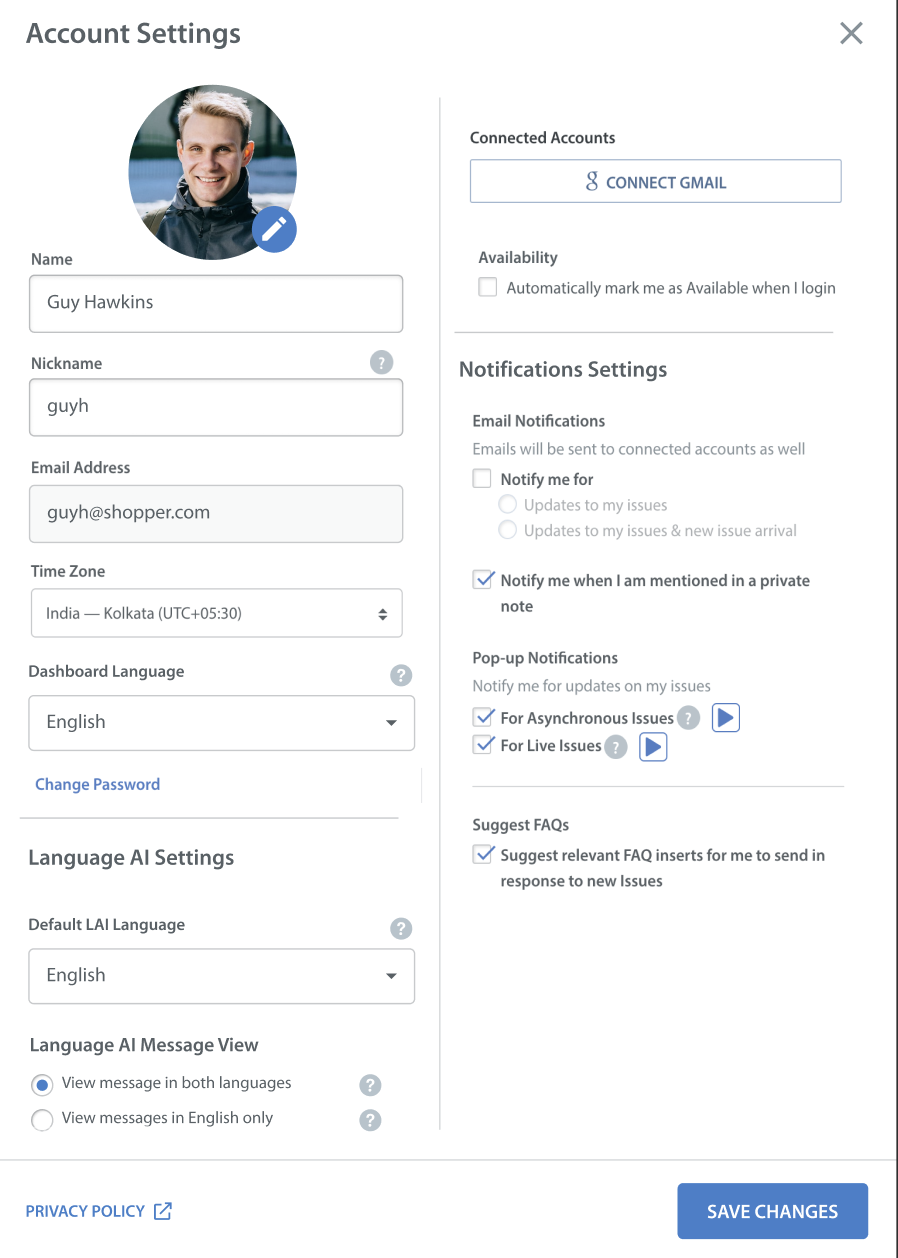
- Under Language AI Settings, select a Default LAI Language (Agent language).
- English
- Japanese
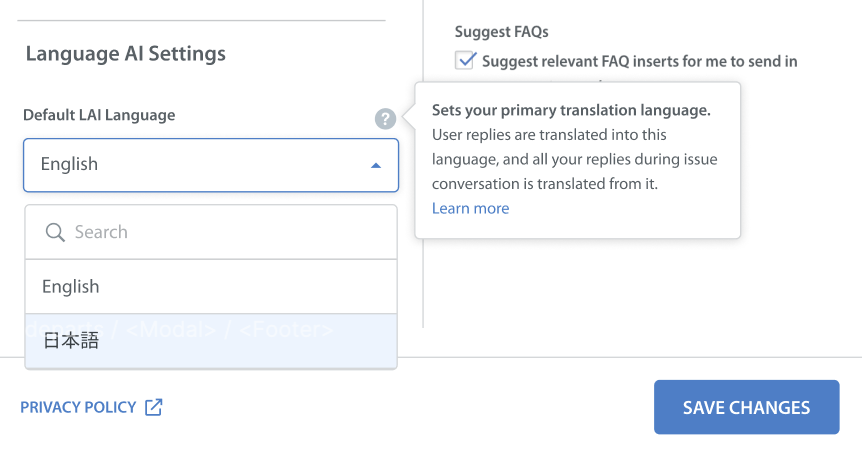
- Click SAVE CHANGES.
Note: The Default LAI Language is currently applied to Issue conversations.
Message Display Options
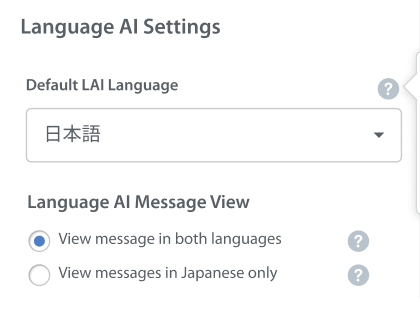
Under Language AI Message View, choose how translated messages appear in conversations.
- View message in both languages - Shows the original and translated versions of the message.
- View messages in English only - Shows translated message only.
Language AI in Issue Conversations
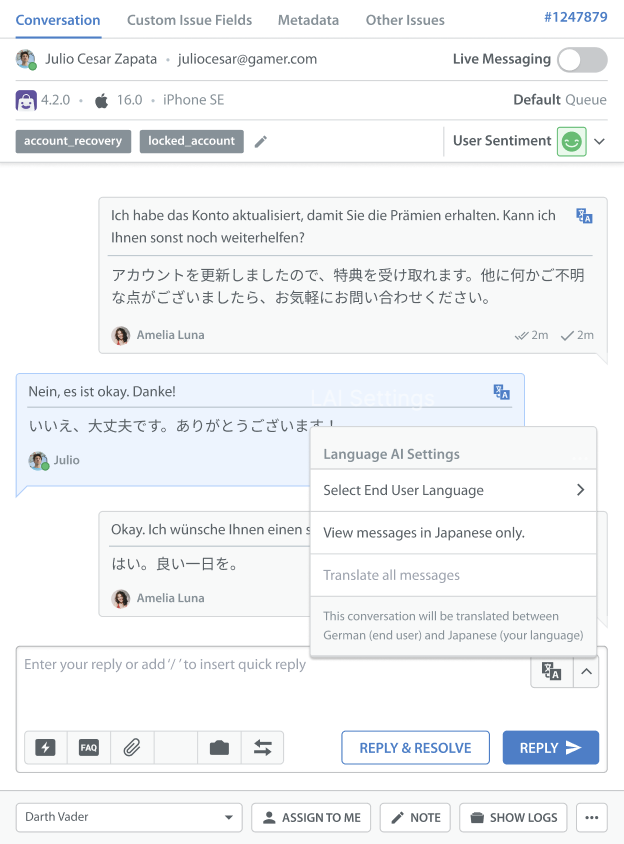
In Agent-User conversations, all message translations will be displayed within a specific issue. Conversation-level message view settings are temporary and reset based on the profile-level preference.
- Incoming user messages are translated from the end user’s language into the agent’s selected LAI language.
- Agents can type replies only in the selected LAI language (English or Japanese). Outgoing messages are translated into the end user’s language when sent.
- Writing replies in a language other than the selected LAI language may affect translation accuracy.
- Translation output is limited to supported LAI languages only.
Note: Currently, only English and Japanese are supported. Stay tuned for more language support.