
Administrators can set a Re-open Time Window to prevent End Users from reopening Issues after a certain time period.
To configure the Re-open Time Window for email and web issues:
- Navigate to Settings → Workflows → Re-open Time Window.
- You will need to configure the Re-open Time Window for Email and Web Support Portal separately.
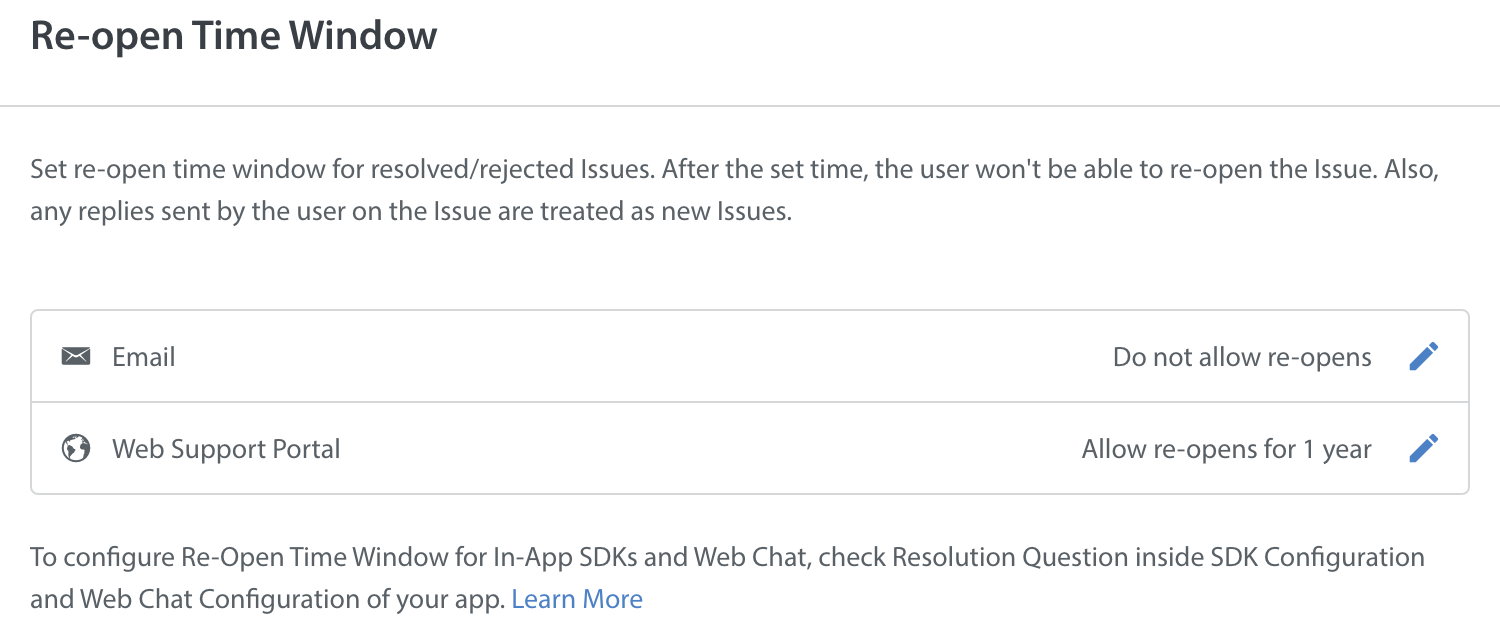
- To edit the ‘Re-open Time Window’, click the edit icon next to the channel you want to configure.
- On the Edit Re-open Time Window pop-up, select the ‘Do not allow re-opens’ option if you don’t want to allow your users to reopen ‘Resolved’ or ‘Rejected’ Issues.
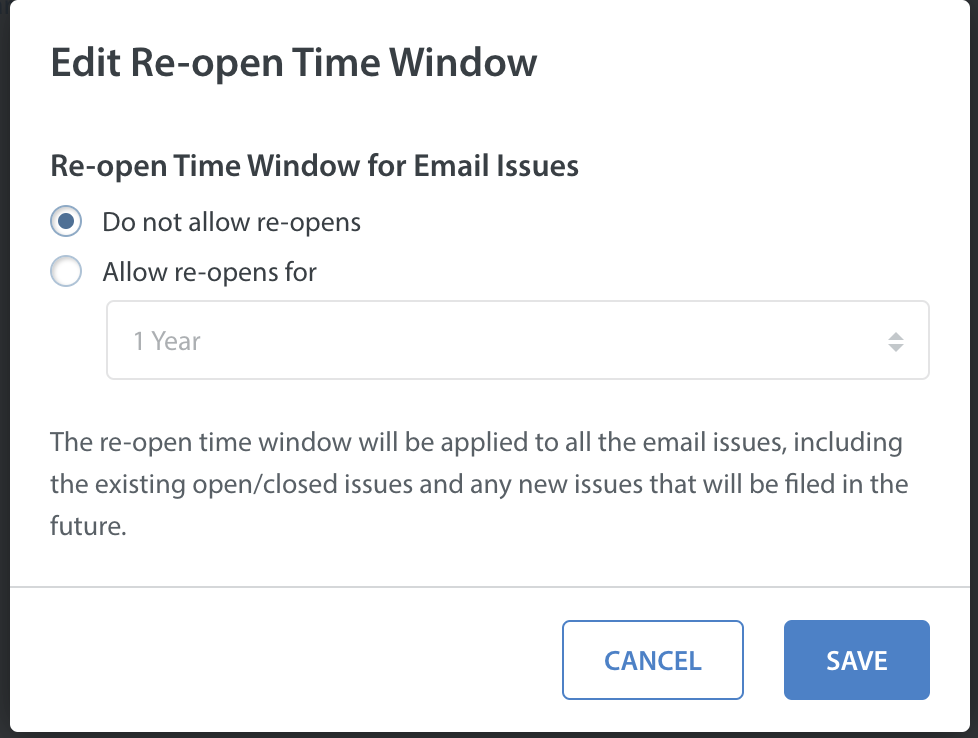
- Select the ‘Allow re-opens for’ option if you want to allow your users to reopen a ‘Rejected’ or ‘Resolved Issue’ for a specific period of time.
- You can select a value from the drop-down list of the following values:
- 6 Hours
- 12 Hours
- 1 Day
- 2 Days
- 3 Days
- 5 Days
- 7 Days
- 10 Days
- 15 Days
- 20 Days
- 30 Days
- 2 Months
- 6 Months
- 9 Months
- 1 year
- Click ‘Save’.
The Re-open Time Window timeframe is applied to both ‘Resolved’ and ‘Rejected’ issues. When the Re-open Time Window is changed multiple times, the new changes will impact previously expired Issues.
Note: The default window is one year for ‘Resolved’ or ‘Rejected’ issues. A User can reopen ‘Resolved’ or ‘Rejected’ issues before May 7, 2019, until May 7, 2020.
To configure the Resolution Question Time Window for SDKs/Web Chat:
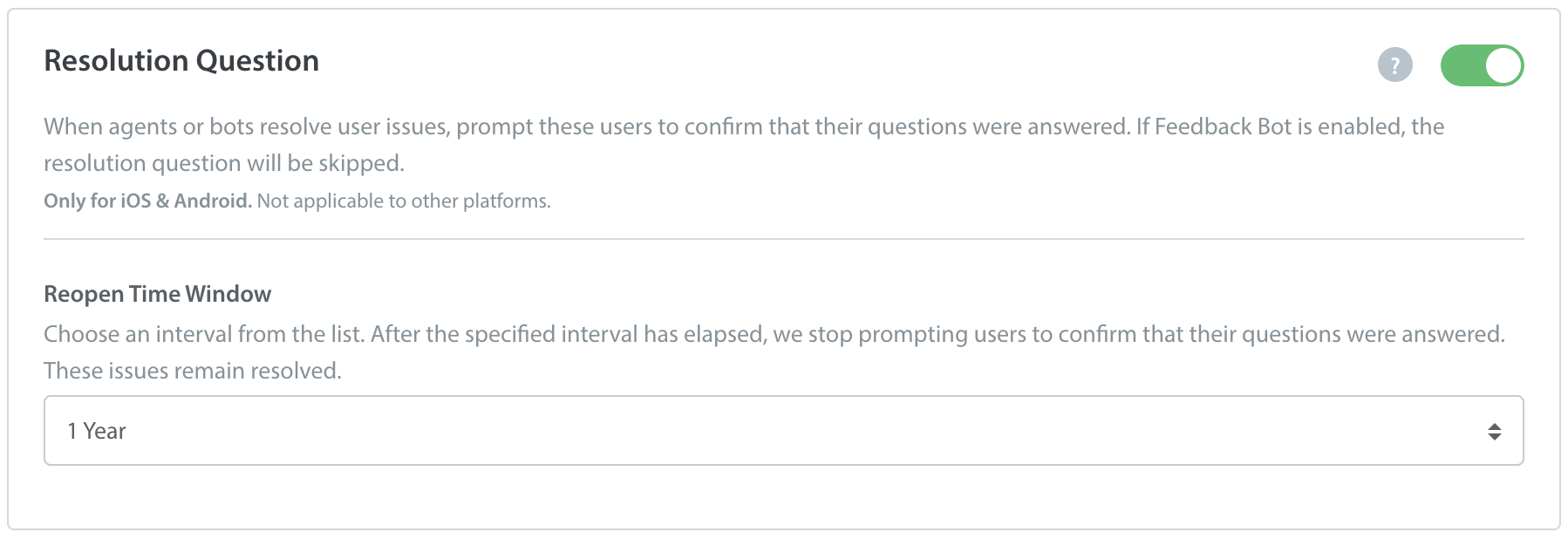
- You will need to configure the Re-open Time Window for SDK and Web Chat in their respective App level configure settings.
- The time window applies only when the Resolution Question toggle is enabled.
- By default, the time window is set to 1 Year. You have the option to change the value from the drop-down to any of the following values:
- 6 Hours
- 12 Hours
- 1 Day
- 2 Days
- 3 Days
- 5 Days
- 7 Days
- 10 Days
- 15 Days
- 20 days
- 30 Days
- 2 Months
- 6 Months
- 9 Months
- 1 year
- Click ‘Save & Publish’ in the top right corner.
Note: If the expiry time period is set to less than 1 day, we recommend that you enable Push Notification.
The Resolution Question Expiry Time Window is applied to issues ‘Resolved’ after the time window is set. If the Re-open Time Window is adjusted multiple times, the new changes will not have any impact on issues that have already expired. The end-user will not see the resolution question after the expiry time window has passed.