
Configure Push and In-app notifications
Note: All the public APIs in the SDK should be called after initializing the SDK via Helpshift installWithPlatformId API
Notifications can be sent to your users when:
- You or your support agents reply to an issue submitted by them
- You send a Proactive Engagement notification targeting the user
On SDK 10.6.0 and above, replies from agents and bots can be shown as rich support push notifications.
Setting push notifications involves configuring both the Helpshift admin dashboard as well as the client app.
Configure push notifications in the Helpshift admin dashboard
Configure Helpshift's push notification service in the Helpshift admin interface
To enable the Helpshift system to send push notifications to your users, you will have to add iOS as a platform in your app (if you have not added it already). Then click on the push notifications option.
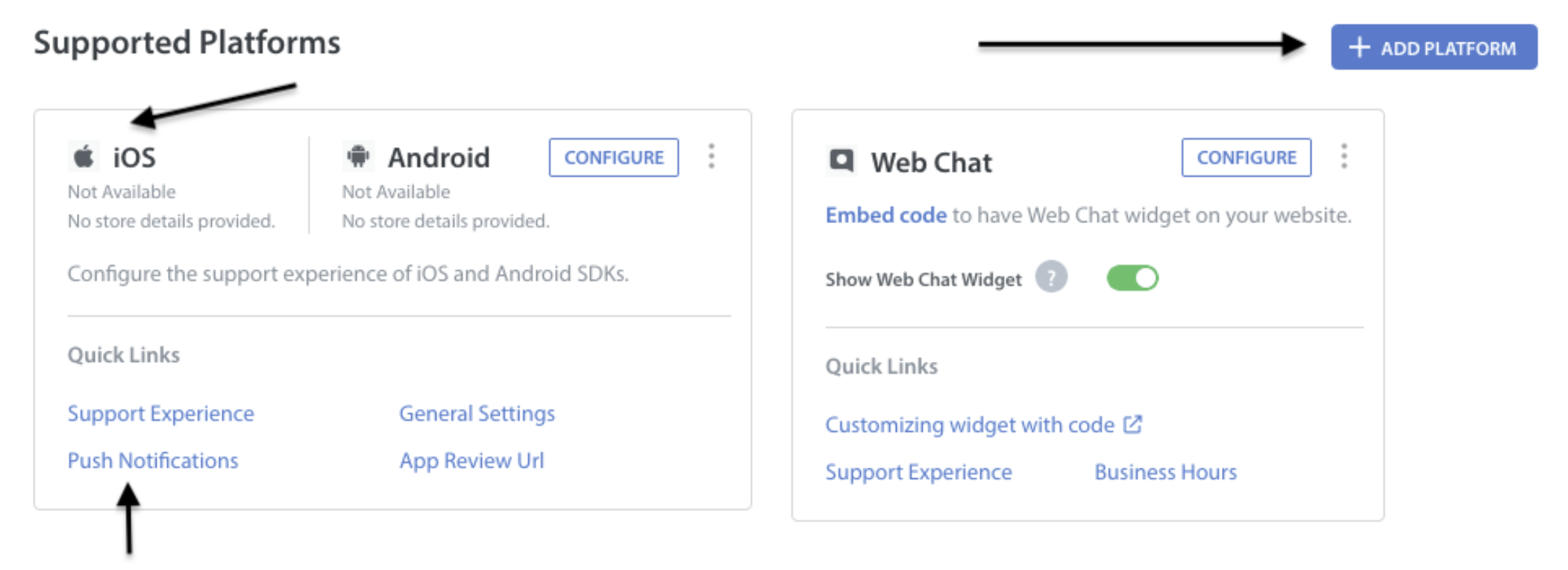
In order to send push notifications to all iOS mobile apps and games, you need to establish an authenticated connection with the Apple Push Notification Servers (APNs). There are two methods you can use to authenticate:
- The newer token-based method (.p8)
- The older certificate-based method (.p12)
Token-based method (.p8)
The token-based method is faster because it offers a stateless way to communicate with APNs. It doesn't require APNs to look up the certificate or any other information related to the provider server.
We now support the newer token-based .p8 key method, which allows you to send notifications to all your iOS apps and games using a single key. You can generate your .p8 key through your Apple developer account, as explained here.
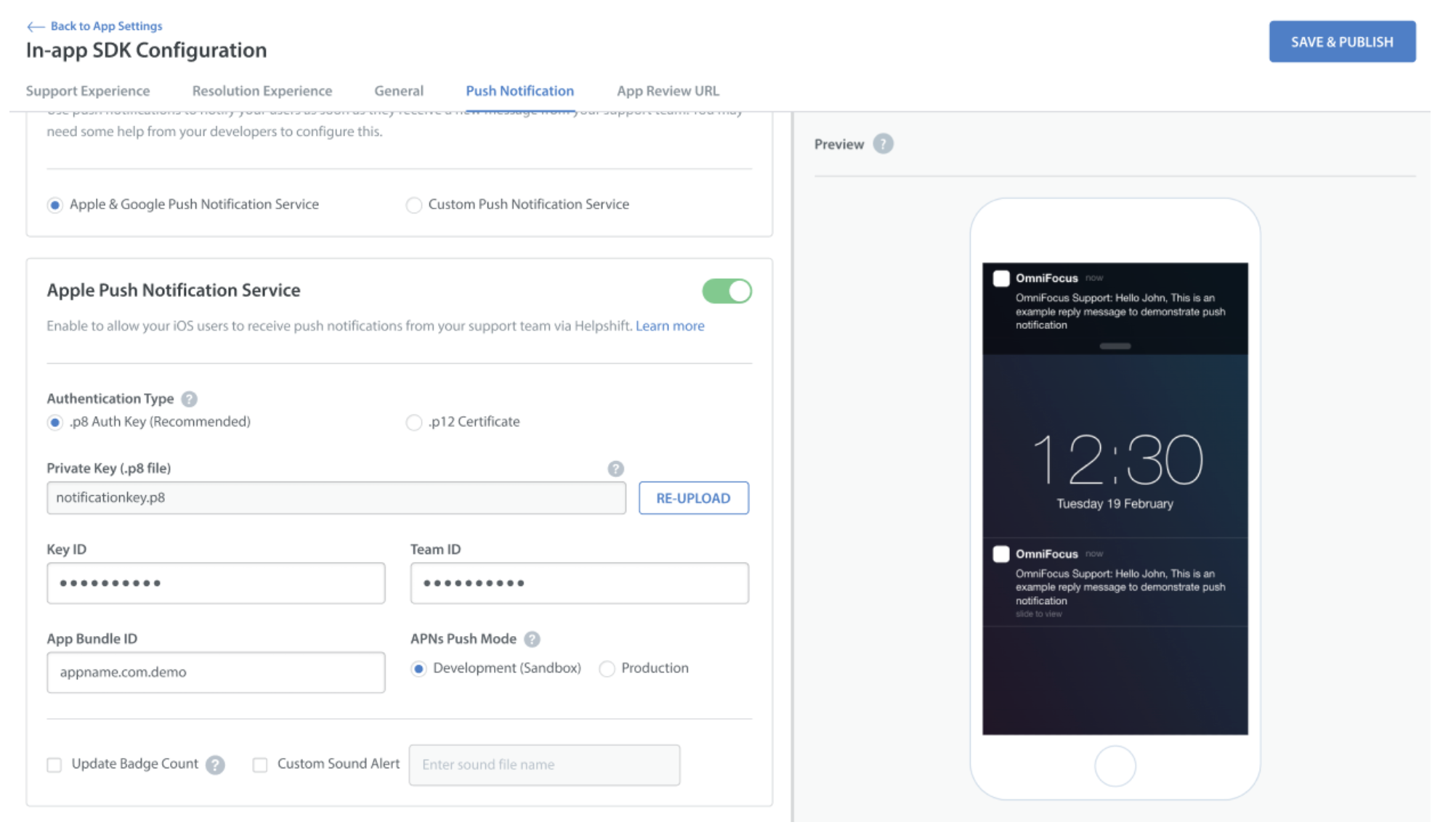
Here are the steps to configure iOS push notifications using .p8 keys:
- Go to Settings, then navigate to the APP SETTINGS section to choose the app you want to configure.
- On the App settings page, click on the CONFIGURE option next to In-app SDK.
- On the In-app SDK Configuration page, navigate to the Push Notification section.
- Enable the toggle for Apple Push Notification Service if not enabled. The app selects the p8 key authentication type by default when you enable the toggle for the first time.
- Upload the p8 key and fill in all the required details.
- Select the APNs push mode (Development/Production).
- Click on Save & Publish to save the changes.
Note
You can also switch from .p8 key to .p12 certificate method if required, by selecting .p12 in Authentication type and filling the details.
Certificate-based method (.p12)
You need to generate certificates for APNS on Apple's portal that you can later provide to Helpshift. This lets Helpshift send push notifications to your users. Apple has moved away from old type of certificates to Apple Push Notification service SSL. There is another option to create Apple Push Notification Authentication Key, but Helpshift does not support this option yet. It's also possible that you still have the old type of certificate that has not yet expired, this is also supported by Helpshift.
Apple provides two variations of Apple Push Notification service SSL
- Apple Push Notification service SSL (Sandbox)
- Apple Push Notification service SSL (Sandbox & Production)
After creating your certificate, download it. Double click on it to import it to the Keychain Access application. In the Keychain Access application, right click on the certificate that was just added, and click export it in .p12 format. Please provide a password while exporting the certificate since we do not accept empty passwords. (Note that if your development private key is not present in Keychain Access, you will not be able to export it in .p12 format.)
After export, login and upload the .p12 file in your app in the Helpshift admin panel. Provide the same password you used while exporting to .p12 format.
Please note that you need to use the same bundle identifier in the app as the one you used to create the APNS certificate.
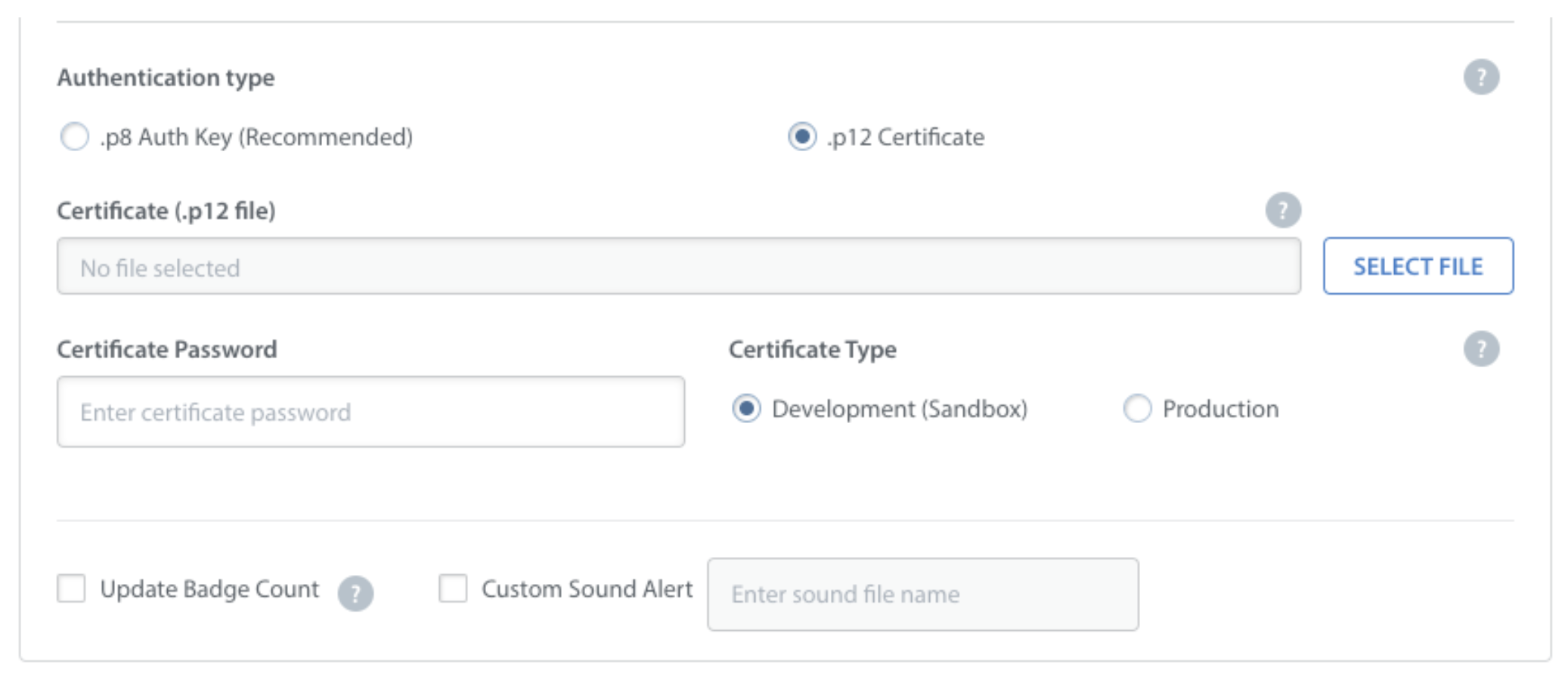
You can configure whether to send a badge or not, and sound alerts if you provided custom sounds bundled with your app to handle notifications. Save it and you're all set.
Development (Sandbox) mode vs. Production mode
When you build and run your app from Xcode, it is in development (Sandbox) mode. To test push notifications from Helpshift in this mode make sure you choose 'Development Mode' while uploading either of the above two certificate types.
When you publish your app and download from App Store, your app is in Production mode. To test push notifications from Helpshift in production mode make sure you choose 'Production Mode' while uploading a certificate of 'Apple Push Notification service SSL (Sandbox & Production)' type. Sandbox mode certificate will not work on a production environment.
We do not support using the same certificate for both sandbox and production apps. In these cases we recommend you create two separate apps on our dashboard, one in 'Production mode' and the other in 'Development mode'. While testing please use the credentials of the developement mode app. When you are ready to publish, please replace the credentials with those of the production level app.
Note
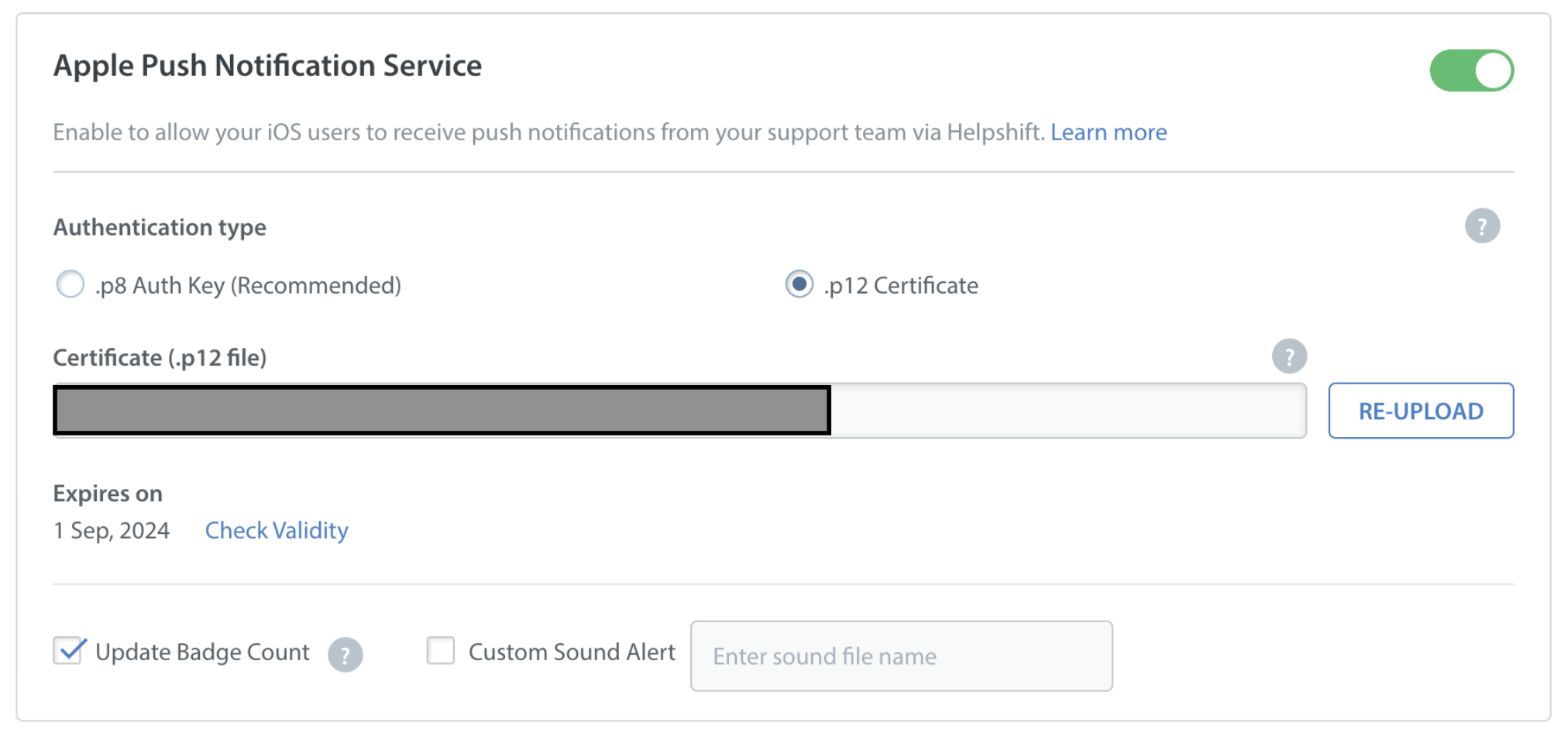
Your Push Certificate has an expiry date, as indicated in the below screenshot. Helpshift will not send you a reminder when your Push Certificate expires, so please make sure that your developer keeps a tab on the expiry date to reupload the Push Certificate.
Apple Notifications (iOS)
Helpshift supports Rich Push Notifications on iOS devices through Apple's Push Notification service (APNs).
On supported iOS devices, end-users can experience richer notifications with features such as:
- Conversation grouping: Multiple notifications from the same support conversation can appear together.
- Expanded message previews: Users can expand notifications to read longer agent messages.
- Media previews: Supported image attachments can appear as notification thumbnails.
- Attachment indicators: File attachments that cannot be previewed can display an appropriate indicator.
- Conversation status: Relevant issue status information can be displayed within the notification.
The appearance of the notification and available interactions depend on the iOS version and the device’s native notification capabilities.