To effectively manage conversations through Engagement Campaigns, your support team has specialized tools and context directly in the Agent Dashboard. When a user taps "Start Chat" on a Campaign message, agents have everything they need to pick up the conversation seamlessly.
Creating a Shared Smart View
To keep your outbound tickets organized and prevent them from getting lost in your general support queue, you can create a dedicated workspace.
Create a New Shared Smart View (e.g., "Outbound Tickets") using the Proactive Engagement is true filter. This provides your agents with an organized, dedicated workspace for managing the outbound tickets generated when a user selects the "Start Chat" action on a delivered message.
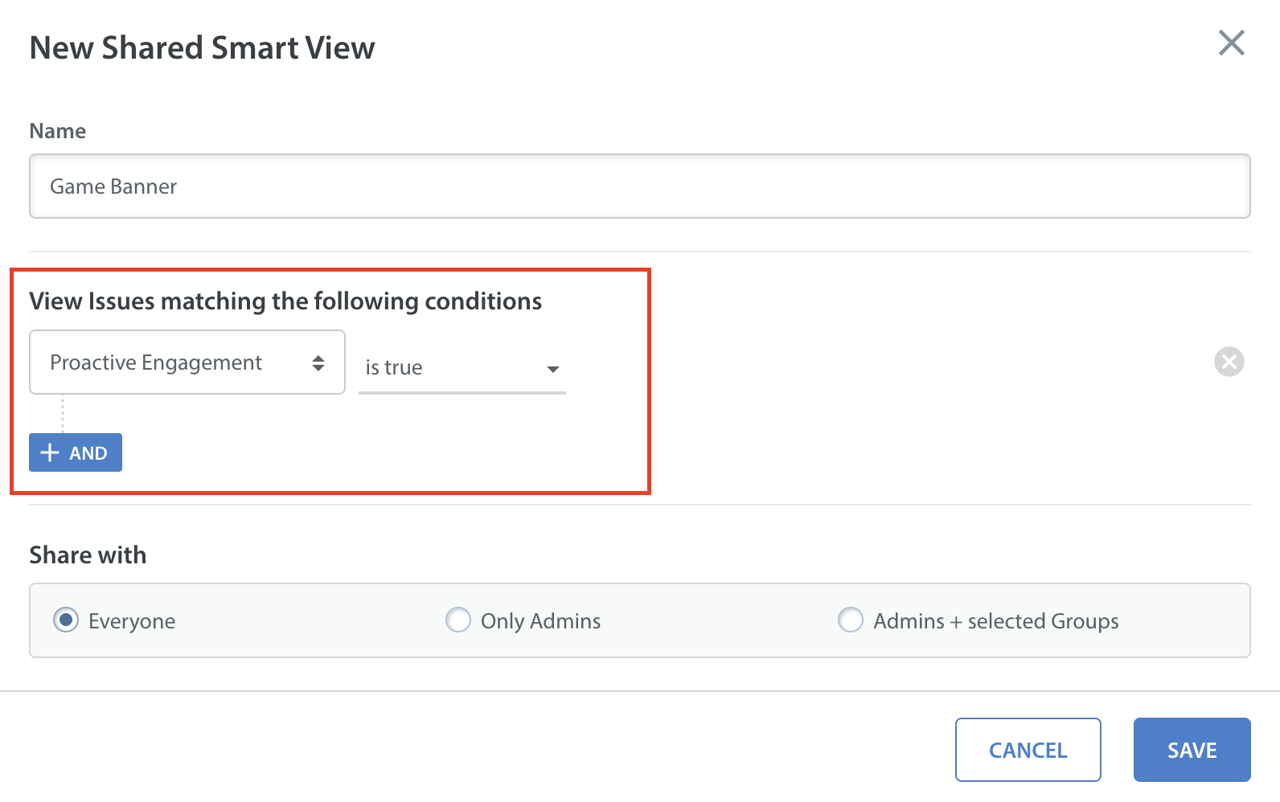
You can choose to share this view with Everyone, Only Admins, or specific Admins and selected Groups to ensure the right VIP agents or teams are handling these campaign responses.
Advanced Search and Saved Filters
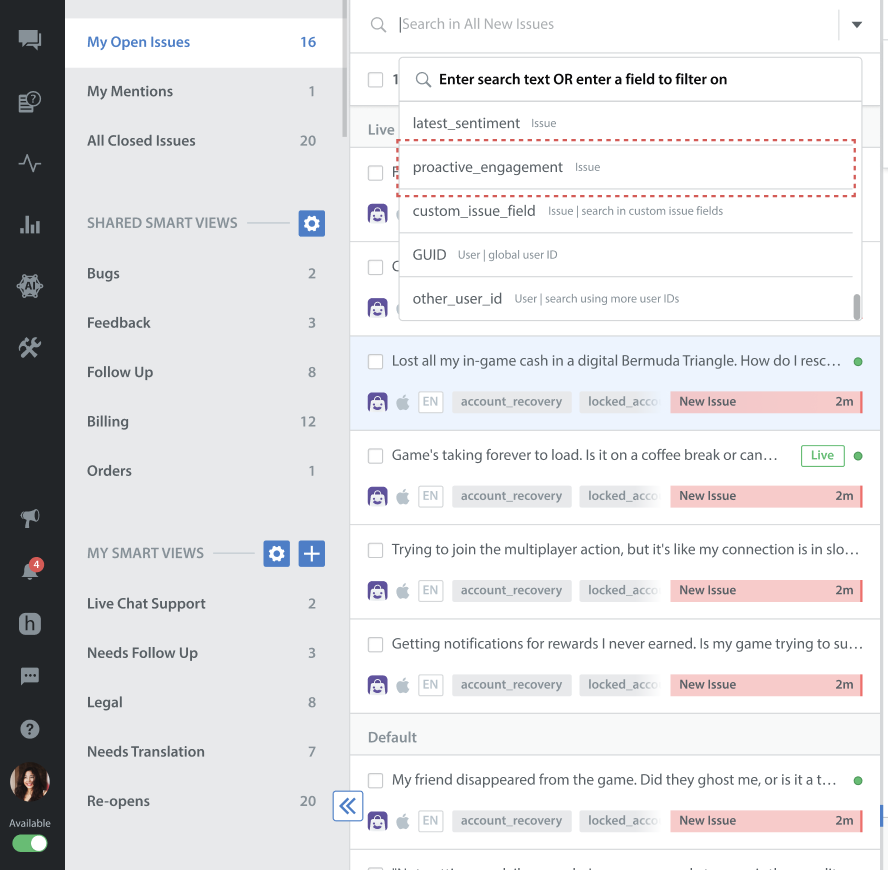
Agents and supervisors can easily filter the dashboard to find previous or active Engagement Campaign issues.
- Using the Advanced Search bar, apply the search query proactive_engagement: is_true.
- To save time in the future, you can save this specific search query.
- Once saved, it will be easily accessible under the My Filters dropdown menu.
Viewing Engagement Campaign Data in Issue Metadata
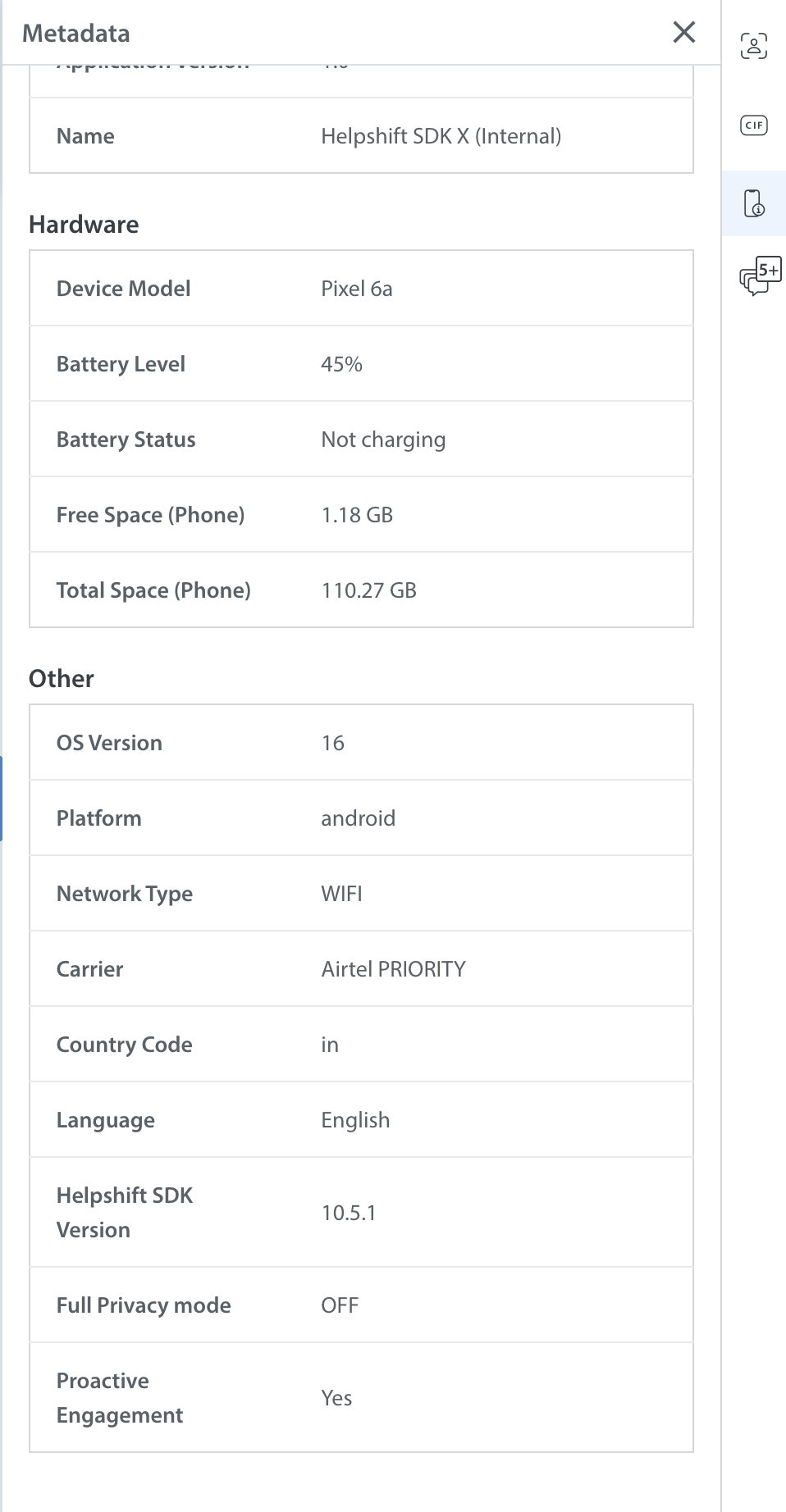
Agents can quickly verify if a ticket is from an outbound campaign by checking the user's metadata.
- Inside the Issue view, open the Metadata from the right side panel.
- Scroll down to the Other section, where you will see the Proactive Engagement Campaign attribute set to Yes.
Engagement Campaign Context in the Agent Conversation
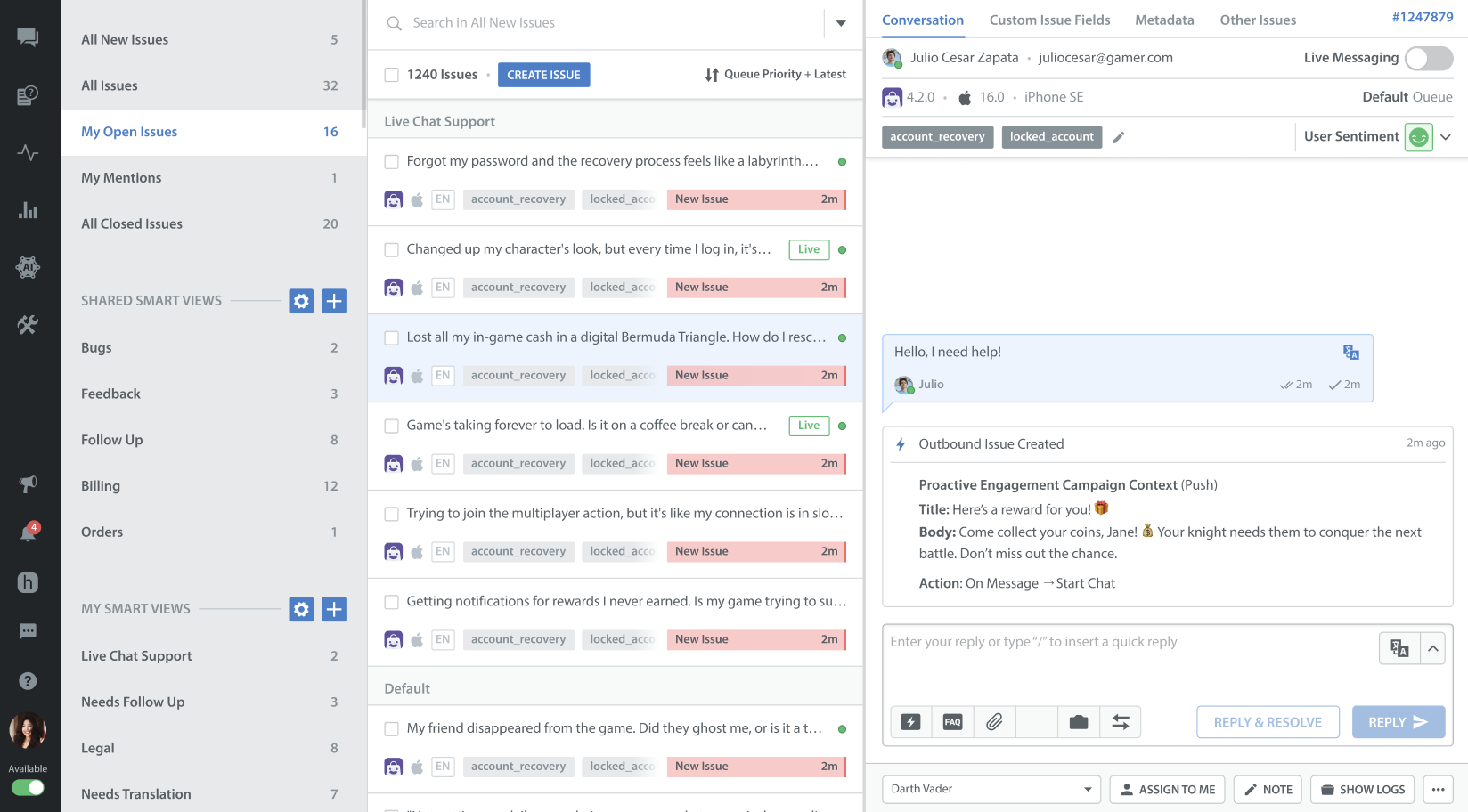
Agents do not have to guess why a user is chatting with them. The exact context of the proactive message is available directly in the conversation thread.
When a user initiates a chat from a campaign, an Outbound Issue Created system message appears in the chat timeline. This message displays the complete Proactive Engagement Campaign Message Context, including the message format (e.g., In-App - Modal), the exact Title and Body copy sent to the user, and the action the user took (e.g., Action: On Message -> Start Chat). This allows the agent to reply with full context immediately.
Tagging Engagement Campaign Issues
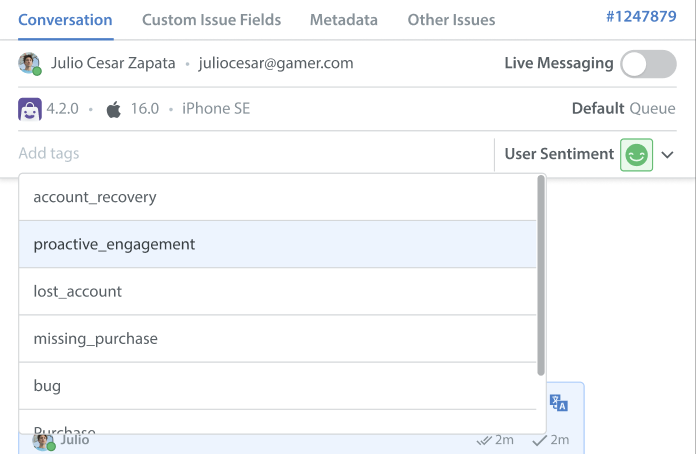
Agents can manually tag conversations for Engagement Campaigns.
Agents can click the Add tags field within the conversation view and select relevant tags from the dropdown menu to categorize the engagement.