
Procedures are granular, structured instructions designed to enable the Care AI Agent to resolve specific user queries consistently and accurately. These are the steps that the AI follows to address and resolve queries for specific use cases. Procedures can be configured to handle use cases such as Account Recovery, Refund Policy, and Report a Bug.
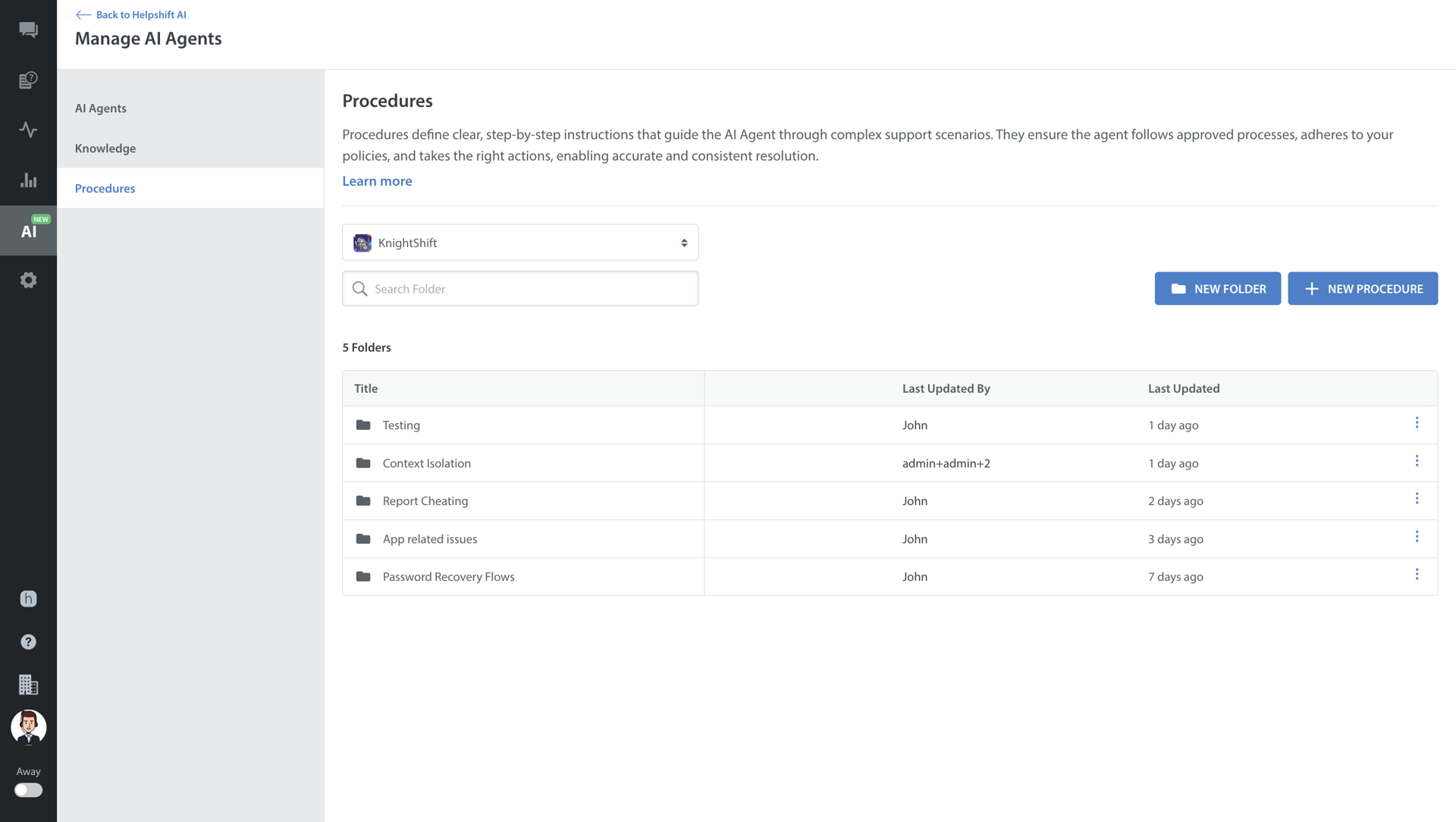
Each procedure row in the folder list displays specific columns: Title, Status, Used By (Agents) (the number of Care AI Agents currently using the procedure), Last Updated By, and Last Updated.
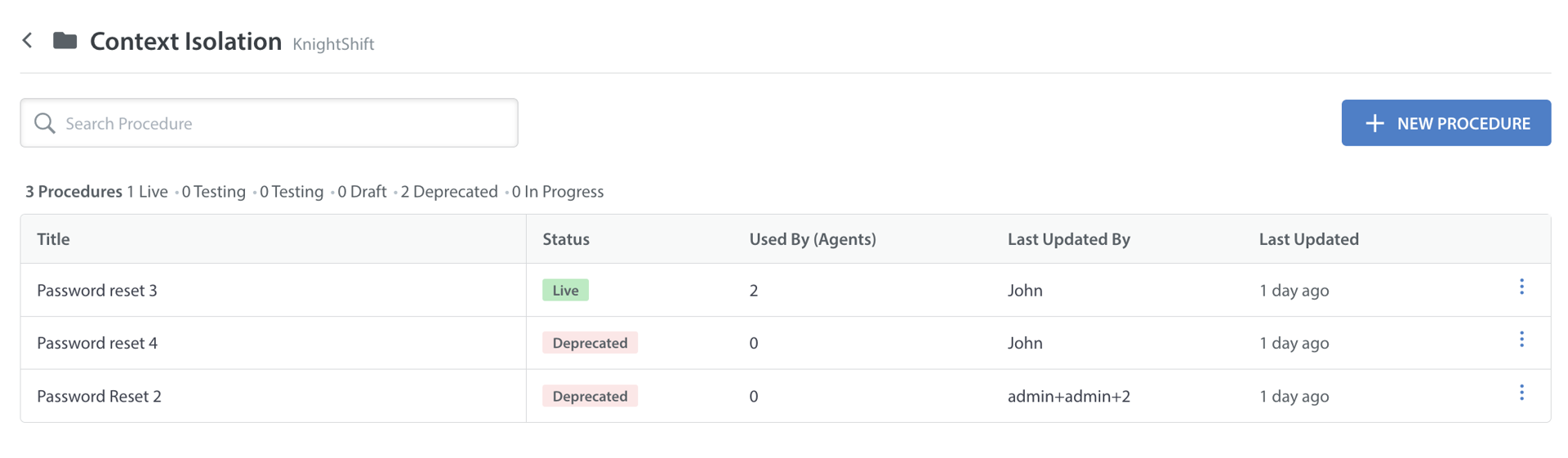
Procedures are organized within a defined hierarchy: App → Folder → Procedure.
Important:
Procedures must belong to a folder.
Folders exist within Apps.
Nested folders (folders inside folders) are not supported.
Creating a Procedure
To create a procedure, follow these steps:
- Log in to your Helpshift domain as an administrator.
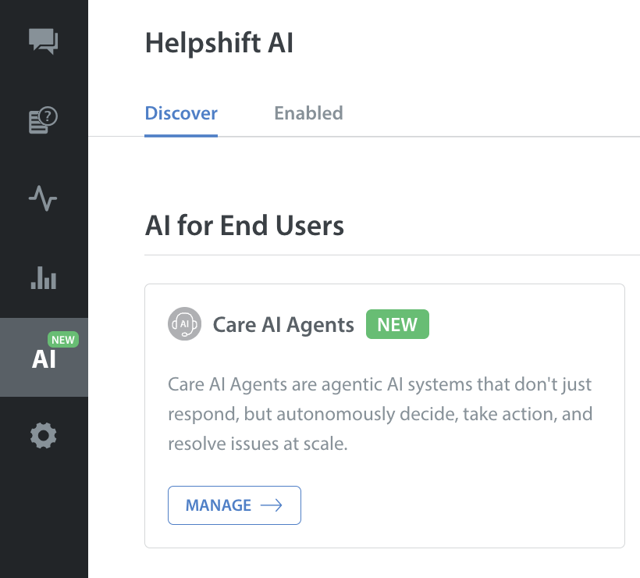
- On the Helpshift toolbar, click Helpshift AI.
- Navigate to Care AI Agents under AI for End Users.
- Click MANAGE.
The Manage AI Agents screen appears.
- Click Procedures.
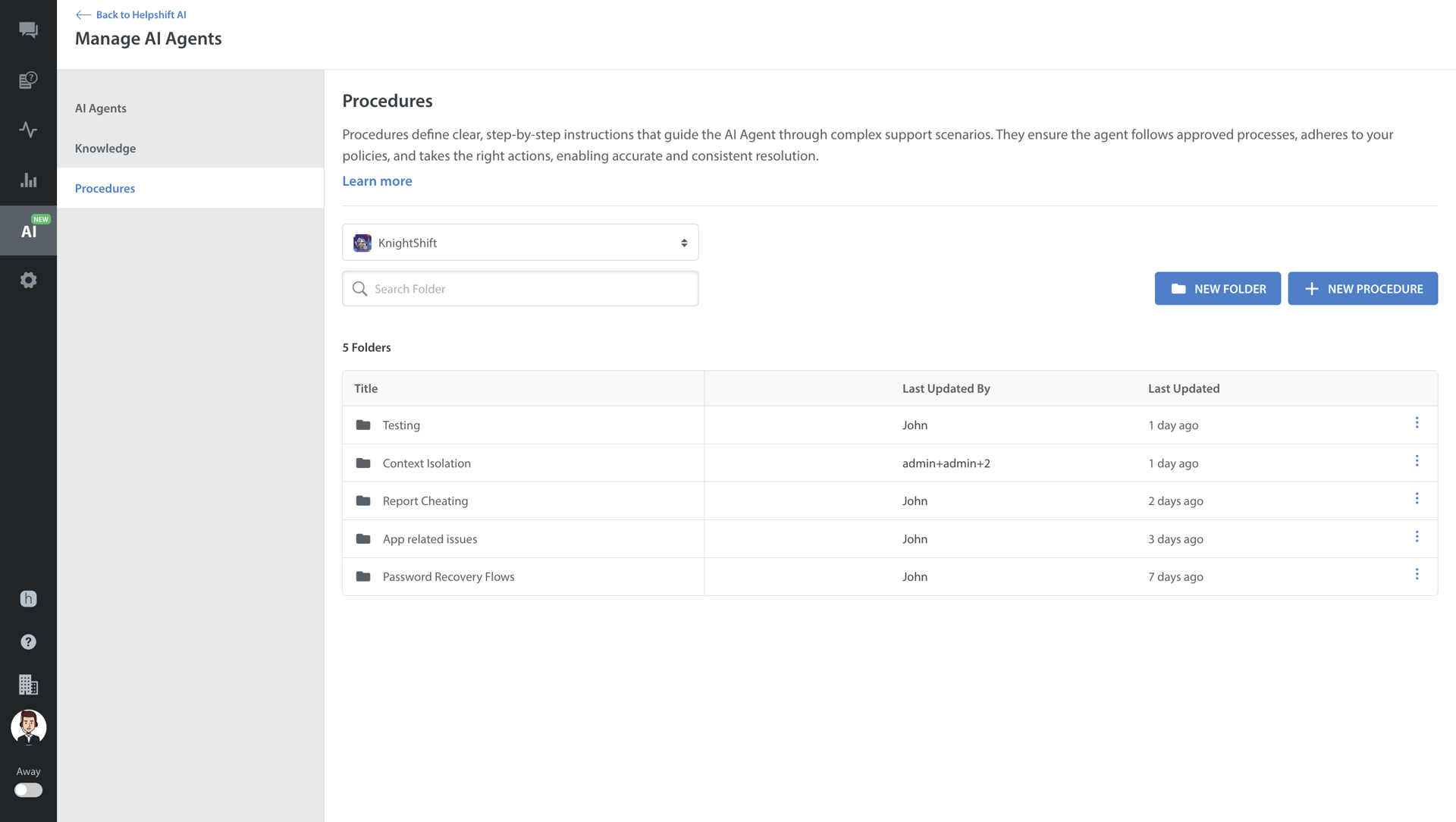
- Select the app that you want to write a procedure for.
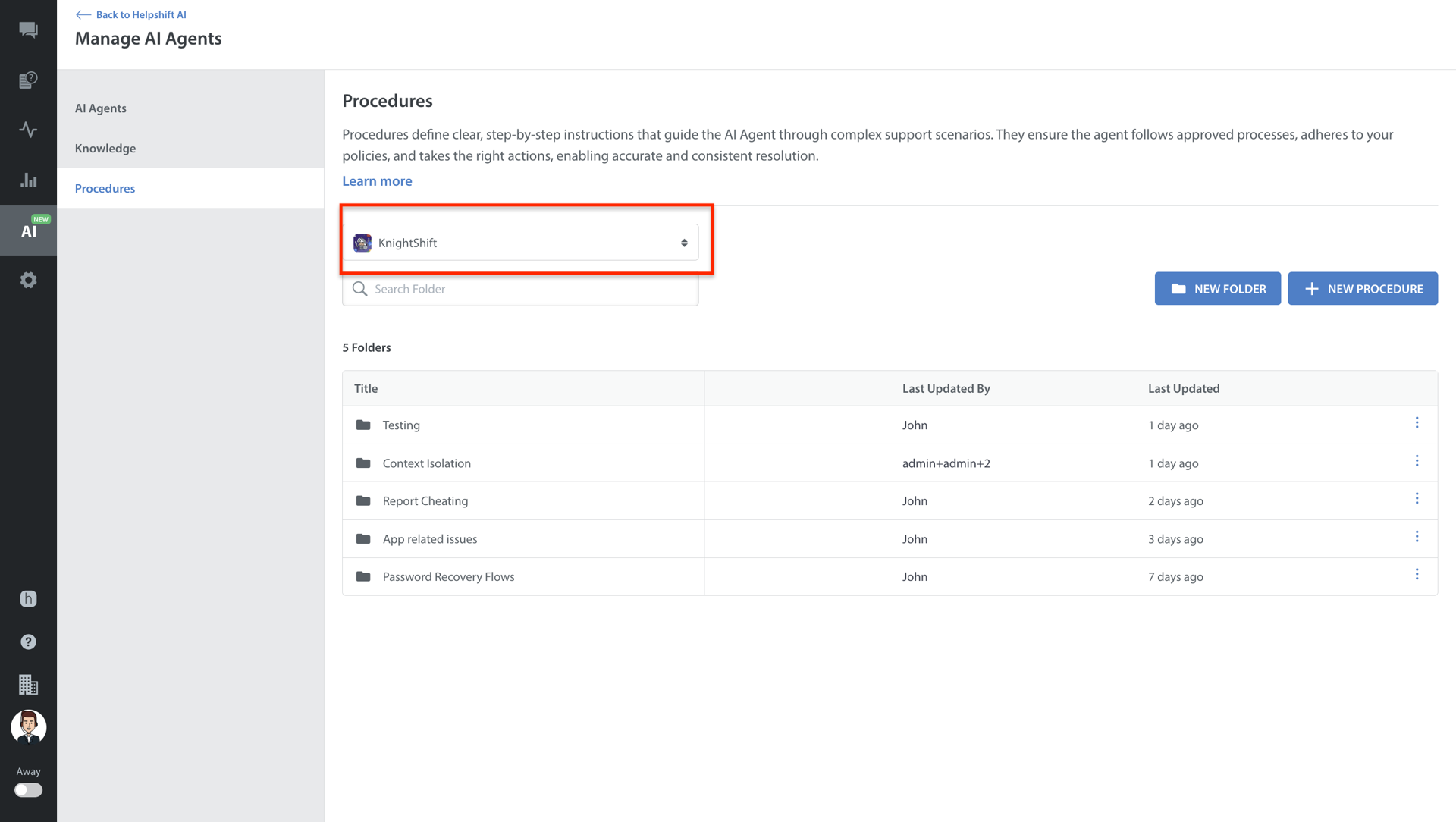
- Once the app is selected, the user can create a new folder, create a new procedure, or click on any existing folder directly.
- Click NEW PROCEDURE.
A Create Procedure page appears.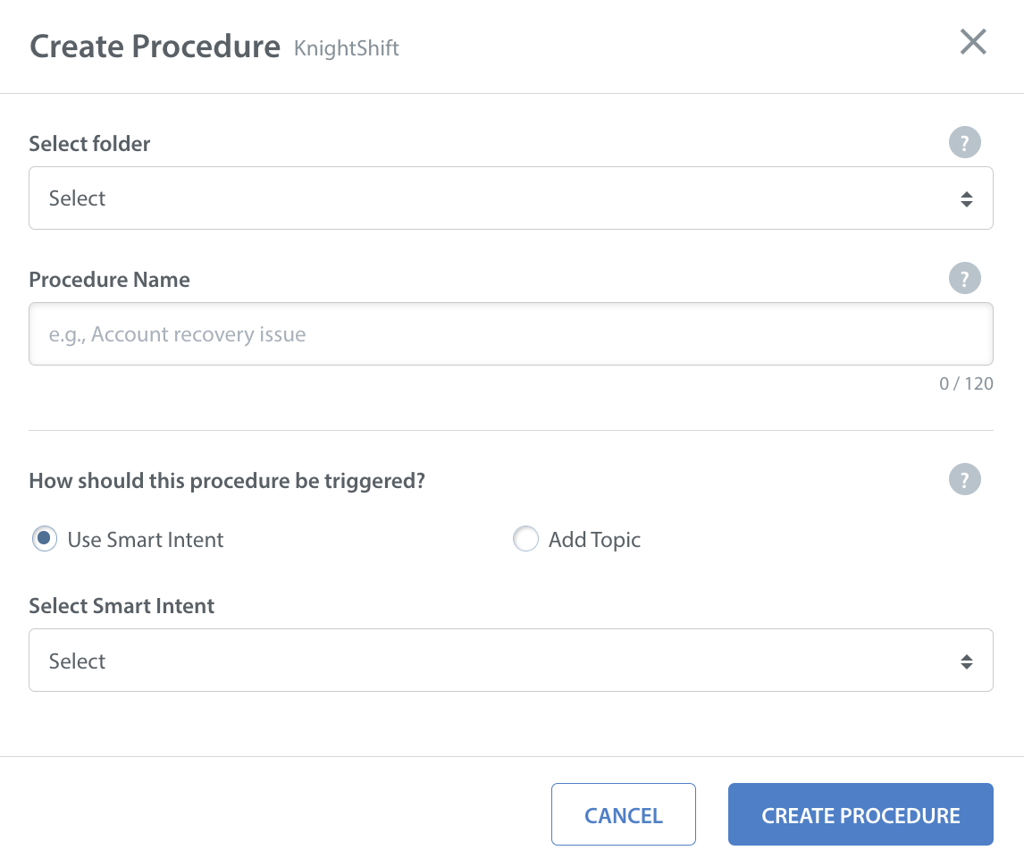
- Fill in the basic details:
- Folder: Mandatory selection (auto-selected if already inside a folder).
- Procedure Name: Use a clear and descriptive name for internal reference only (not visible to the AI).
- Triggers: Triggers define when the AI should execute a specific procedure.
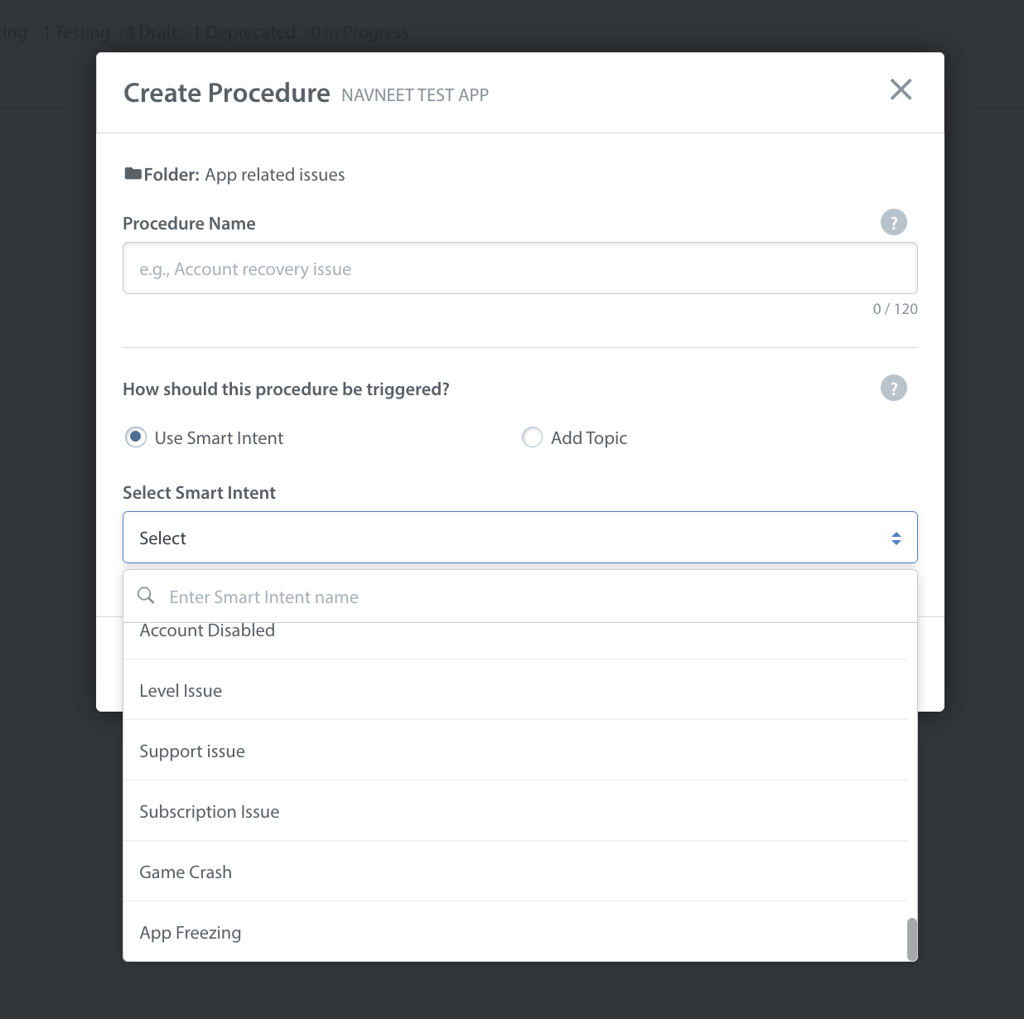
- Smart Intent (Recommended): Select from pre-configured Helpshift intents (e.g., Issue_Refund). Use this option when the query is standardized, high accuracy is required, and a matching intent already exists.
- Topic: Use this option when the issue category is broad or no suitable intent exists. If you select Topic, you must provide a name and description.
When you write the description, make sure to clearly list the signals, phrases, keywords, and patterns the AI should recognize (e.g. User mentions double charge, credit card failure, receipt validation, or purchase error for diamond packs).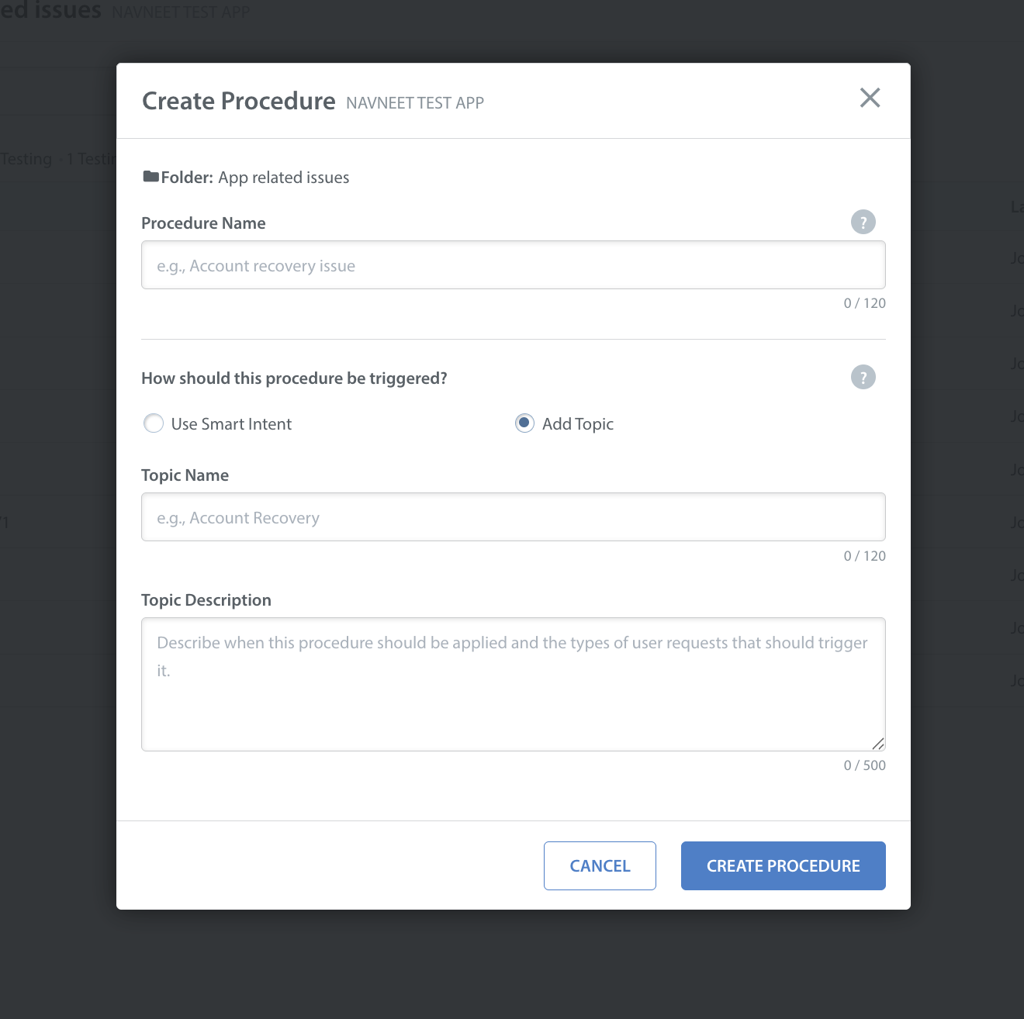
- Smart Intent (Recommended): Select from pre-configured Helpshift intents (e.g., Issue_Refund). Use this option when the query is standardized, high accuracy is required, and a matching intent already exists.
Click CREATE PROCEDURE.
Note: Actions must be configured at the steps. This ensures the AI only performs specific actions when explicitly allowed.
Procedure States
Procedures move through defined states to ensure safe testing and deployment.
Drafting a Procedure
Once the Procedure is created, it will be in a draft state. The procedure cannot be mapped to a Care AI Agent in this state. Here, you can create and edit instructions.
While writing Procedures, the following hierarchy is recommended: Objectives (Goals) > Steps (Actions). Avoid writing a single large block of text.
- Objectives: The objectives represent key milestones required to resolve the issue (e.g., Verify Player Identity, Check Refund Eligibility).
- Steps: Under each objective, define the specific actions the AI must perform. Use plain English, keep instructions direct, and write conditional logic naturally (e.g., “If the player is a VIP, escalate immediately. Otherwise, ask for a screenshot of the receipt”).
- Constraints: Define rules the AI must not violate during the step (e.g., "Do not ask for the user’s password" or "Do not promise refunds beyond 48 hours").
- Escalation Rules: Configure automatic escalation to safely handle edge cases if a step fails or a specific condition is met.
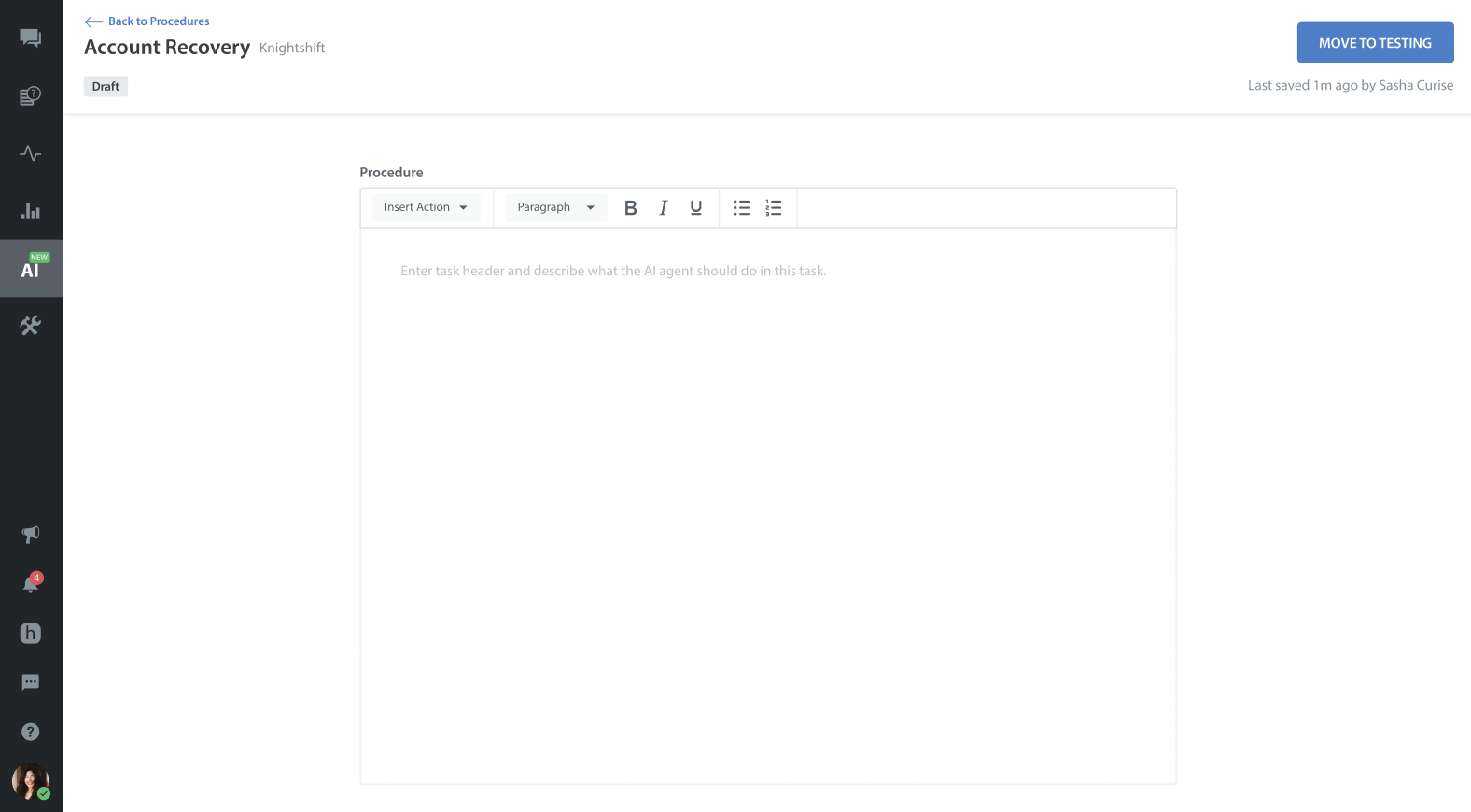
Note: You can create multiple objectives within a single procedure.
Choosing Actions
You can strictly define what actions the AI is allowed to perform during specific steps.
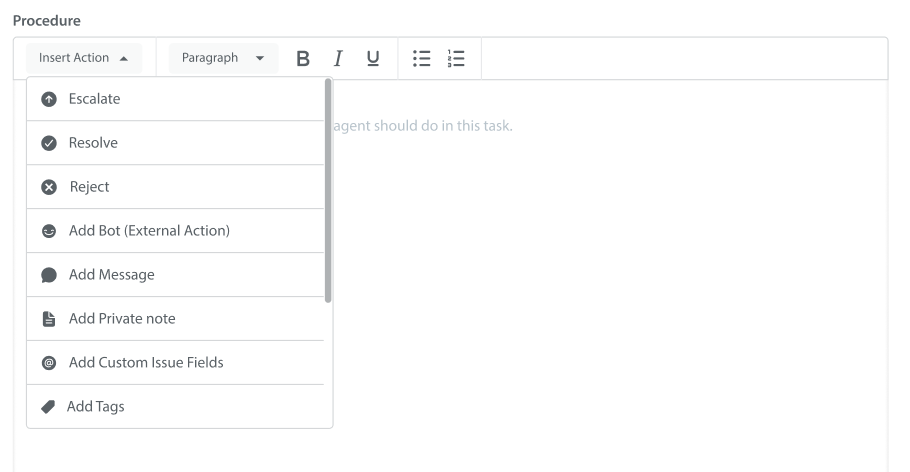
Available Actions
| Action | Purpose |
| Escalate | Send ticket to a human agent, bot, or queue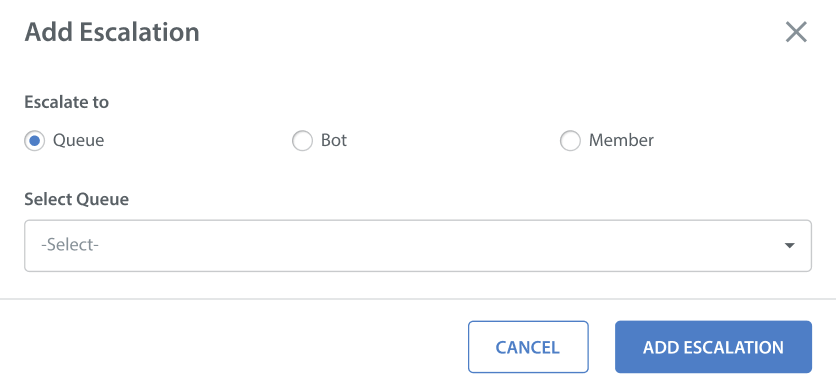 |
| Resolve | Mark the issue as solved |
| Reject | Reject the issue if the criteria are not met |
| Add Bot (External API) | Select the bot you want to add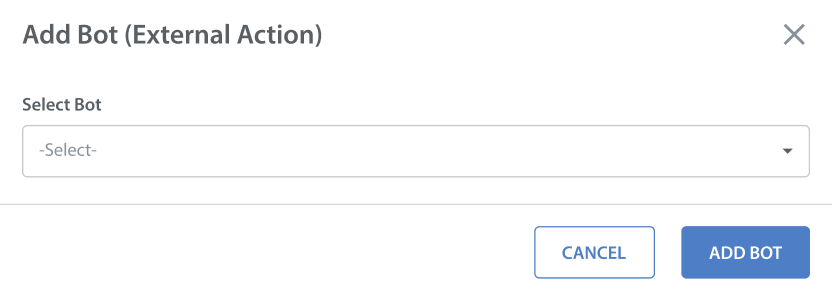 |
| Add Message | Enter a message for the player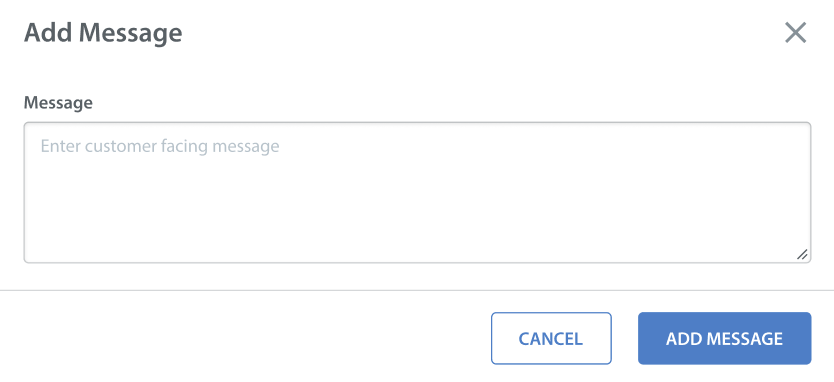 |
| Add Private Note | Leave an internal note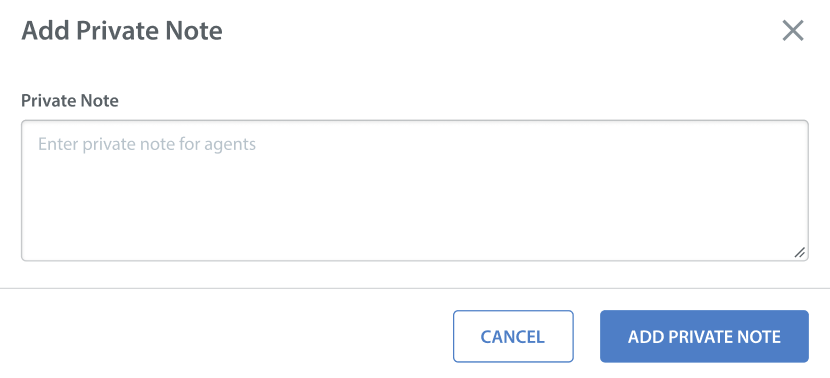 |
| Add Custom Issue Fields | Update specific ticket data fields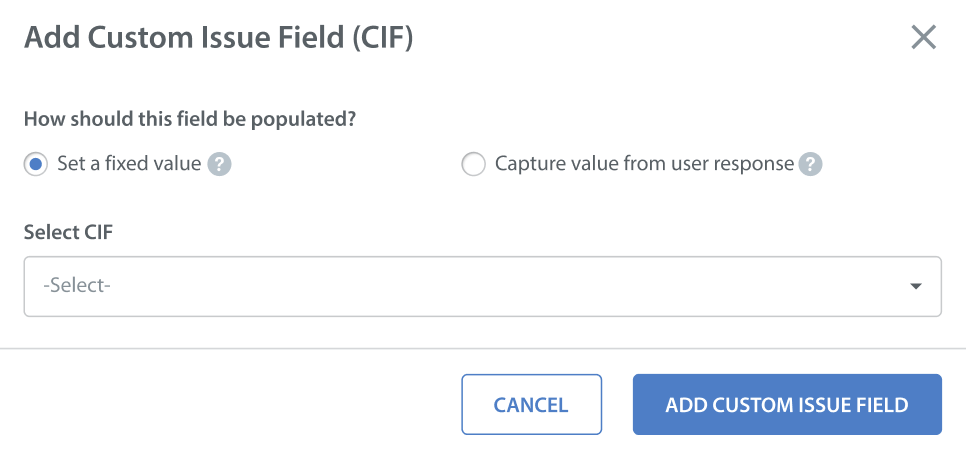 |
| Add Tags | Automatically categorize the ticket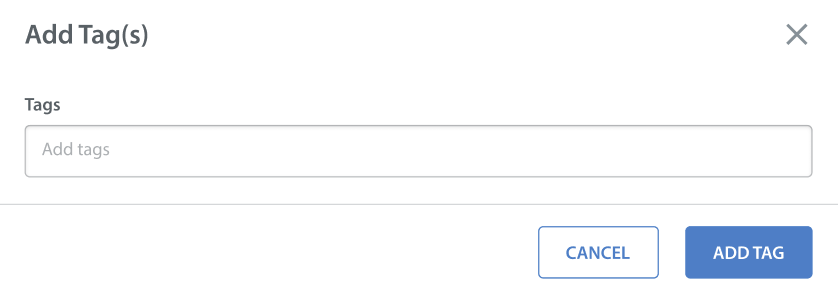 |
| External APIs | Refer to Integrating Care AI Agents with External Systems to learn more. |
You can MOVE TO TESTING after mandatory fields are completed.
Testing a Procedure
From the draft state, the Procedure can be moved to Testing for internal verification. This state is Read-only (not editable). It can be mapped to Draft only, but not to Live Care AI Agents. From the Testing state, you can move the Procedure to the Draft, Live, or Deprecated state.
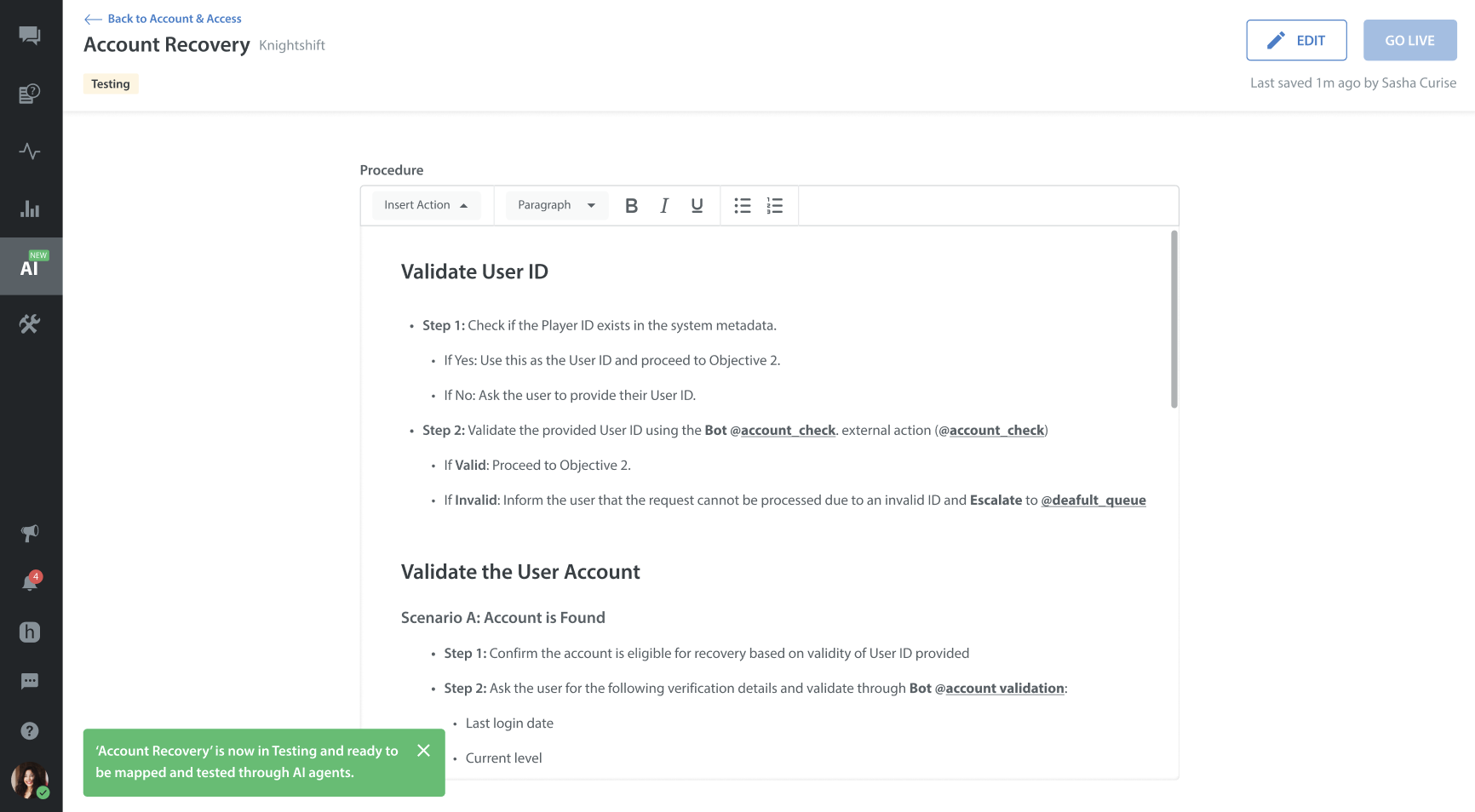
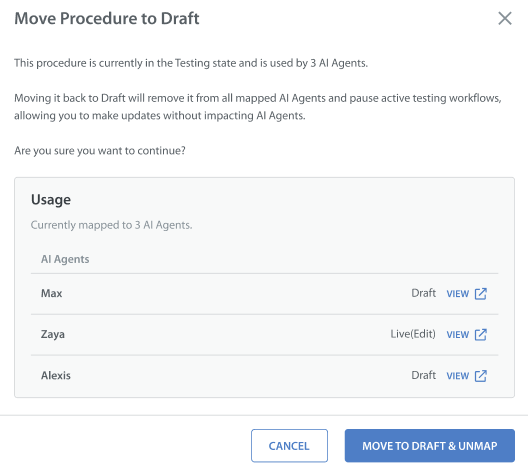
Note: If you move a procedure from Testing back to Draft, you will receive an alert to de-link the procedure from all mapped agents.
Publishing a Procedure
The Live Procedure will be Read-only (not editable) and can be mapped to Live Care AI Agents.
To publish a Procedure Live, follow these steps:
- On the Procedure's testing page, click GO LIVE.
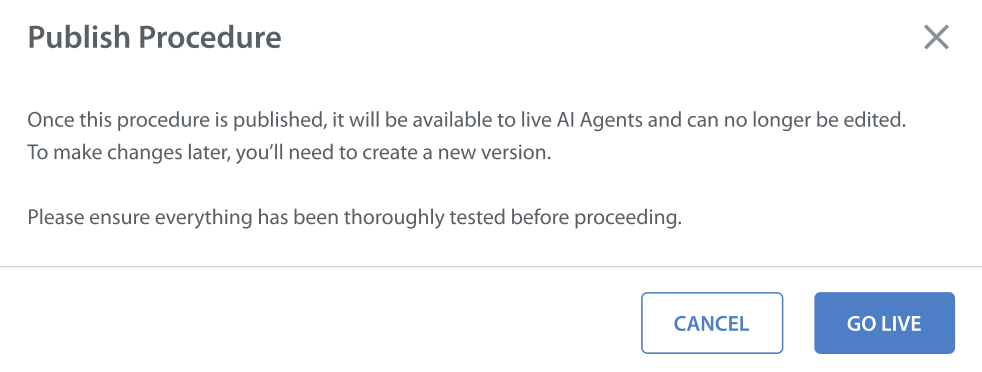
A Publish Procedure confirmation appears.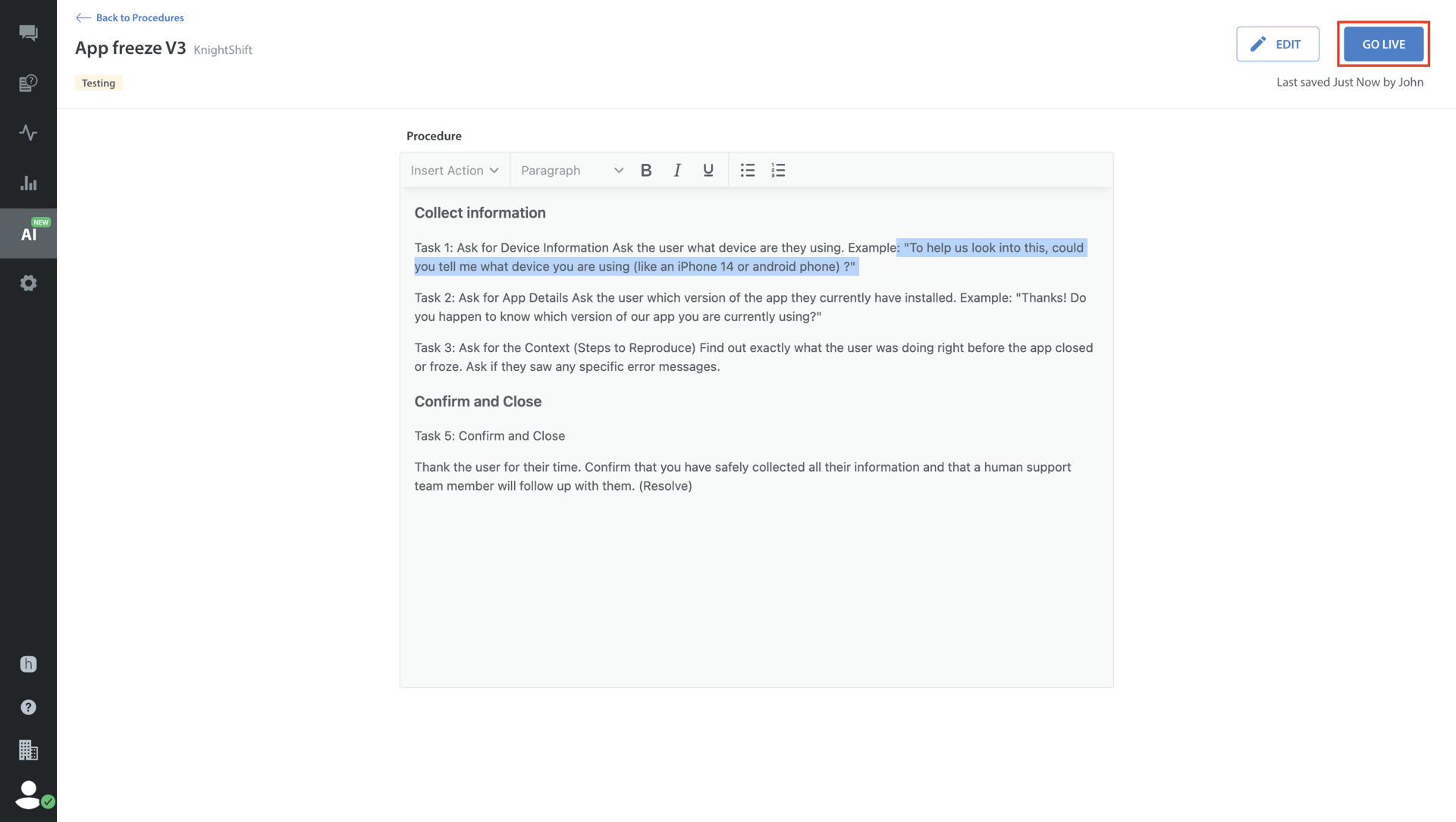
- Click GO LIVE.
Note:
- When marking a Procedure as "Live" from the "Testing" state, it must be mapped to at least 1 Care AI Agent. Refer to Mapping a Procedure to learn more.
Once it is done, the GO LIVE button will be clickable.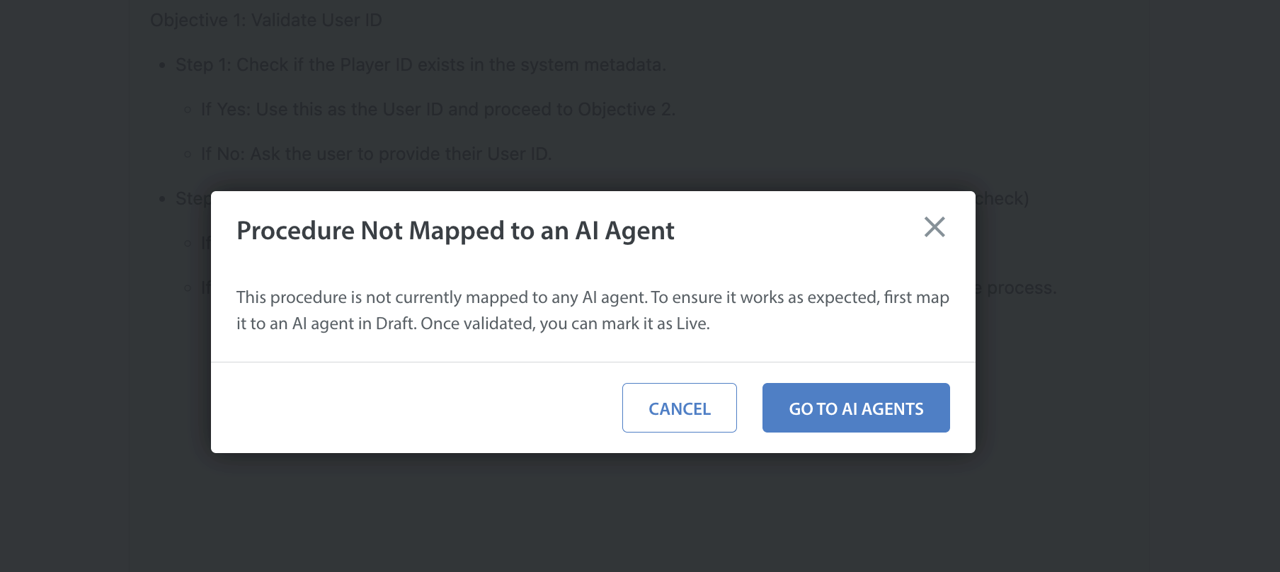
- A Care AI Agent cannot be published if it includes any procedures currently in the Testing state; all mapped procedures must be Live.
Duplicating a Procedure
If you need to duplicate procedures, follow these steps:
- Click the More options (⋮) for the Procedure you want to duplicate.
The Duplicate Procedure page appears.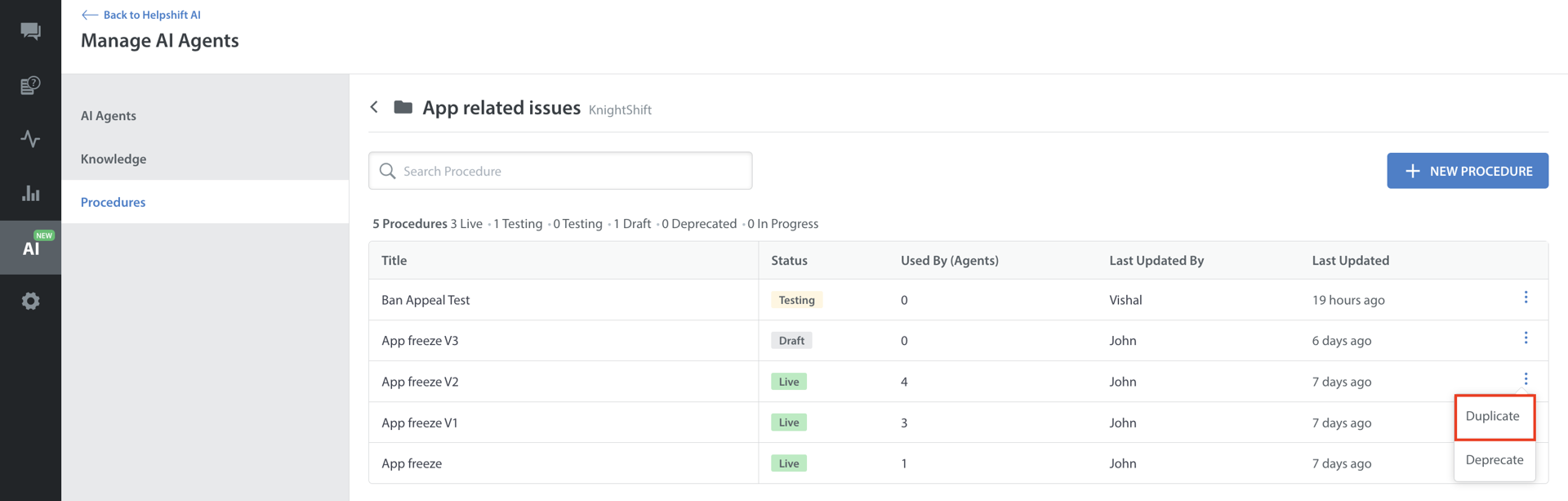
- Click Duplicate.
A Duplicate of the Procedure will be created in the list.
Deprecating a Procedure
Procedures that are no longer in use can be deprecated. Once deprecated, a procedure cannot be moved to any other state. It will be Read-only and cannot be mapped to a Care AI Agent.
To deprecate a procedure, follow these steps:
- Navigate to Procedures in Manage AI Agents.
- Click the More options (⋮) for the Procedure you want to delete.
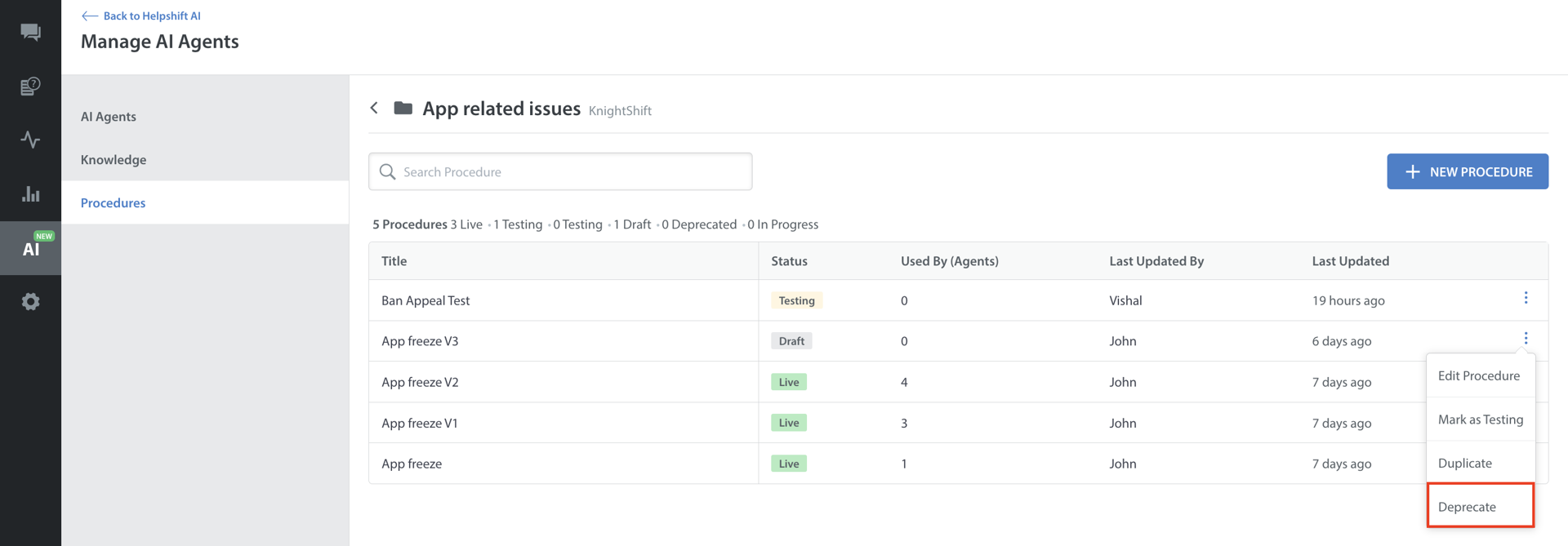
- Click Deprecate.
A warning appears for confirmation. - Click DEPRECATE PROCEDURE.
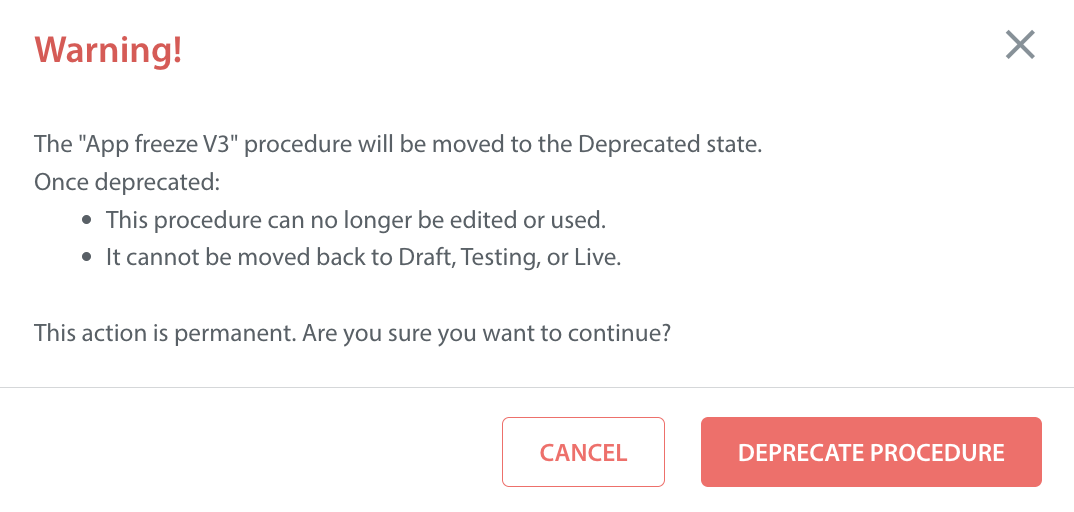
Note:
- You can duplicate a deprecated Procedure. The duplicated version will be created in Draft state for editing and reuse.
- You cannot move a Live procedure to Deprecated if it is currently mapped to a Live Care AI Agent. You must unmap it first.
- Once a player starts a conversation with a specific version of a procedure, that conversation is cached and remains tied to that version for 2 days, or until the issue is closed (whichever comes first). It will not update mid-conversation even if a new version is published.