
Learn how to set up and manage Care AI Agents for your App. This article guides you through enabling Care AI Agents, configuring their behavior, mapping knowledge and procedures, and publishing them for live conversations.
Enabling Care AI Agents
Note: While Admins have default access to the Helpshift AI page, Supervisors and Agents do not. Admins must manually grant them access by creating a Custom Role in the "Roles and Responsibilities" settings. Please contact your customer success manager or the Helpshift support team if you face any issues enabling the Care AI Agent feature.
To request the feature, follow these steps:
- Navigate to Helpshift AI on your Helpshift dashboard.
- Click the REQUEST FEATURE button on the Care AI Agents feature card.
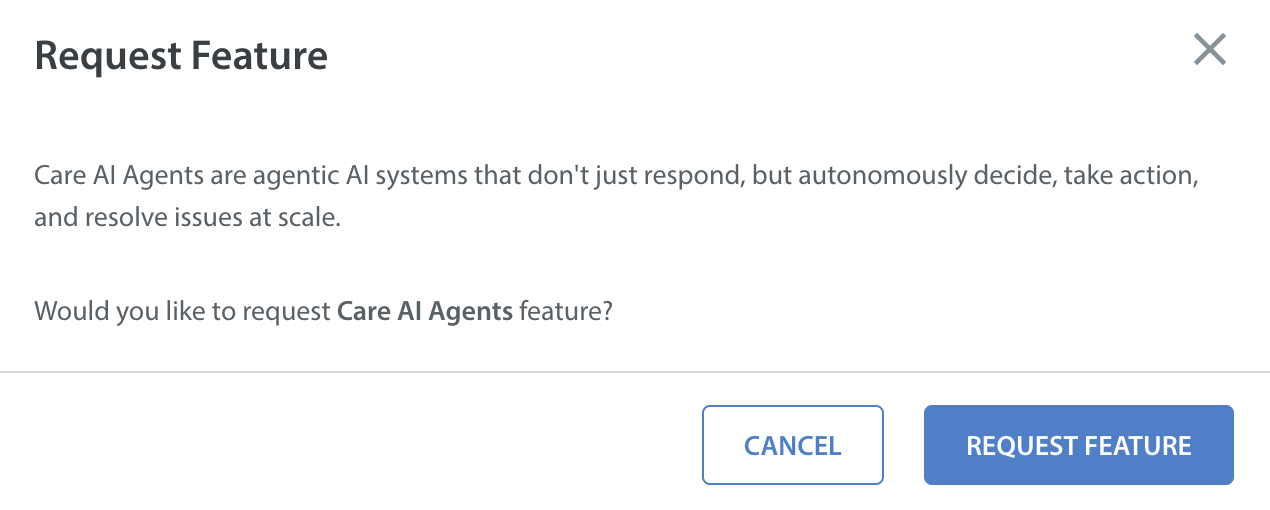
You will see the Request Feature confirmation dialog box on the screen.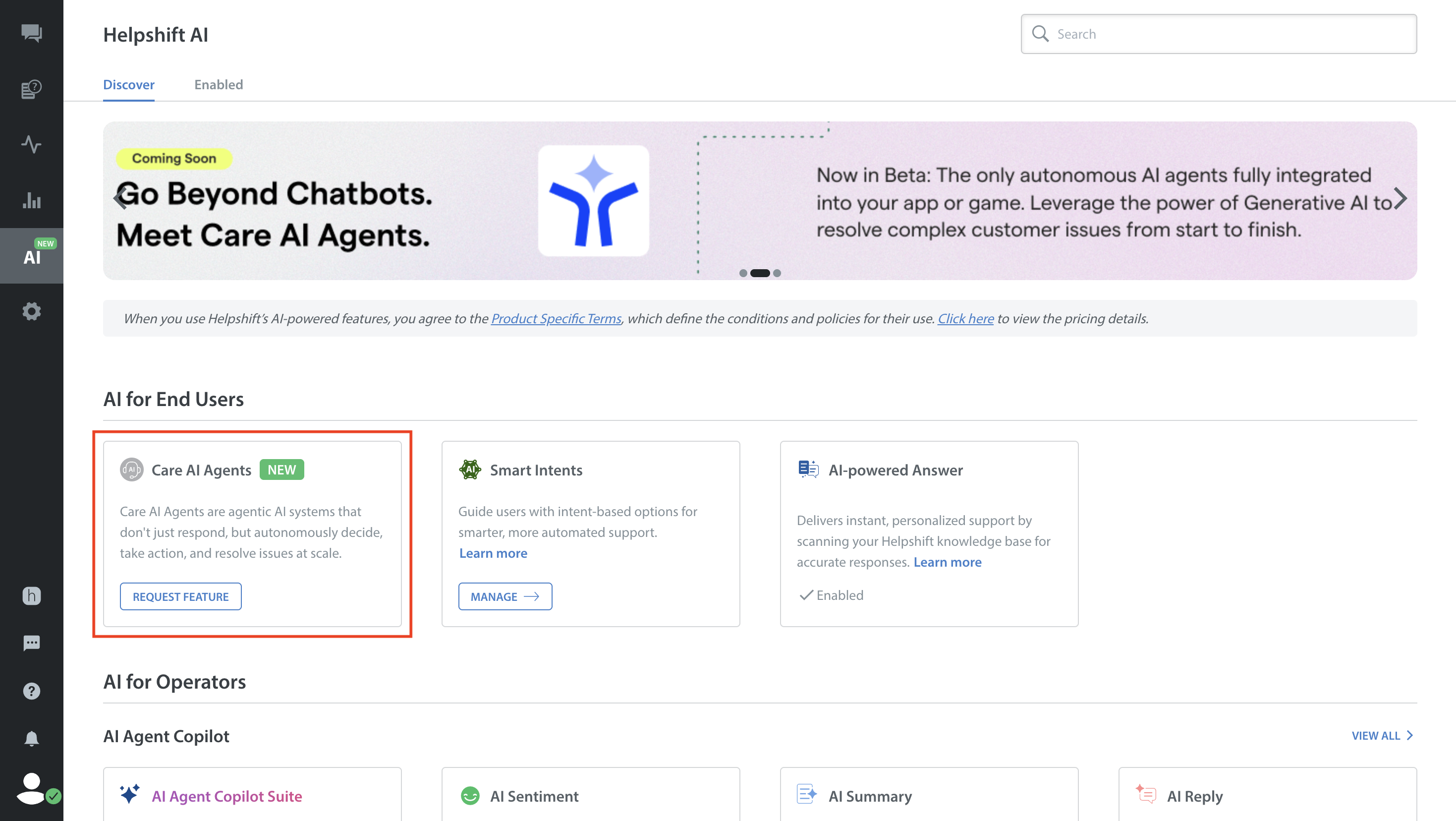
- Click REQUEST FEATURE.
Your request for the feature will be sent successfully.
Note: Once the feature is requested, a representative from our team will reach out to you.
Creating Care AI Agents
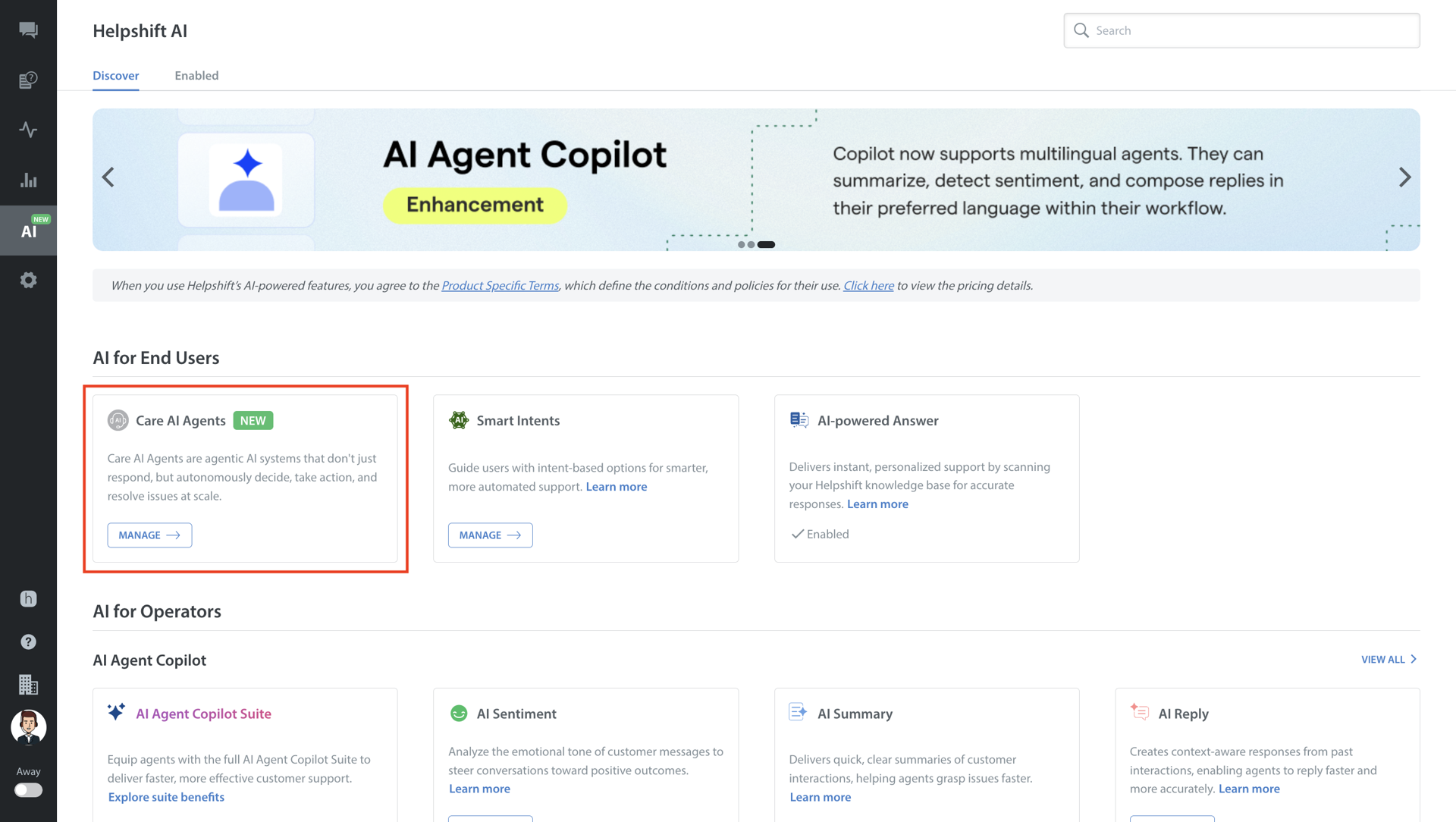
Once the Care AI Agents feature is enabled, you will see an option to MANAGE the Care AI Agents feature.
To create a Care AI Agent, follow these steps:
- Log in to your Helpshift domain as an administrator.
- On the Helpshift toolbar, click Helpshift AI.
- Navigate to Care AI Agents under AI for End Users.
- Click MANAGE.
The Manage AI Agents screen appears.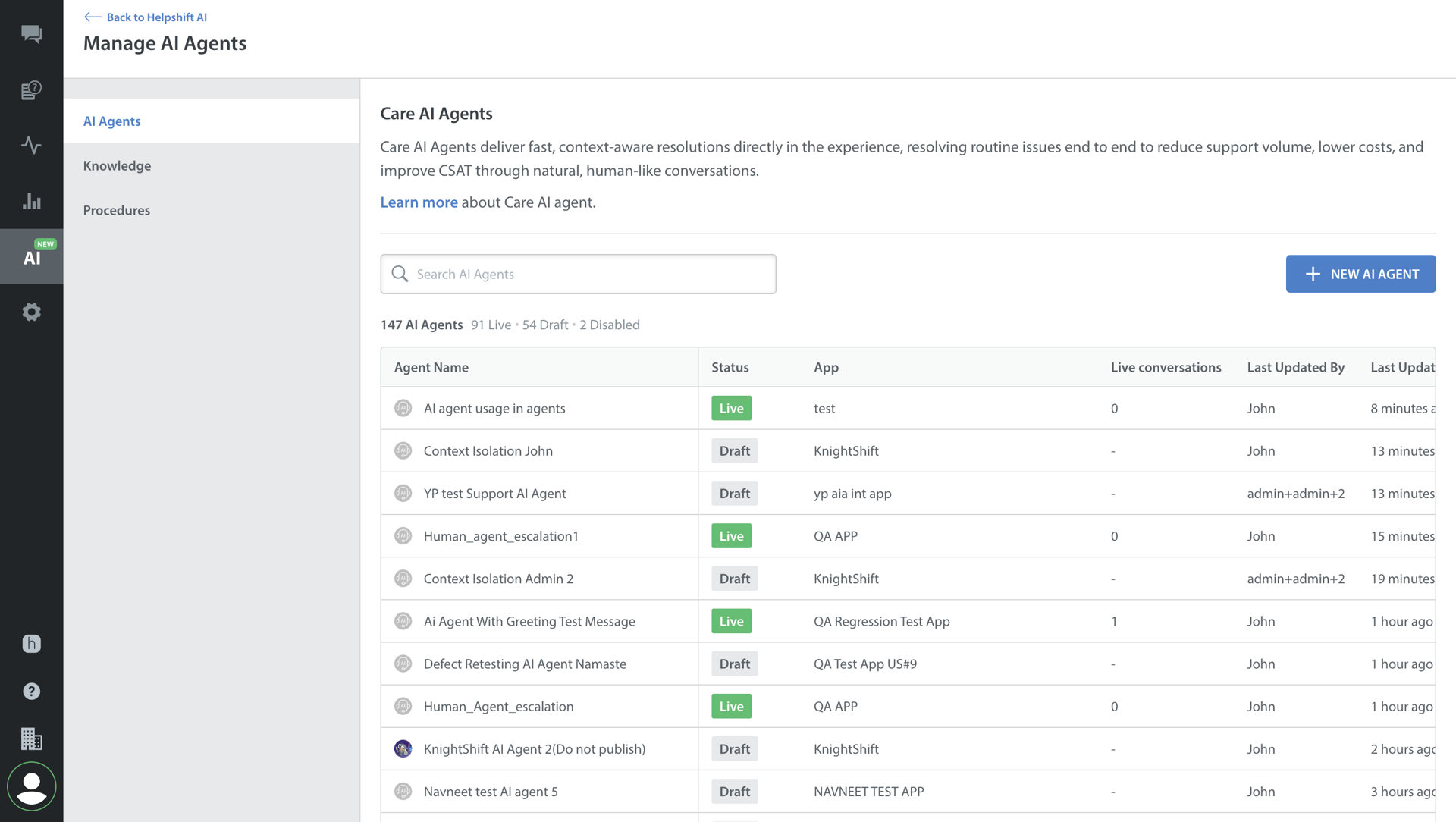
- Click + New AI AGENT.
The Create Care AI Agent pop-up opens.
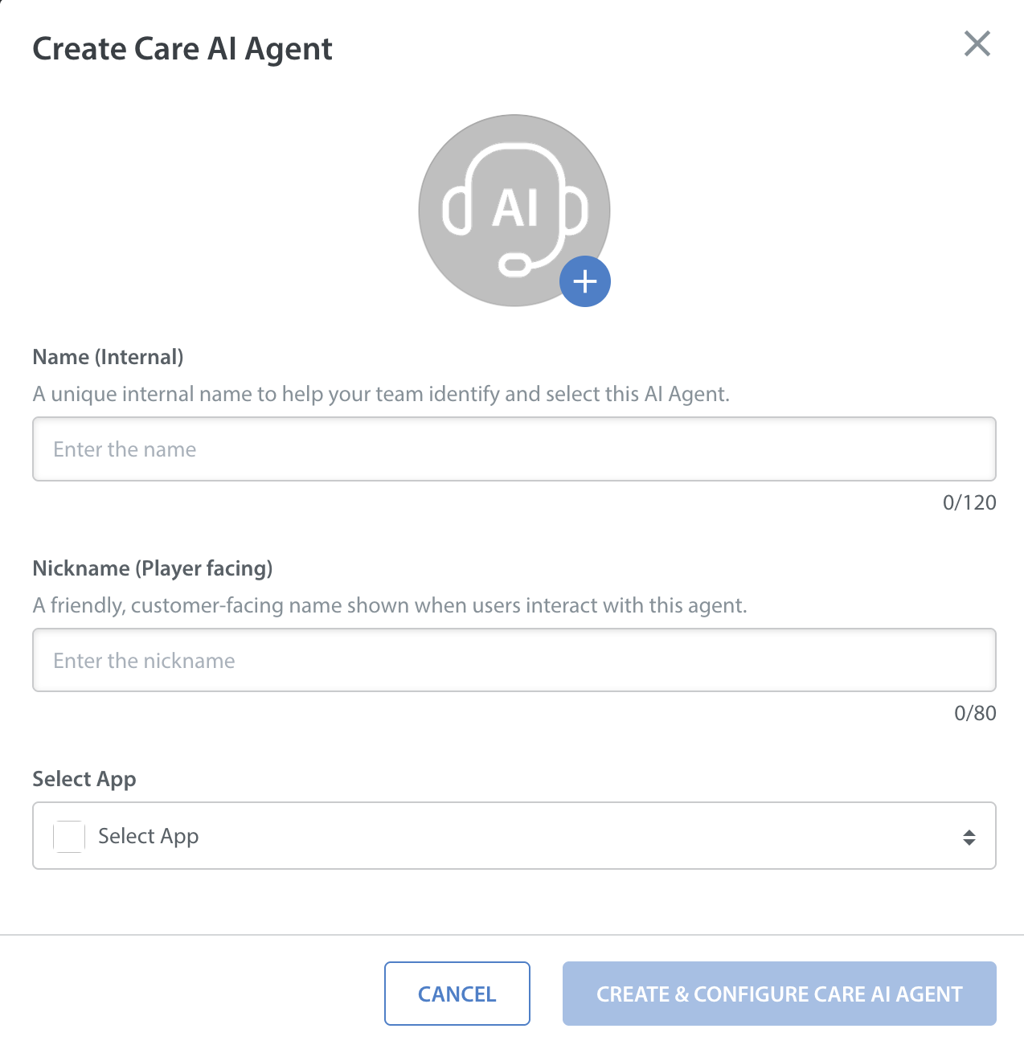
- Fill in the required fields:
- Avatar – Upload a player-facing profile image for the Care AI Agent.
- Name – Internal name for the Care AI Agent (visible to your team).
Note: The name must be unique and cannot be used for multiple Care AI agents within the app. - Nickname – Player-facing name for the Care AI Agent (visible to players).
- Select App – Select the App the agent belongs to.
- Once all fields are completed, click CREATE & CONFIGURE CARE AI AGENT.
The Care AI Agent is created in Draft state.
You can now configure various components of your Care AI agent, including personality, knowledge, guardrails, etc.
Note:
A maximum of 100 Care AI Agents can be created per domain.
Default values are automatically set for all configurations.
If you want to test or publish the Care AI Agents immediately, you can do so by using the default settings in just a few steps.
Configuring Care AI Agents
Note: Your changes to the Draft version are automatically saved in seconds. However, auto-save never pushes changes to the Live agent. You must explicitly click PUBLISH to make your Care AI Agent live.
After creating a Care AI Agent, you can configure the following components:
- Personality
- Knowledge
- Procedures
- General Instructions
- Guardrails
- Actions & Fallbacks
Each section defines how the Care AI Agent behaves, what information it uses, and how it handles different scenarios.
Setting Personality and Response Length
You can define how your Care AI Agent communicates with users by setting the personality, tone, and response length.
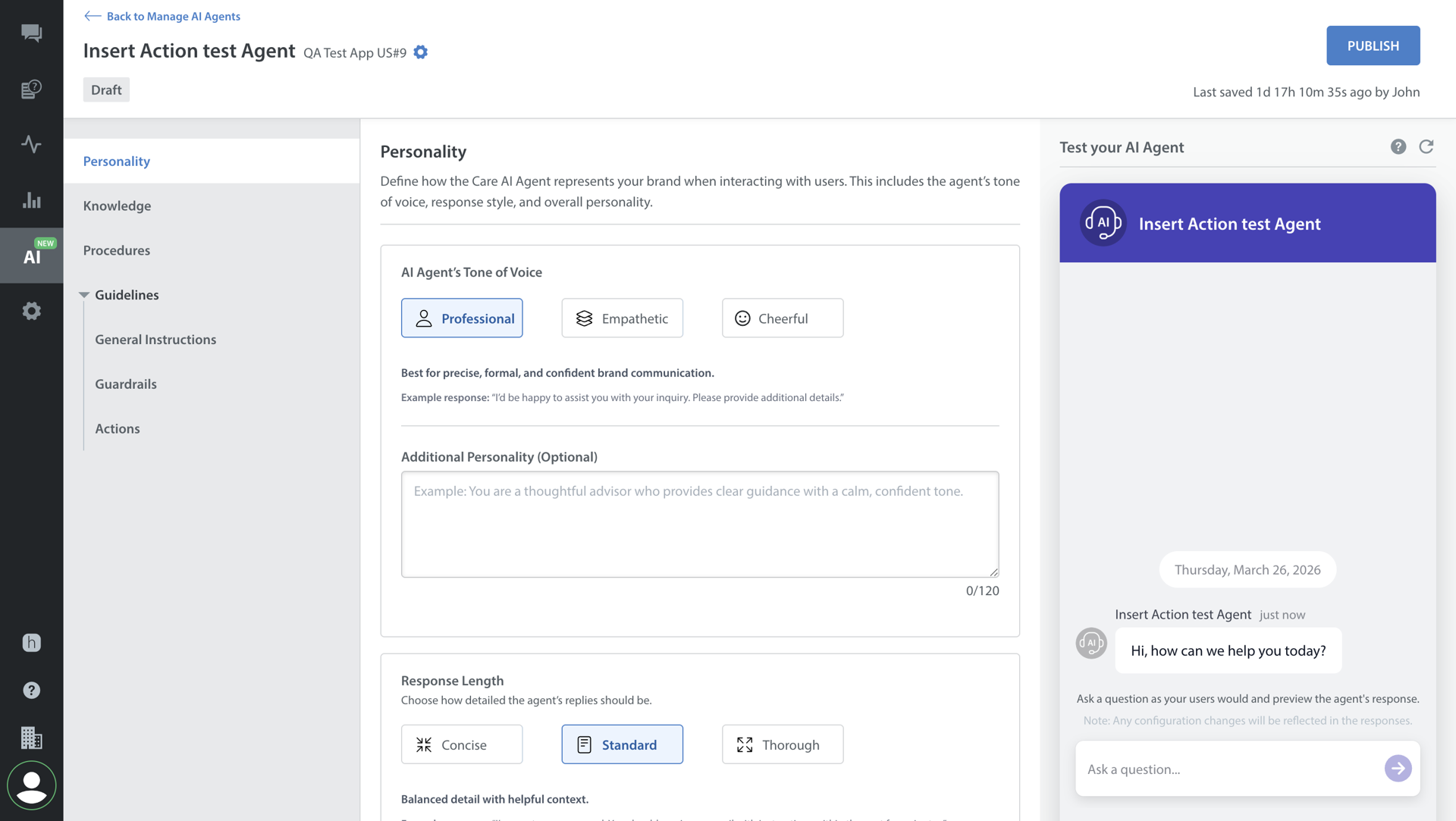
Personality and Tone
Choose one of the following:
- Professional – Formal and direct
- Empathetic – Supportive and relationship-focused
- Cheerful – Friendly and modern
If you want to add more personality traits, you can add a one-line description that defines your Care AI Agent’s personality. For example, A wise war strategist who guides players clearly with a calm tone.
Response Length
Choose how the response length of the Care AI Agent should be:
- Concise – Short and direct
- Standard – Balanced detail
- Thorough – Detailed and explanatory
Note: By default, Professional tone and Standard response length will be applied.
Mapping Knowledge Sources
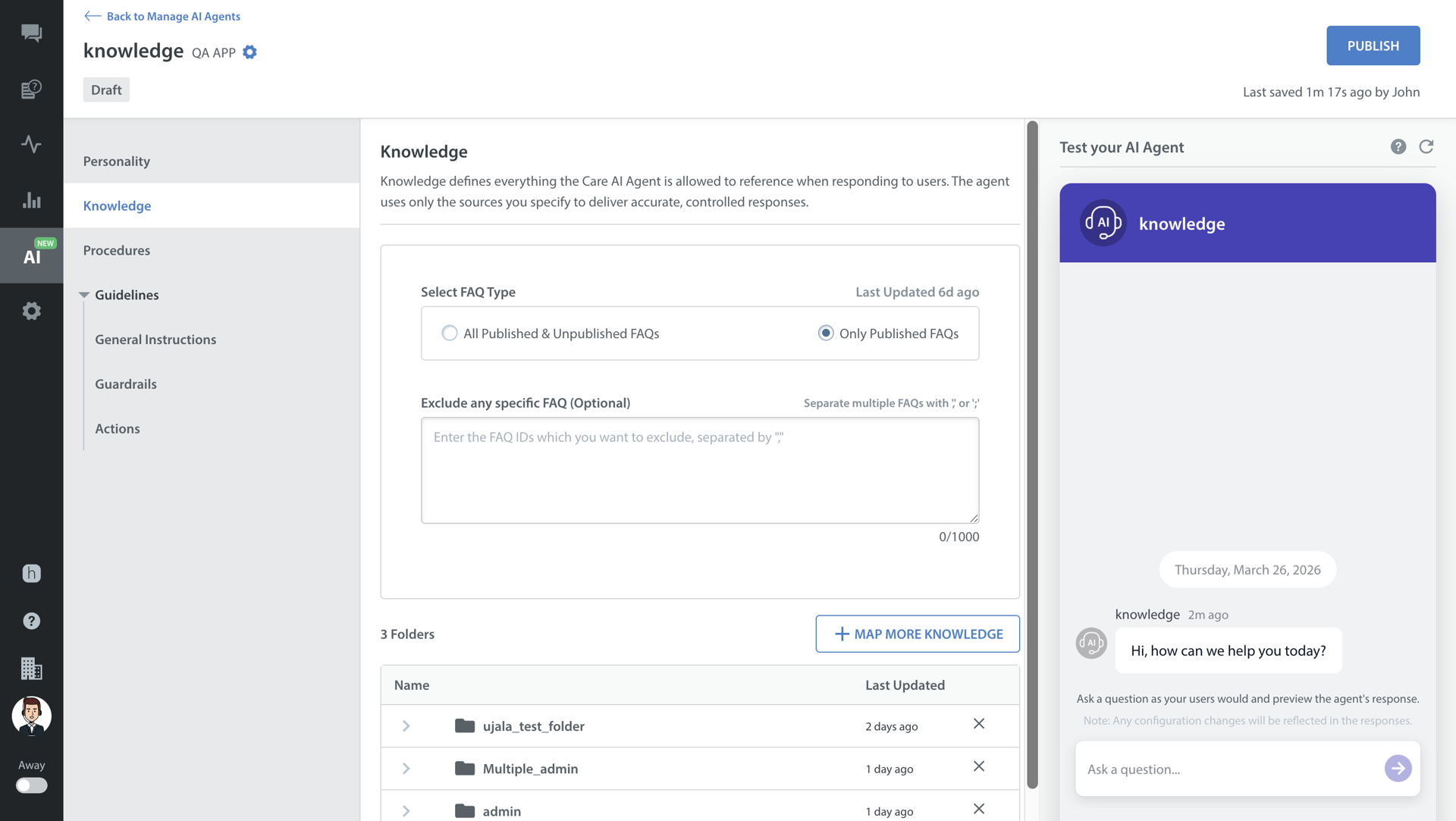
Care AI Agents use mapped knowledge to answer user queries.
You can map two types of knowledge sources:
- Documents: You can map entire folders (not individual files) that contain the required documents. Any updates inside mapped folders are automatically reflected in the Care AI Agent’s knowledge base.
- FAQs: You can map only published FAQs or all FAQs. You can also optionally exclude specific FAQs from mapping.
Note:
Any documents marked as deprecated are excluded from the mapped folders.
By default, all the folders containing ‘live’ documents and all published FAQs will be mapped with the Care AI Agent.
Mapping Procedures
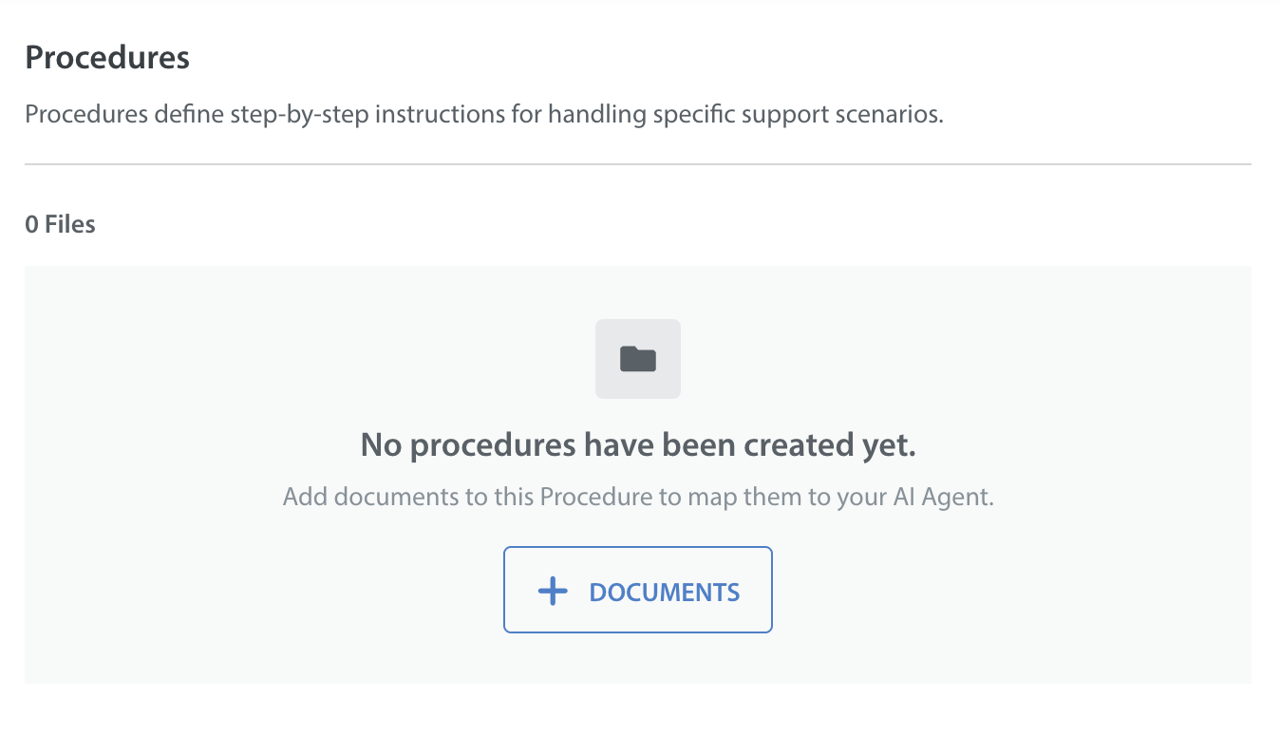
Note: The Procedure list will only display folders and procedures that are in the ‘testing’ or ‘live’ state. Draft or deprecated procedures will be hidden and cannot be mapped.
You can map the use case-specific instructions defined in the Procedures module. The Care AI Agent will refer to these mapped procedures to handle use-case-specific scenarios such as ‘Account recovery’ or ‘Report a bug’.
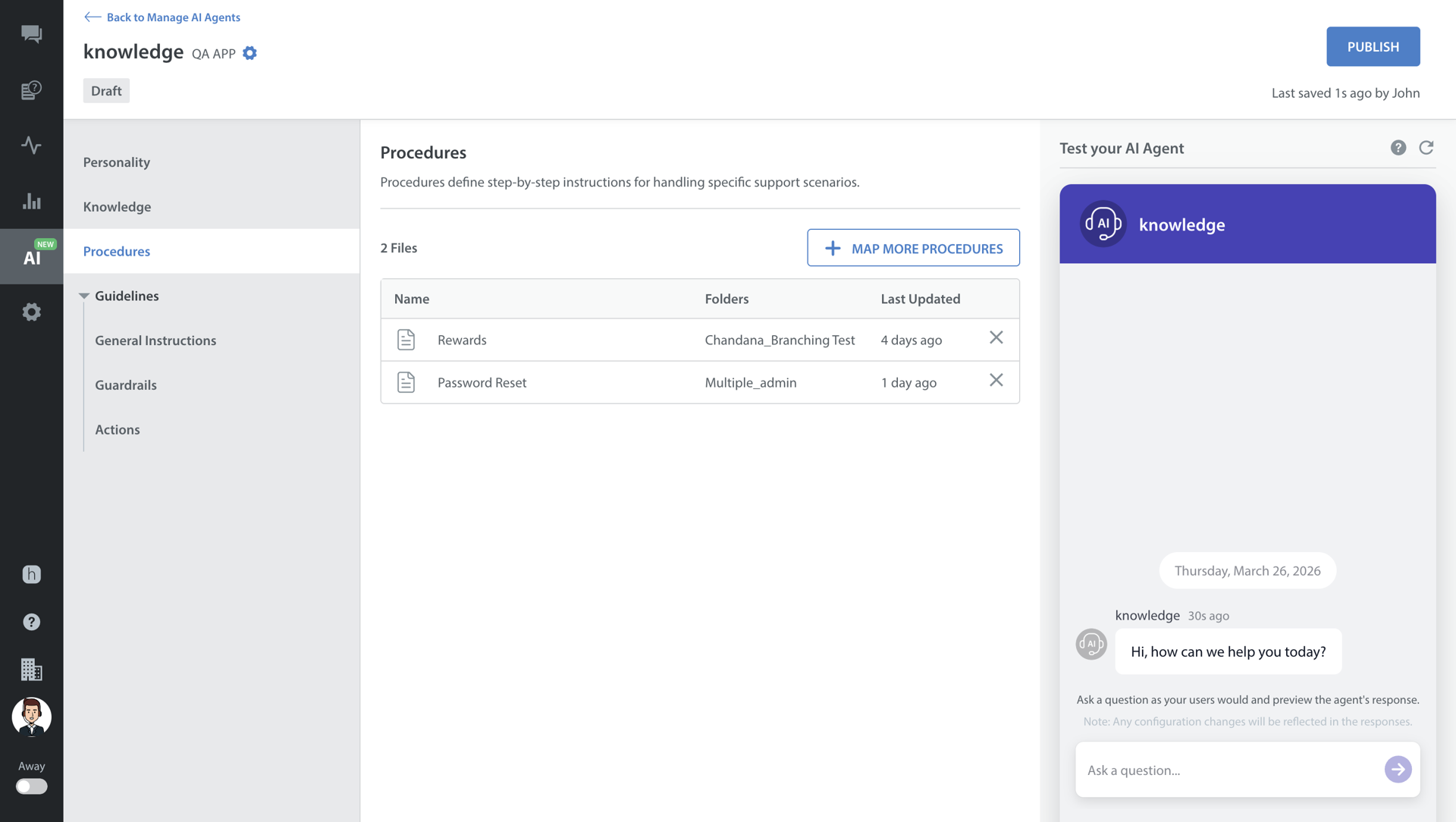
To map a Procedure to a Care AI Agent, follow these steps:
- Go to the Procedures section.
- Click +DOCUMENTS.
- Map the Procedure files by selecting the available Procedures.
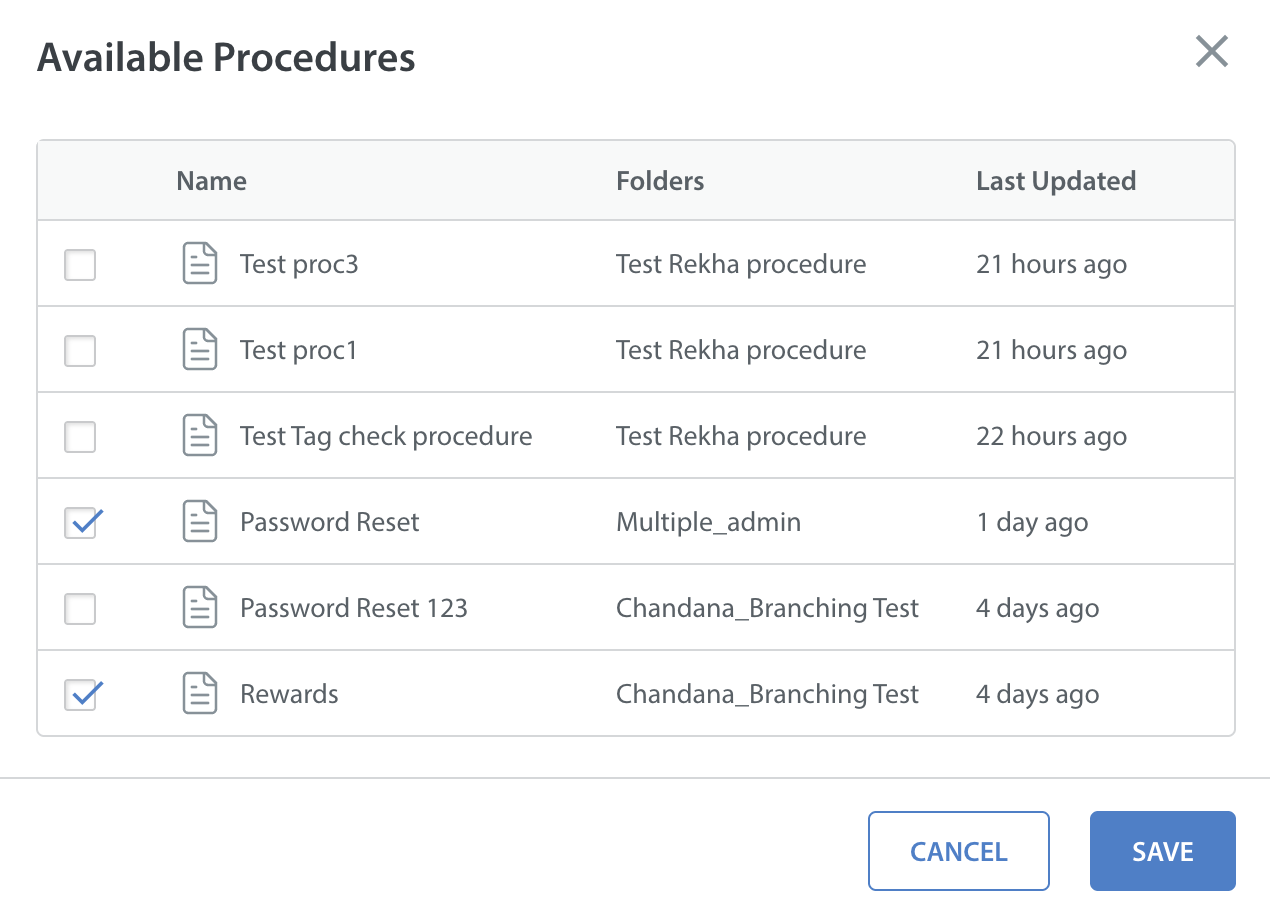
- Click SAVE.
Note: An App contains a library of multiple procedures. Procedures link directly to an App. The Care AI Agent will follow only the Procedures that are mapped to it.
General Instructions
Define general instructions that your Care AI Agent must follow across all conversations.
- Role of the AI Agent: The role is pre-defined as Support Assistant and cannot be edited.
- What does the AI Agent help with?: Define the tasks the Care AI Agent should assist the users with.
- Instructions: Click +ADD INSTRUCTIONS to add app-specific terminology or any general rules your Care AI Agent should consistently follow.
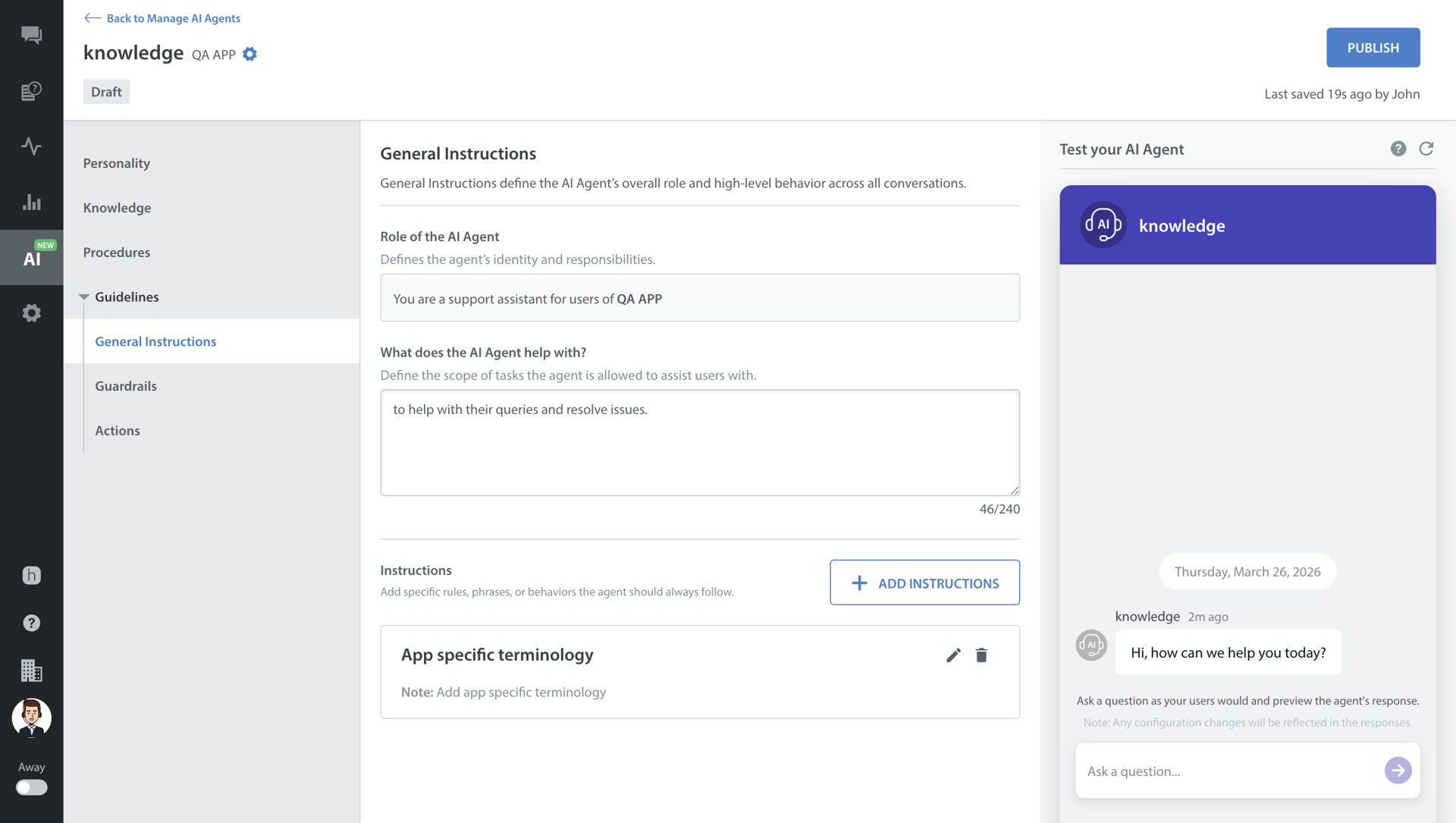
Note: The App specific terminology field is mandatory and cannot be left empty. You can add only up to 5 instruction types.
Guardrails
Guardrails are safety rules that the Care AI Agent must always follow when handling an issue.
The default guardrails are pre-configured and uneditable (view-only) to prevent unsafe or inappropriate responses. However, you can add any exception, for example, ‘hate speech’ guardrails are pre-configured, but you can add exceptions to this if any, as per your app.
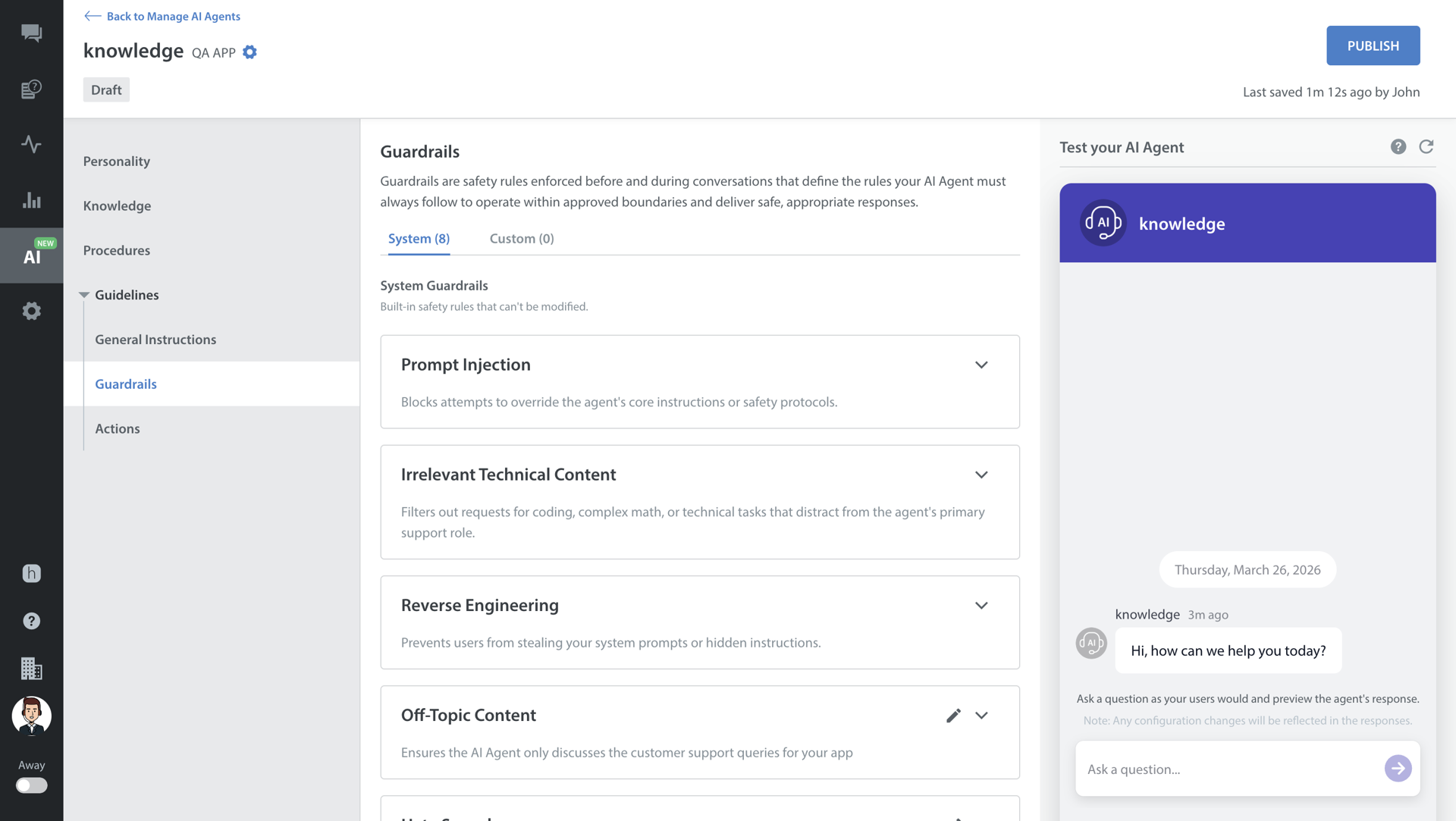
Default Guardrails (View-Only)
All the Guardrails are non-editable. You can add exceptions if required and create custom guardrails based on your policies. However, exceptions cannot be added to Prompt Injection, Irrelevant Technical Content, or Reverse Engineering. They can only be added to Off-Topic Content, Hate Speech, Dangerous Content, Sexually Explicit, and Harassment.
- Prompt Injection
- Reverse Engineering
- Irrelevant Technical Content
- Off-Topic Content
- Hate Speech
- Dangerous Content
- Sexually Explicit Content
- Harassment
| Guardrails | What does it do? |
| Prompt Injection | Blocks attempts to override the agent's core instructions or safety protocols.
|
| Reverse Engineering | Prevents users from extracting your system prompts or hidden instructions.
|
| Irrelevant Technical Content | Filters out requests for coding, complex math, or technical tasks that do not align with the agent's primary support role.
|
| Off- Topic Content | Ensures the Care AI Agent only discusses the customer support queries for your app.
|
| Hate Speech | Refuses to respond to attacks/comments based on race, religion, gender, etc.
|
| Dangerous Content | Filters out requests related to self-harm, illegal acts, or violence.
|
| Sexually Explicit Content | Blocks content related to nudity and adult themes.
|
| Harrassment | Prevents bullying, threats, and aggressive insults directed at the Care AI agent or others.
|
Note: You can add up to 10 additional custom guardrails.
Actions
Define how the Care AI Agent handles different scenarios.
Primary Actions (Resolve/Reject)
When a Care AI Agent resolves or rejects an issue, you can configure:
- Private Note: You can choose to have AI generate a dynamic note based on the issue, or have a static note added every time.
- User Message: You can choose to have the AI generate a player-facing message or set a specific static message.
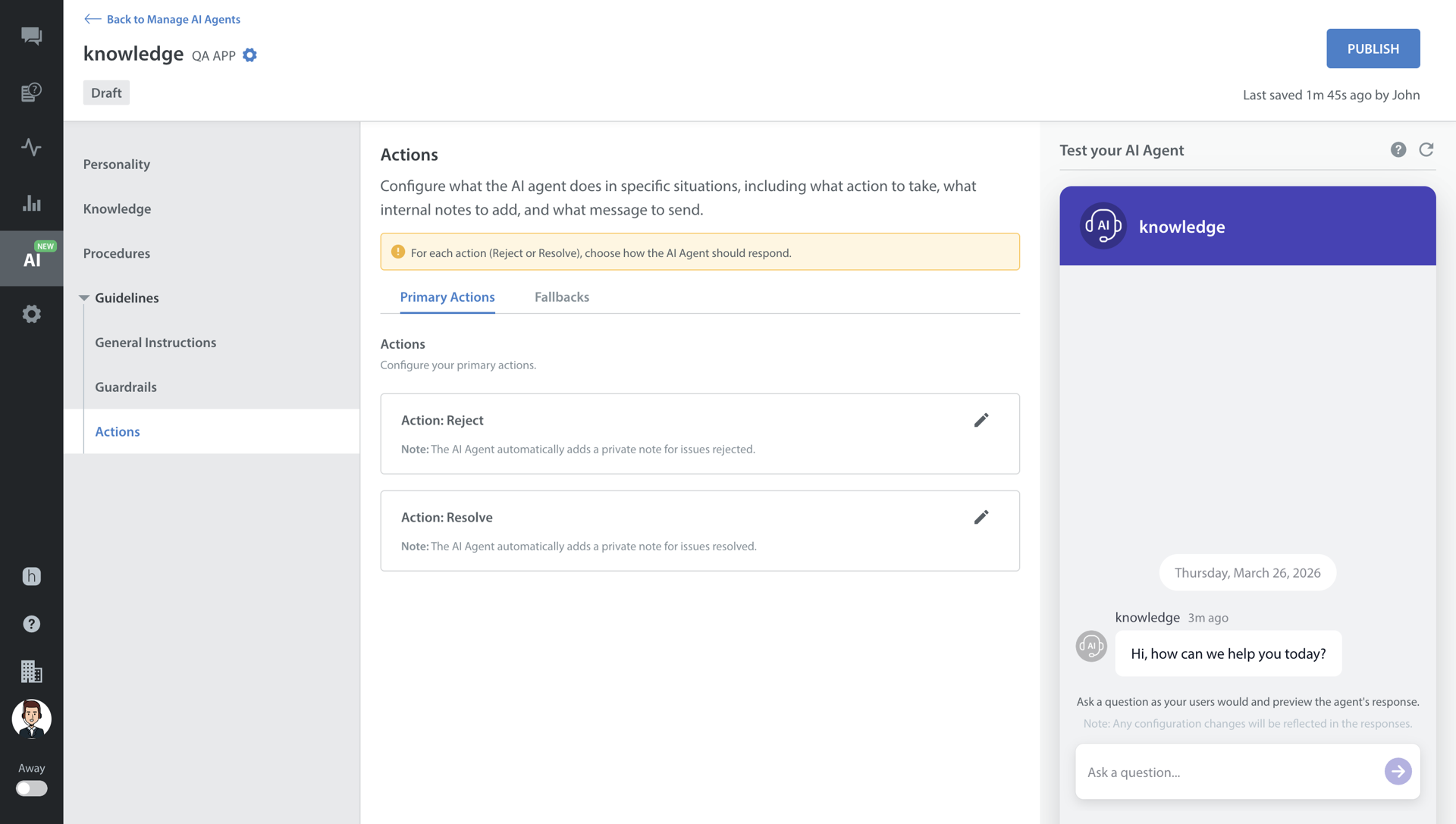
Note: By default, an AI generated message will be applied to Primary Actions.
Fallbacks
Fallbacks are instructions the Care AI Agent follows when it cannot answer a query.
Fallbacks are preconfigured (can't be edited), but the actions the Care AI agent takes when the fallback is triggered are configurable here.
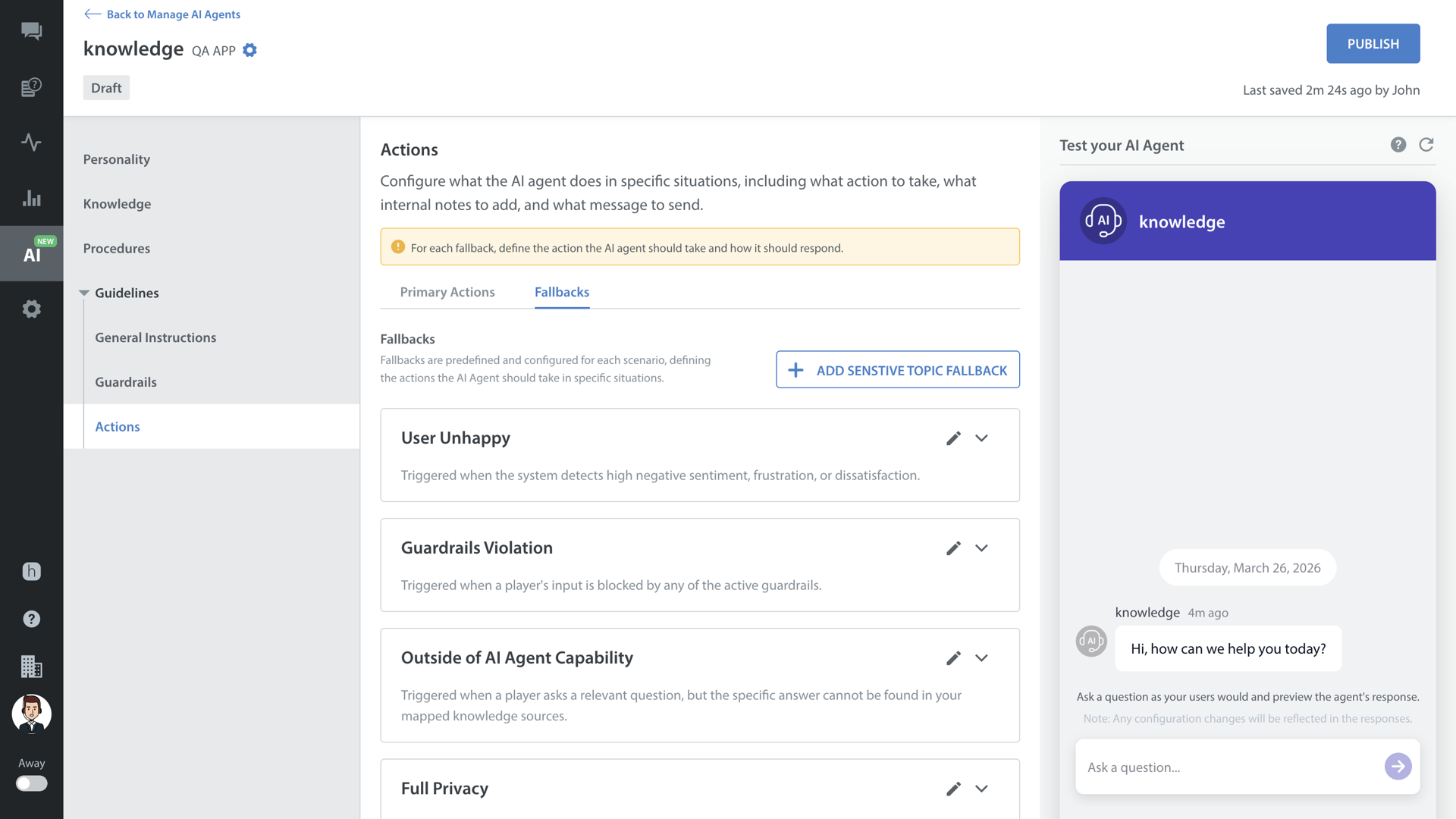
There are 6 categories of fallbacks:
| Fallbacks | When is it triggered? |
| User Unhappy | Triggered when the system detects high negative sentiment, frustration, or dissatisfaction. |
| Guardrails Violation | Triggered when a player's input is blocked by any of the active guardrails. |
| Outside of Knowledge | Triggered when a player asks a relevant question, but the specific answer cannot be found in your mapped knowledge sources. |
| Full Privacy | Triggered when the full privacy flag is set for the end user. |
| Global Fallback | Triggered when the system encounters an unexpected technical error, timeout, or fails to generate a valid response for any other reason. |
| Sensitive Topic (optional) | Triggered when the conversation touches on specific subject matters that you have flagged as "Restricted". |
Note:
The first 5 fallbacks are mandatory and cannot be deleted. The "Sensitive Topic" fallback is optional and can be entirely deleted or customized to specific topics.
The ability to add a custom Private Note is disabled for "Outside of Knowledge" fallback. The Care AI agent automatically adds a specific note explaining that the issue was out of its knowledge.
Configuring Fallbacks
For each fallback, define the following:
- Action: Choose what the Care AI Agent should do:
- Escalate – Route the conversation to a queue, agent, or bot
- Reject – End the interaction without escalation
- Resolve – Automatically resolve the issue
- If Escalate is selected, you can choose to escalate to:
- A Queue
- An Agent
- A Bot
- Add Private Note (Internal & Optional): Add an internal note that is visible only to your team. This helps agents understand why the fallback was triggered.
- Send User Message (Player facing & Optional): Optionally send a player-facing message when the fallback occurs.
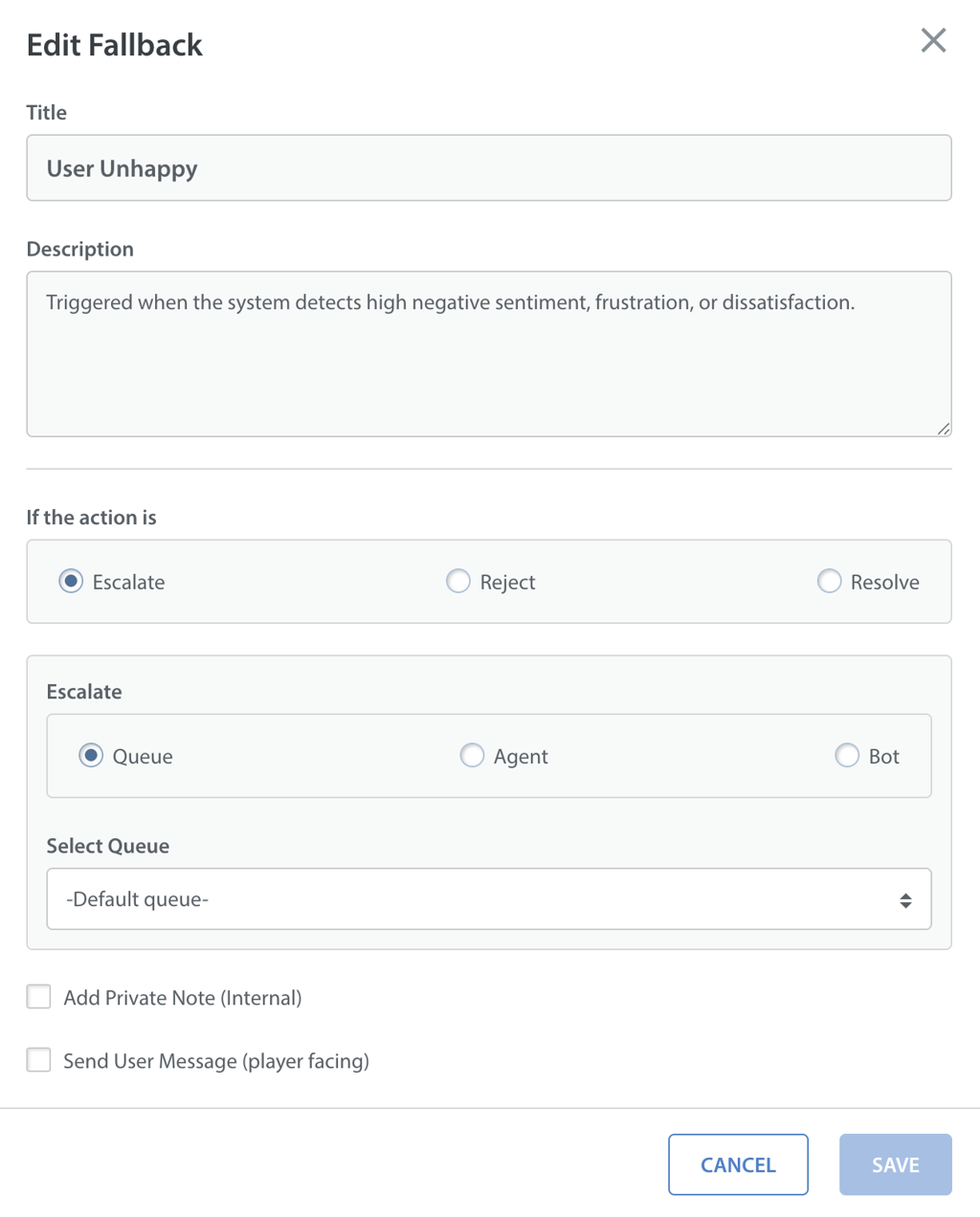
Note: By default, all fallbacks are set to Escalate to the default queue.
Testing Care AI Agents
You can test your Care AI Agent at any stage during configuration. This allows you to validate changes in real time and ensure the agent behaves as expected before publishing.
The Manual Chat Simulator lets you simulate real user interactions in a controlled environment. It acts as an end user and asks questions that the agent is expected to handle (e.g., missing purchase, account recovery, reporting issues).
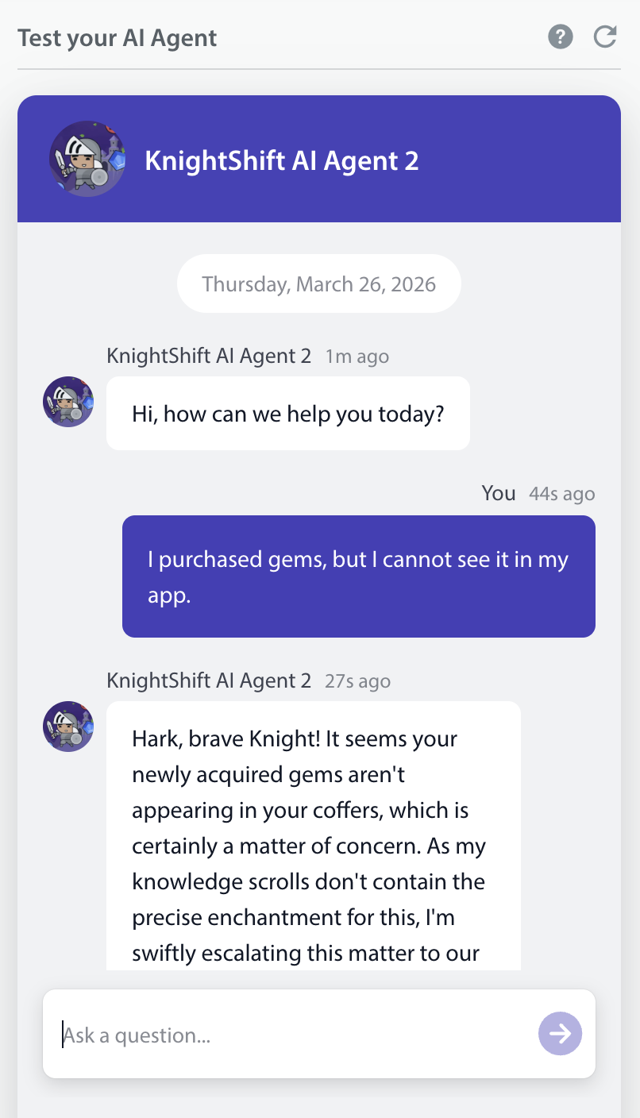
You can use the Manual Chat Simulator tool to:
- Simulate Conversations: Act as an end user and ask questions the agent is expected to handle.
- Verify Behavior: Check whether the agent’s personality, tone, and response length align with your brand guidelines.
- Validate Accuracy: Ensure the agent retrieves the correct information from mapped knowledge sources and follows the assigned Procedures appropriately.
Note:
Testing of the Care AI Agent should be performed after updating personality settings, mapping new knowledge or FAQs, linking new Procedures, and configuring fallbacks or actions.
If the Care AI Agent triggers an internal tool (like adding a tag), it will appear as a simulated private note within the chat interface.
Clicking the "Reset" button wipes the conversation history and starts a fresh testing session.
Once you are satisfied with the agent’s performance in the Manual Chat Simulator, you can proceed to publish the Care AI Agent.
Publishing Care AI Agents
Once configuration and testing are complete, you can publish your Care AI Agent if it is working as expected.
To publish a Care AI Agent, follow these steps.
- Click the PUBLISH button in the top right corner of the page.
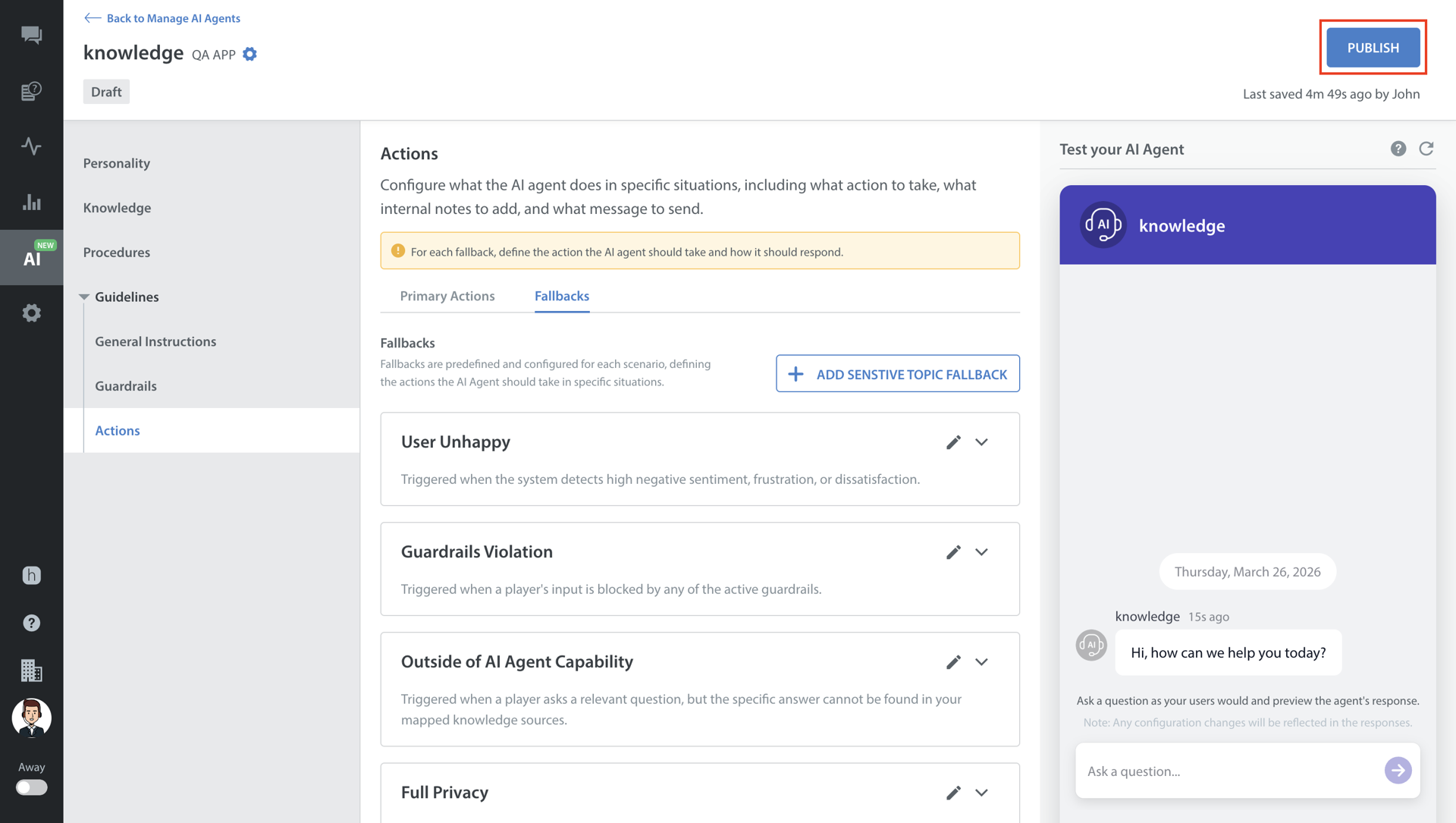
- A confirmation to publish the Care AI Agent appears.
- Click PUBLISH & GO LIVE.
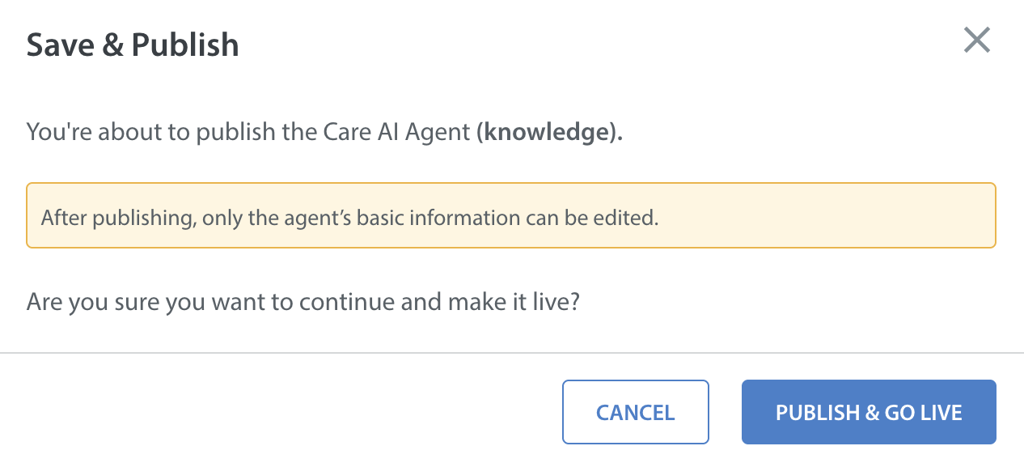
- The Care AI Agent moves from Draft to Live state.
Once Live, the Care AI Agent can handle user conversations.
Managing Care AI Agent States
Care AI Agents move through different states. The following table explains how each state of the Care AI Agent occurs.
| State | Description |
| Draft | Automatically assigned when a Care AI Agent is created. The Care AI Agent can be configured and tested, but is not ready to handle user conversations. |
| Live | After configuration and testing, click Publish to move the agent to Live state. The Care AI Agent can actively handle player conversations. |
| Disabled | If you no longer want a Live agent to handle conversations, you can Disable it. The agent can be enabled again when needed. |
Note: You can disable and re-enable Live agents as needed.
Editing Care AI Agents
You can edit the following details of a Care AI Agent.
- Name (Internal)
- Nickname (Player facing)
- Avatar
To edit a Care AI Agent's info, follow these steps:
- Click the More Options button of the Care AI Agent you want to edit.
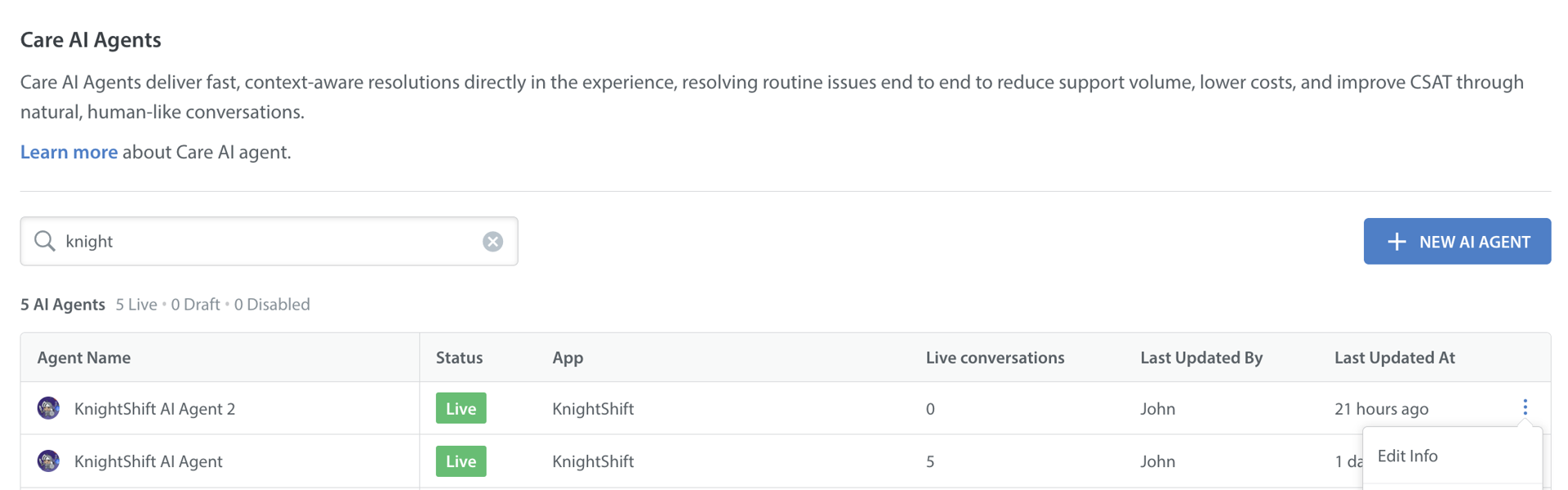
- Make the changes.
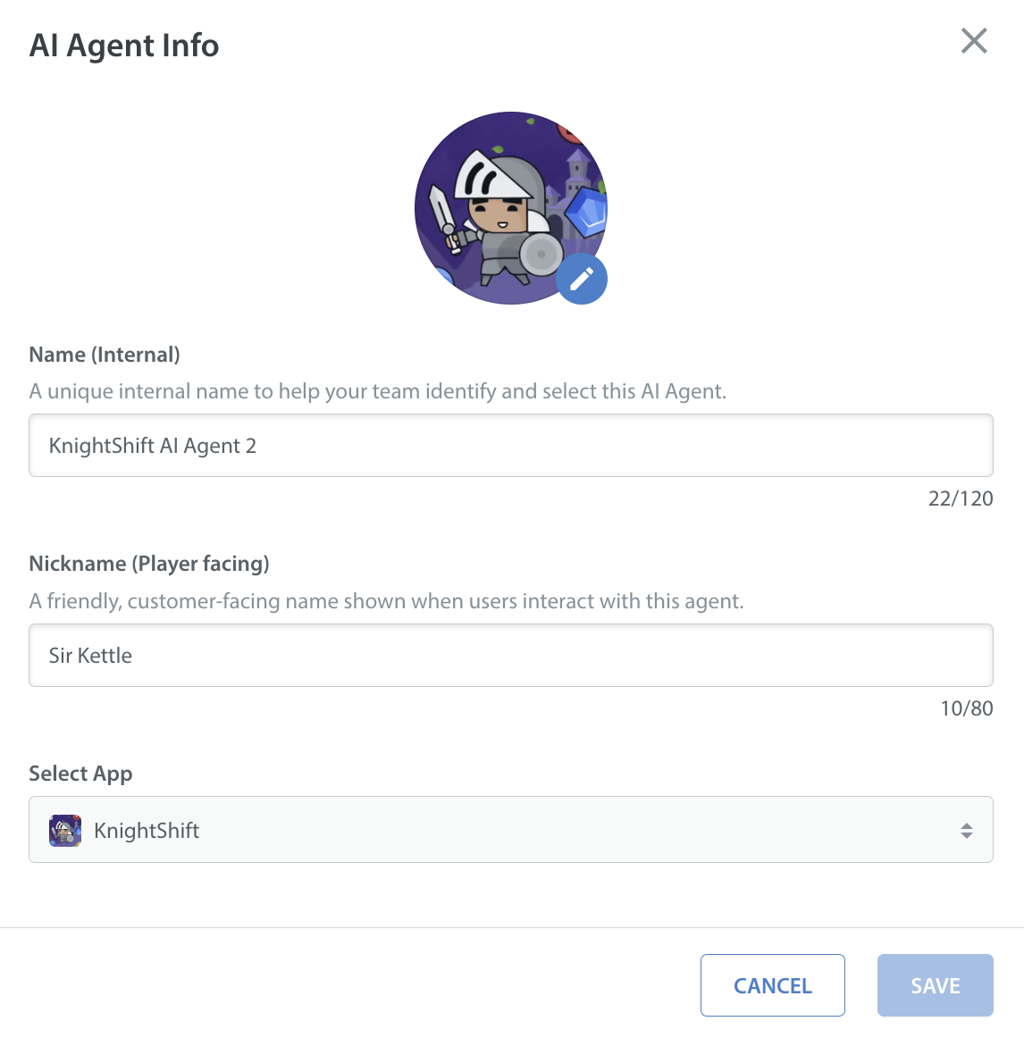
- Click SAVE.
Note: Care AI Agent configurations (such as personality, knowledge, procedures, guardrails, and fallbacks) cannot be edited once created.