
To upload or update your .p12 or GCM certificate, proceed as follows:
- From within the Helpshift Dashboard, click on the Settings tab to open the Settings page.

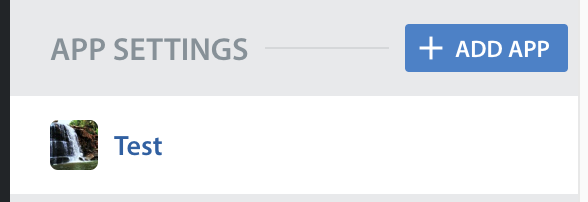
- Scroll down to the ‘App Settings’ section in the left navigation bar, then select the name of the app you’d like to upload the certificate for.
- On the page that appears, go to the Supported platforms area > Configure In-app SDK > Push notification tab > Apple Push Notification Service/Google (Firebase) Cloud Messaging, then click the ‘Re-Upload ’ button.
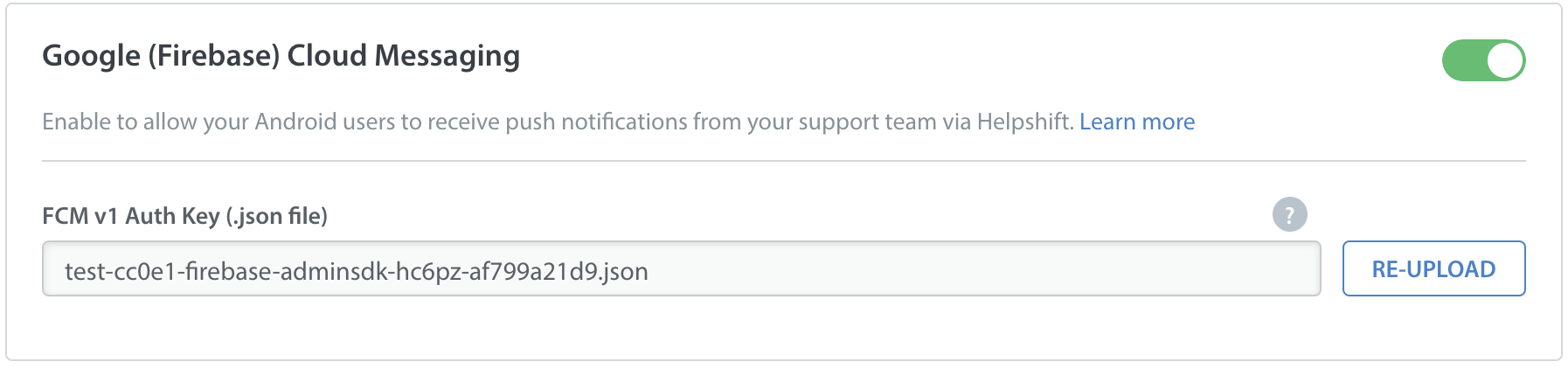
- A pop-up will appear where you can upload the certificate and enter the certificate password. Provide this info and click ‘Save’.
Note: Push certificates expire. To ensure no problems are caused by this expiration, we recommend adding calendar reminders for yourself to update these certificates.