
Introduction
HSAPI keys enable secure communication between Helpshift and external applications. However, keys that remain unchanged for long periods can become stale and increase security risks if compromised.
HSAPI Key Rotation helps administrators reduce these risks by enabling automatic or manual key rotation, with a grace period to update existing integrations without disruption.
With HSAPI Key Rotation, you can:
- Automatically or manually rotate HSAPI keys.
- Use a 14-day grace period during automatic rotation.
- Optionally enable a 14-day grace period during manual rotation.
- Receive notifications about upcoming rotations and grace-period expiry.
- View key lifecycle events in History Logs.
Managing HSAPI Key Rotation
HSAPI keys that remain unchanged for long periods can become outdated and increase the risk of unauthorized access if they are exposed. Previously, HSAPI keys were managed and rotated manually, with no expiration or automated reminders to help keep them up to date.
To help improve security and simplify key management, the Admin Dashboard now offers options to rotate HSAPI keys regularly. Administrators can choose between the following options:
- Automatic Rotation: Enable automatic rotation to have the HSAPI key rotated every 90 days. A 14-day grace period is provided to allow time to update the key in your systems and help avoid disruption to your integrations.
- Manual Rotation: Rotate the HSAPI key manually at any time using the Rotate Keys option in the Admin Dashboard. This gives administrators flexibility to rotate the key whenever required.
Steps for Automatic Rotation
To perform an automatic key rotation, follow these steps:
- Log in to your Helpshift domain as an administrator.
- On the Helpshift toolbar, click Settings.
- In the navigation pane, click on the APIs.
The APIs page appears. - Under the HS-API Key Rotation policy, select Auto-Rotation as the key rotation method.
The pop-up screen for confirmation.
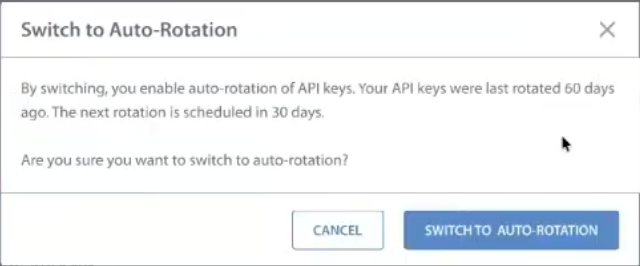
- Click SWITCH TO AUTO-ROTATION.
By switching, your keys will be rotated automatically after 90 days from the last rotation date.
Steps for Manual Rotation
To perform the manual key rotation, follow these steps:
- Log in to your Helpshift domain as an administrator.
- On the Helpshift toolbar, click Settings.
- In the navigation pane, click on the APIs.
The APIs page appears. - Under the HS-API Key Rotation policy, select Manual Rotation as the key rotation method.
The ROTATE KEYS option appears on the screen.
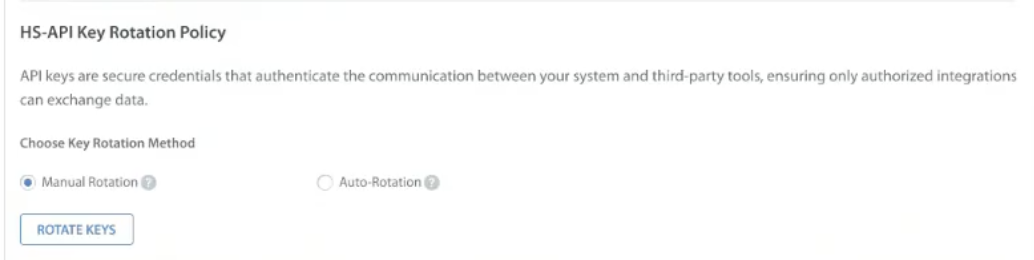
- Click ROTATE KEY.
The pop-up message appears to enable a 14-day grace period. (Optional)
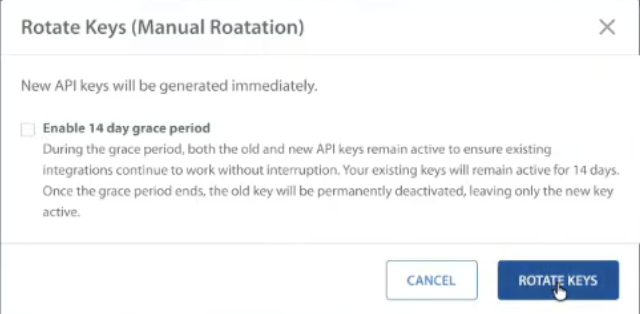
- If you wish to enable a grace period, tick the checkbox and click ROTATE KEYS.
Notifications
HSAPI Key Rotation provides notifications through the Helpshift Dashboard and email.
Notifications help administrators prepare for upcoming rotations, identify successful or failed rotations, and track the remaining grace period.
Success notifications
Success notifications inform administrators when a key rotation is complete.
These notifications cover the applicable rotation events, including:
- Successful automatic rotation.
- Successful manual rotation.
- Completion of the applicable rotation/grace-period lifecycle.
The notification confirms the rotation and, where applicable, provides information about the previous key's deprecation or revocation.
Grace-period notifications
Administrators receive notifications as the grace period approaches expiry.
Notifications are sent:
- 7 days before grace-period expiry.
- 1 day before grace-period expiry.
- On the day the grace period expires, when the previous key is revoked.
Pre-rotation reminders
For Automatic rotation, administrators receive advanced reminders before the scheduled rotation.
Pre-rotation reminders are sent:
- 14 days before rotation
- 3 days before rotation
- 1 day before rotation
A warning is also displayed in the Dashboard with the scheduled rotation date.
Manual rotation reminder
When Manual rotation is configured, the Dashboard can display a Rotation Recommended reminder after the key reaches the recommended rotation period.
This reminder indicates that the administrator should review the age of the existing key and consider rotating it.
History Logs for Audit purpose
The View History section provides a chronological record of HSAPI key lifecycle and configuration events. History Logs help administrators understand when key-related actions occurred and who or what initiated them.
| Actor | History event | Description |
| Admin/System | Key Generation | Records when an HSAPI key is generated. |
| System | Automatic Rotation | Records an automatic HSAPI key rotation. |
| Administrator | Manual Rotation | Records a rotation initiated by an administrator. |
| Authorized Administrator | Rotation Policy Change | Records a change to the configured rotation policy. |
| System/Administrator | Revocation | Records when an HSAPI key is revoked. |
You can also export data in CSV. Contact the support team for the same.
Note:
Domain configuration Who manages rotation? Rotation scope ALP enabled Super Admin/authorized user Shared API configuration across workzones ALP not enabled Admin with required access Individual domain