
What is Website Sync?
Website Sync brings content from your public website or help center directly to Care AI Agent Knowledge. The system automatically scans your web pages, extracts clean text content, formats it for AI processing, and keeps it up to date on a scheduled cycle.
Key Benefits
- Eliminate Manual Maintenance: Automatically syncs updates from your public website, removing the need to manually replicate help articles across platforms.
- Instant Care AI Integration: Enables AI Agents to immediately retrieve and synthesize answers from external website content.
- Automated Sync Schedules: Automatically re-sync your website on a recurring schedule (monthly, weekly, or custom) to sync new pages and updates.
- Intelligent Content Filtering: Automatically filters out non-essential website elements such as navigation headers, footers, sidebars, and cookie banners, ensuring Care AI syncs only clean, relevant knowledge.
- Granular Control & Governance: Enables Admins to review newly discovered pages before publishing them to live, customer-facing AI Agents.
You can use the links below to quickly navigate to each section:
- Getting Started
- Setting Up Website Sync
- Advanced Settings
- Reviewing the Setup
- Managing Synced Pages
- Mapping Knowledge with Care AI Agents
- Website Sync URL Patterns
- Troubleshooting Website Sync Errors
Getting Started
Prerequisite: You must have the Care AI Agent feature enabled in Helpshift to add and configure knowledge sources for AI Agents.
Learn more on Enabling Care AI Agents.
Website Sync allows brand administrators to automatically sync public website content directly into the Helpshift Knowledge Hub for Care AI Agents without manual copying, pasting, or content migration. This keeps your Care AI Agents up to date with your latest documentation, FAQs, and help articles.
To sync a website to Care AI Knowledge, follow these steps:
- Log in to your Helpshift domain as an administrator.
- On the Helpshift toolbar, click Helpshift AI.
- Navigate to Care AI Agents under AI for End Users.
- Click MANAGE.
The Manage AI Agents screen appears.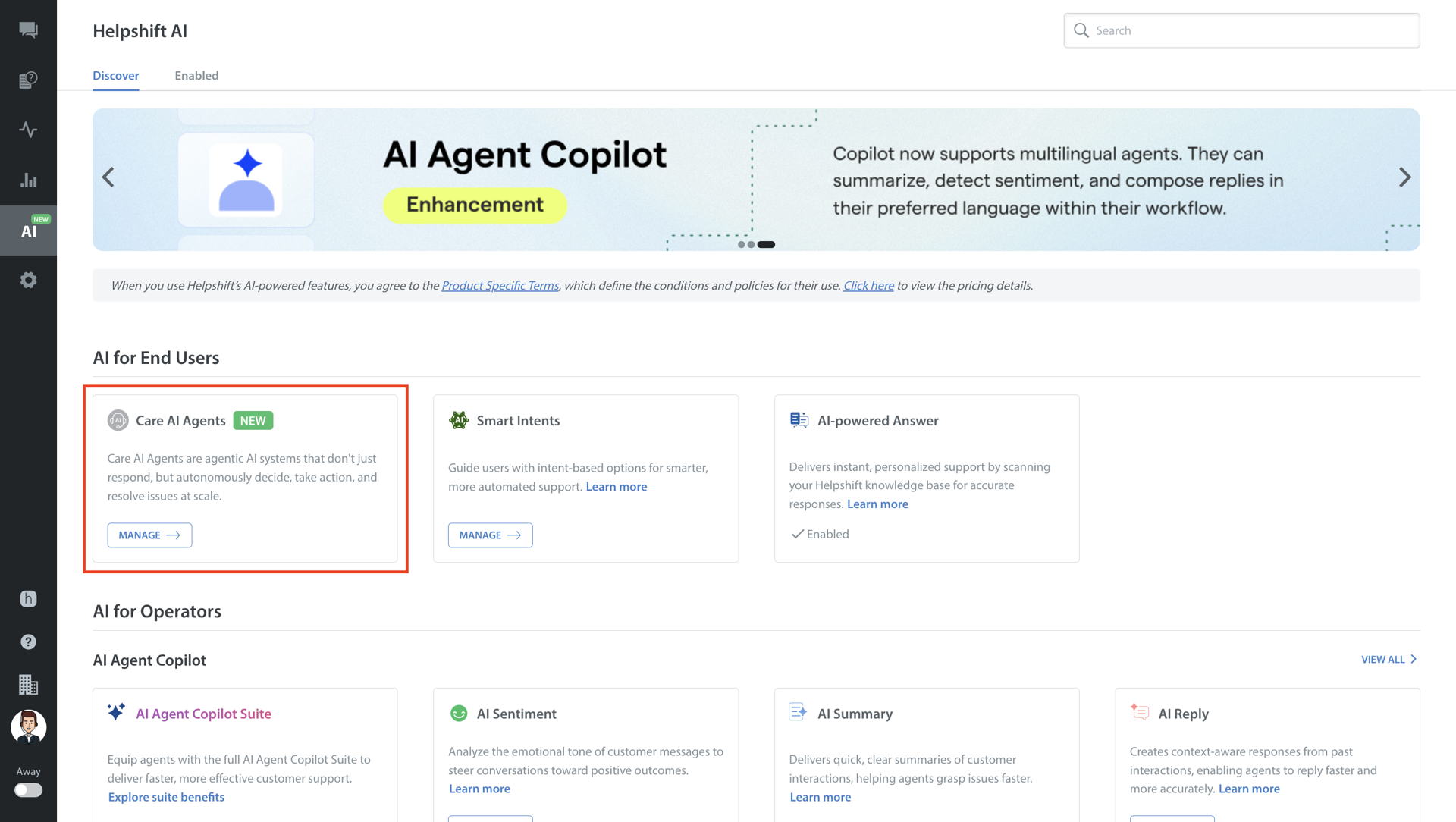
- Navigate to Knowledge in Manage Care AI Agents.
- Select the app where you want to add your knowledge.
- Click the ADD KNOWLEDGE dropdown.
- Select Website Sync.
Alternatively, you can also select a folder in Knowledge of Care AI Agents and click ADD KNOWLEDGE > Website Sync.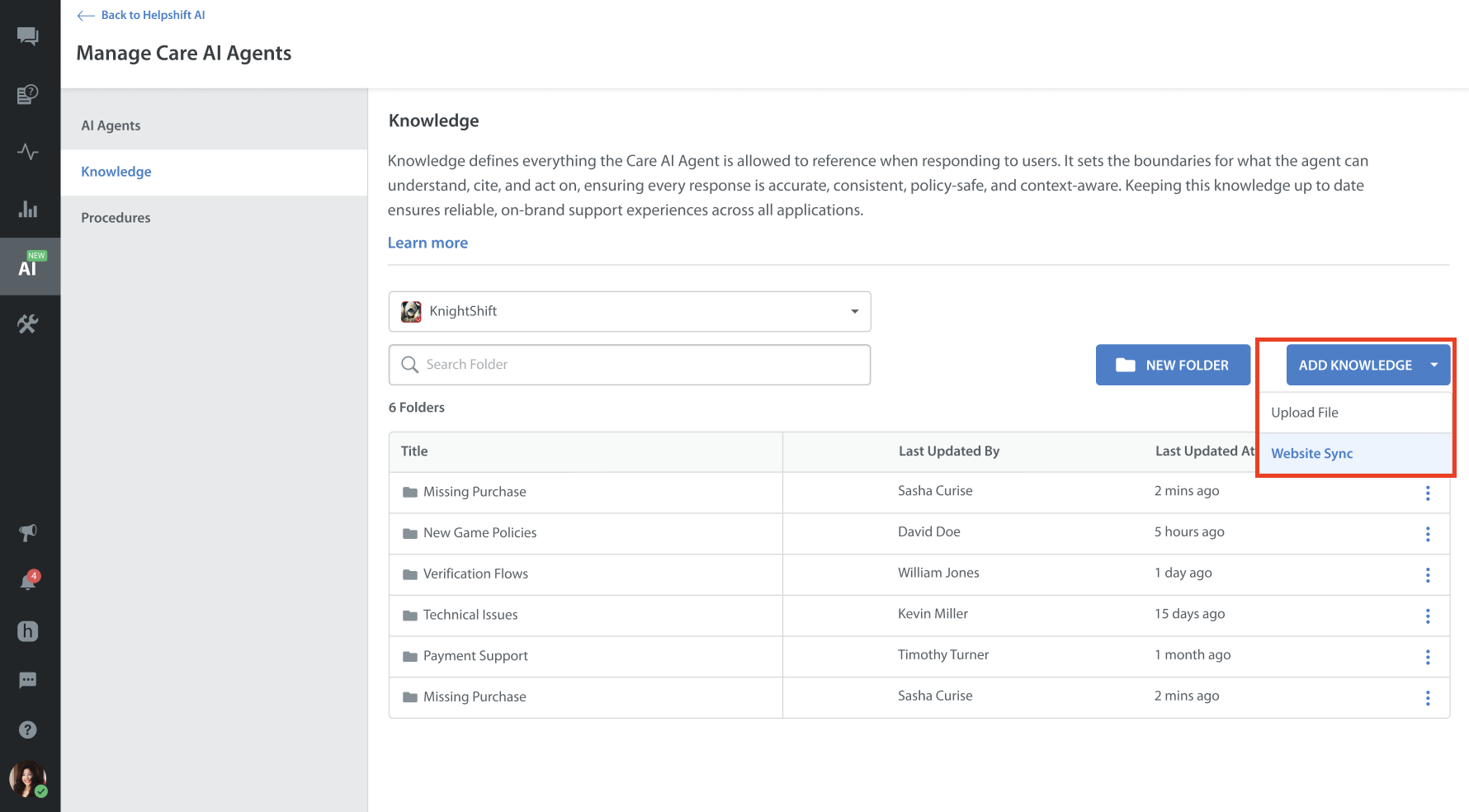
Setting Up Website Sync
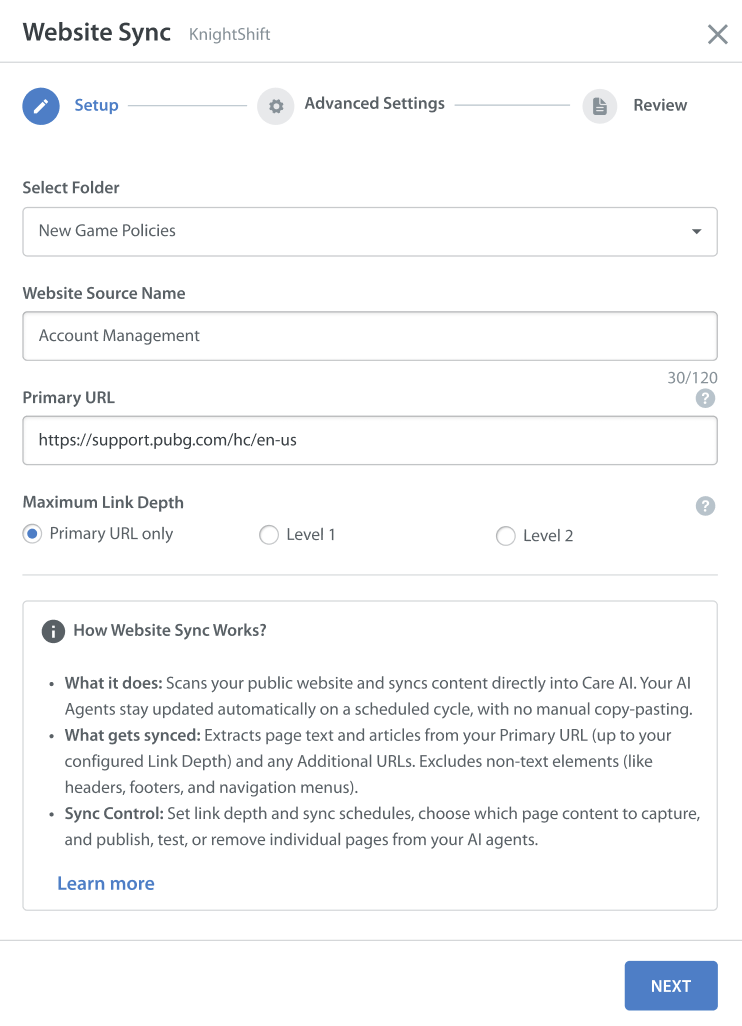
Website Sync involves three configuration steps in your Care AI Agent dashboard: Setup, Advanced Settings, and Review.
Enter the following fields to proceed to the next step.
- Select Folder: Choose the Knowledge Hub folder where this website source will reside.
- Website Source Name: Enter a clear, recognizable name (e.g., Help Center Docs or Account Management) to easily identify this website source across your knowledge base, tables, and sync history logs.
- Primary URL: Enter the main starting webpage URL of your help center or documentation site (e.g.,www.supportcentre.com). All sub-pages come from this starting web address.
- Maximum Link Depth: Controls how deep the sync happens starting from your Primary URL:
- Primary URL Only: Scans and syncs content from only the exact Primary URL provided.
- Level 1: Scans the primary page and any direct child pages linked from it.
- Level 2: Scans the primary page, direct child pages, and pages linked from those child pages.
Note:
Public URLs Only: Only publicly accessible URLs are scanned and extracted. Password-protected, SSO-restricted, or login-authenticated web pages will not be scanned or synced into your knowledge base.
Domain Matching Rule: The website sync only syncs sub-pages that belong to the exact same domain as your Primary URL. Example: If your Primary URL is helpcenter.com,
helpcenter.com/gettingstarted will be synced because it shares the same primary domain.
myapp.com/rewards will not be synced because it belongs to an external, non-matching domain.
Supported Content: Page text, structured headings (<h1>–<h3>), articles, and FAQs.
Excluded Content: Non-text media (images, videos, audio), cookie banners, and password-protected pages.
Advanced Settings
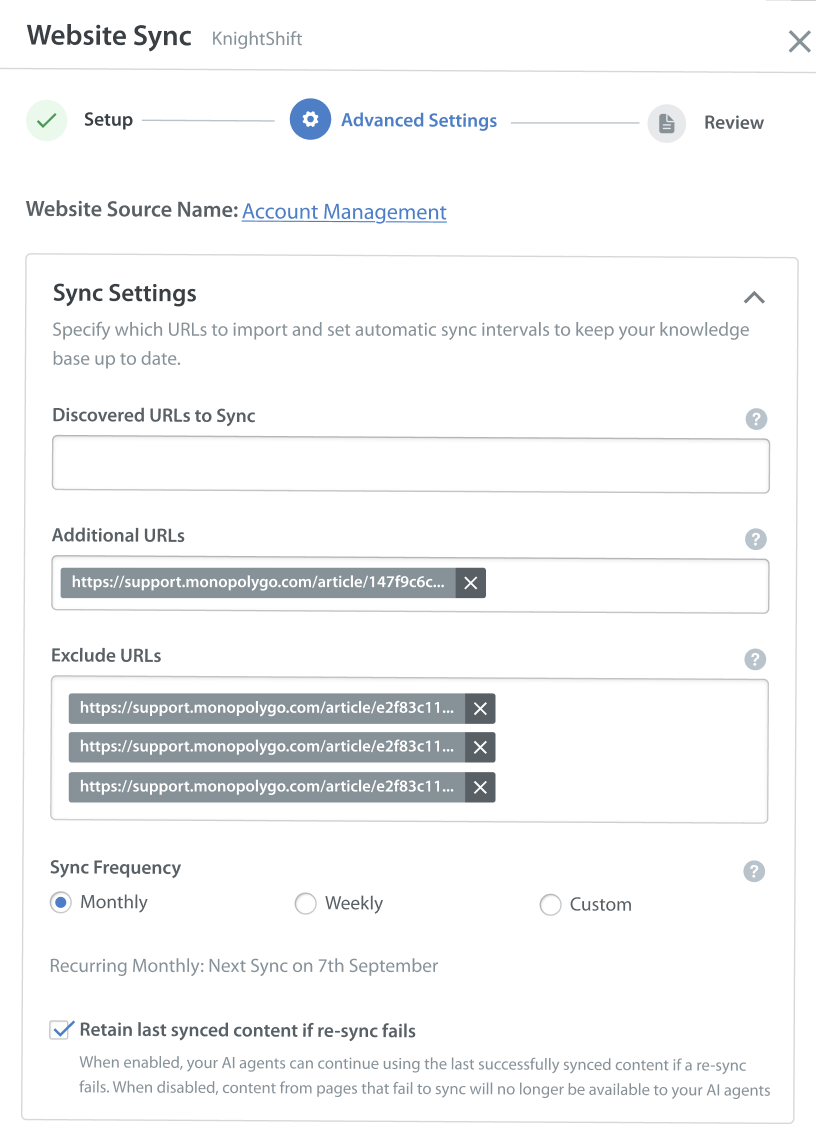
Once the initial setup is complete, click NEXT to proceed to Advanced Settings, where you can configure URL filtering, schedules, and HTML extraction rules.
Sync Settings
You can configure sync settings to sync the specified URLs and set sync schedules to keep the knowledge up to date.
- Discovered URLs to Sync: Specify URLs or URL paths from your discovered pages that you want to sync. Entering URLs here limits syncing strictly to those pages; leaving this field empty syncs all discovered pages within your set Link Depth.
Example: Suppose your Primary URL is myapp.com, and the discovered sub-pages are myapp.com/1, myapp.com/2, and myapp.com/3.- If left empty: All 3 sub-pages (myapp.com/1, myapp.com/2, and myapp.com/3) will be synced.
- If you enter myapp.com/1: Only myapp.com/1 will be synced, and the other sub-pages will be skipped.
- Additional URLs: Add extra URLs that fall outside the link structure of your Primary URL. This ensures important sub-pages that aren't directly linked from the main site are still synced into the same source.
- Exclude URLs: Specify URL paths or patterns to ignore (e.g., https://example.com/pricing). Matching pages will not be scanned or synced into your knowledge base. Exclude rules take priority and block matching URLs, even if they are listed in Additional URLs.
- Sync Frequency: Sets how often the website sync happens to sync new pages and content updates.
- Monthly (Default): Automatically re-scans once every month based on the initial setup date.
- Weekly: Automatically re-scans every 7 days on the initial setup day of the week.
- Custom: Select a specific calendar date for the next sync.
Note: All scheduled website re-syncs occur automatically at 5:00 AM IST on their specified sync dates.
- Retain last synced content if re-sync fails:
- When Enabled (Recommended): If a scheduled re-sync fails on any page, Care AI Agents continue using the last synced content for that page.
- When Disabled: If a re-sync fails, the affected page will fail, and the AI Agent will not be able to use it.
Note: Understanding Discovered URLs to Sync vs. Additional URLs
The Discovered URLs to Sync field restricts website discovery to specific pages linked from the Primary URL page. It can only include URLs that the website sync can discover during its initial scan.
Example: Suppose your Primary URL is myapp.com/gettingstarted, and it contains links to the following child pages:
- myapp.com/gettingstarted/rewards
- myapp.com/gettingstarted/accountrecovery
- myapp.com/gettingstarted/troubleshooting
If you want to sync only the Rewards page, enter myapp.com/gettingstarted/rewards in the Discovered URLs to Sync field. The website sync will restrict discovery and syncing to this page, excluding the other two child pages.
What if you want to sync a page that isn't linked to the Primary URL?
URLs that are not discoverable through the Primary URL's page links must be added to the Additional URLs field instead. For example, if you want to sync myapp.com/news, add it to the Additional URLs field.
Important: Adding myapp.com/news to the Discovered URLs to Sync field will not work because the sync cannot discover this page during its initial scan of the Primary URL.
HTML Settings
You can define rules for which page elements to include or exclude during sync.
- Include Page Elements: Specify CSS selectors (such as main or .article-body) for content that must be explicitly included. If a specified selector is not found, that page will not be synced.
- Exclude Page Elements: Specify CSS selectors for non-essential sections to exclude during content extraction. Any matching elements will be excluded from all scanned pages.
- Expand Clickable Elements: Enter dynamic page elements such as accordions, tabs, or 'Read More’ buttons during scanning to extract hidden content.
- Wait for Clickable Elements (in seconds): Set a delay (in seconds) to pause the sync until the above-mentioned Clickable Elements appear.
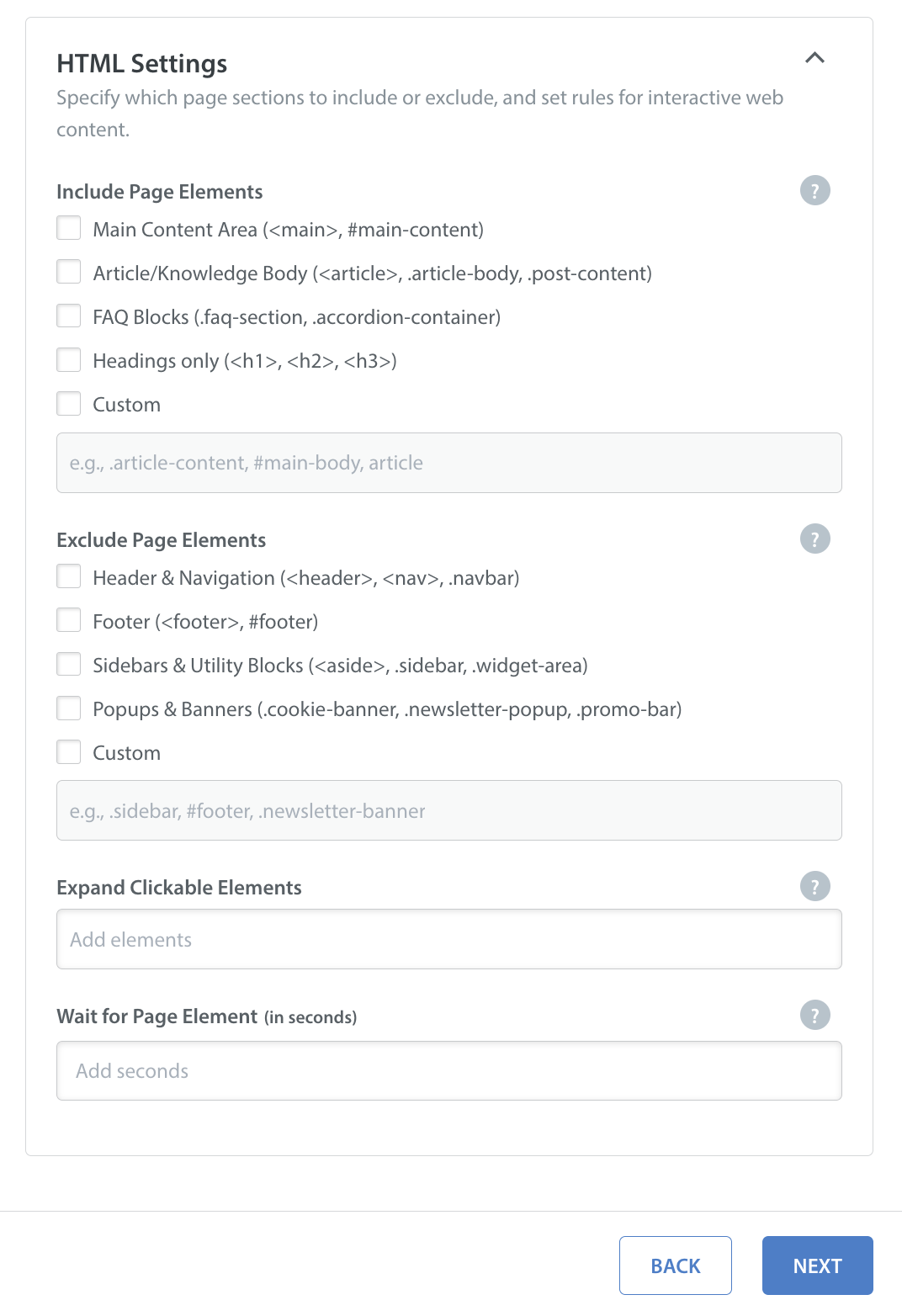
Note: The same CSS selector cannot be added to both Include Page Elements and Exclude Page Elements.
Reviewing the Setup
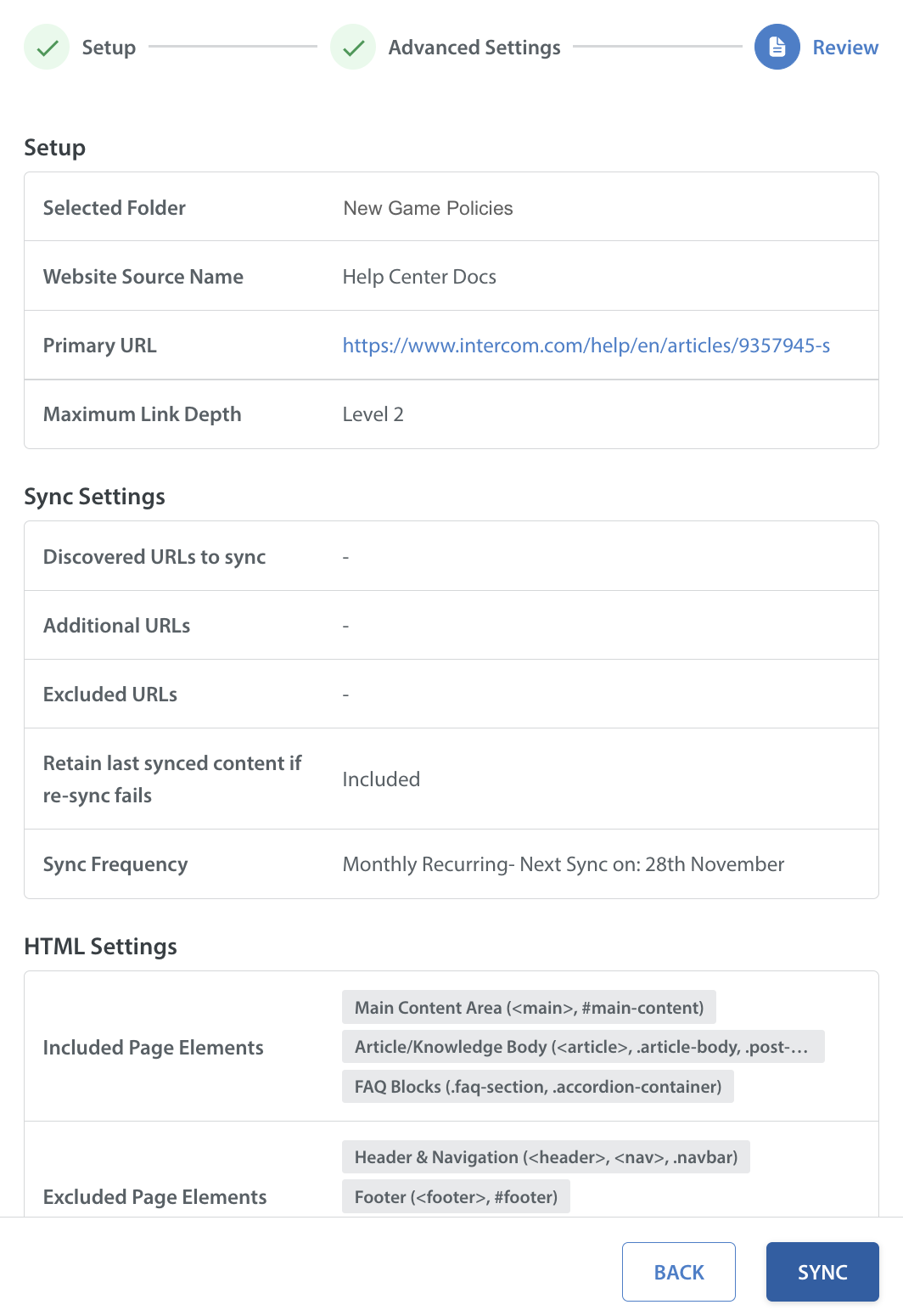
Once the Advanced Settings are configured, click NEXT to proceed to the Review step.
- Review your configured folder, source name, URLs, schedule, and HTML rules.
- Click SYNC to begin the initial scan.
The system will create the source folder and start discovering and syncing pages in the background.
Managing Synced Pages
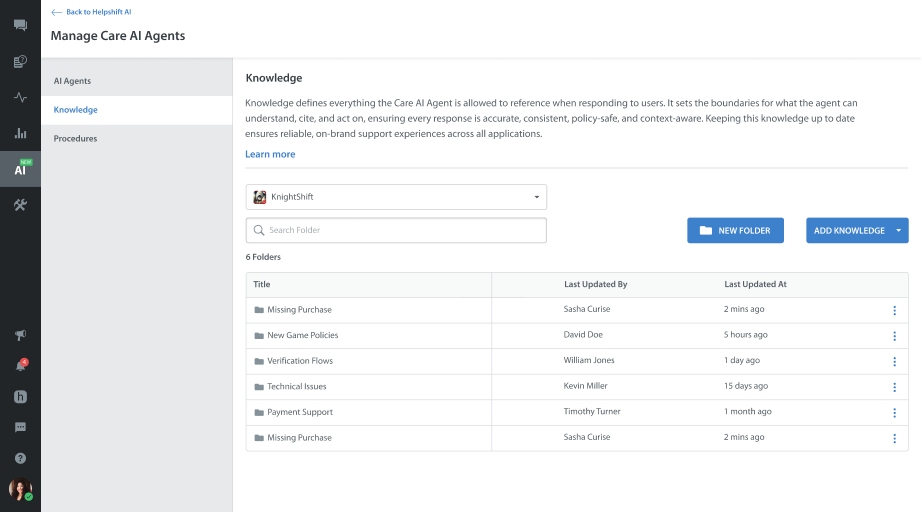
Knowledge management within the Knowledge Hub follows a three-level navigation hierarchy:
- Knowledge Hub: The top-level parent repository hosting all mapped knowledge sources (e.g., Website Syncs, PDFs, and Confluence Folders). Learn more on Care AI Agent Knowledge.
- Website Source: The specific website source that shows all discovered pages and the overall sync status.
- Discovered Pages (Sub-URLs): The detailed view displaying all individual discovered web pages, statuses, and extracted text previews.
Knowledge Hub Folder
The Knowledge Hub Folder acts as the primary parent container for your knowledge assets. Clicking any folder row opens the view that lists all configured website sources and document uploads.
Website Source Level Folder
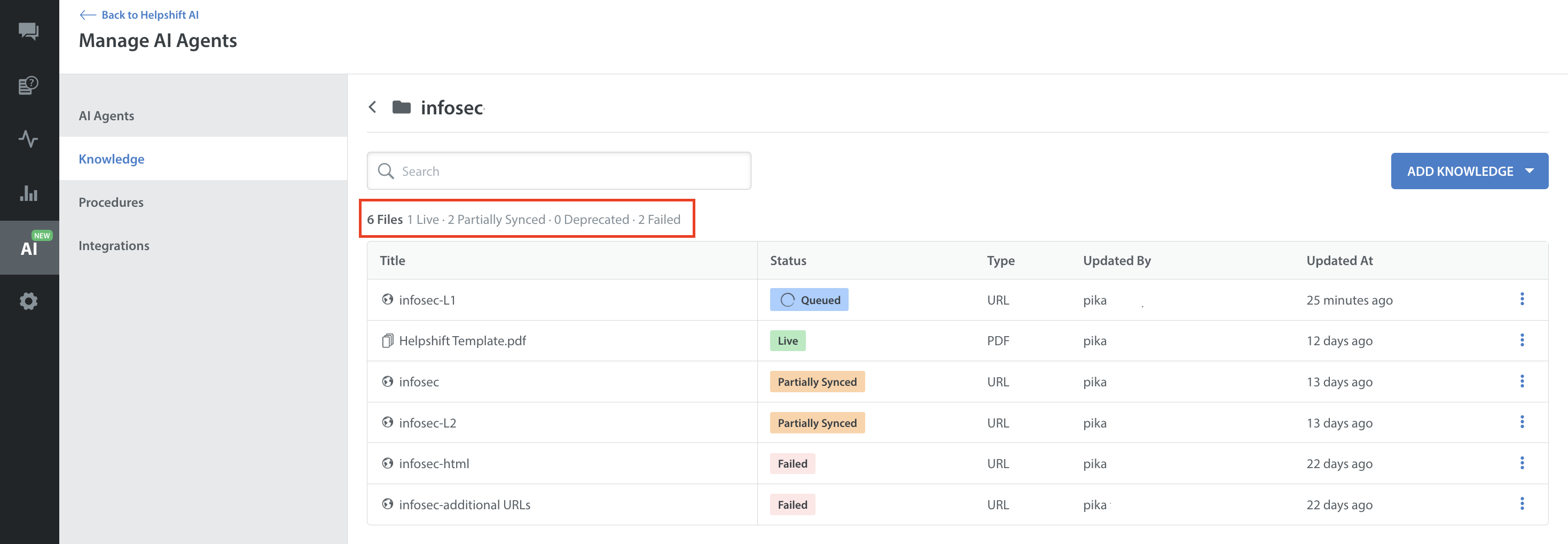
The top header displays a real-time count of all items stored inside the folder across all source types (PDFs and Website Sources).
- Title: The name of the website source or uploaded file. Clicking a website source title opens Discovered Pages View.
- Status: Displays the status of the website source.
- Type: Indicates the source format URL for website sources or PDF/File for document uploads.
- Updated By: Displays the admin username or automated process that triggered the update.
- Updated At: Shows the time since the last sync or configuration update.
| Status | Description |
| Queued | An action has been applied to the website's source folder, but backend processing has not yet started. |
| Scanning | The sync is actively discovering URLs on the website. |
| Ingesting | URL discovery is complete, and page content sync is in progress. |
| Live | All discovered web pages are fully synced and Live. |
| Partially Synced | Syncing is complete, but one or more sub-pages are non-live (e.g., Testing, Failed, Deprecated, or Failed!). |
| Failed | All discovered pages failed to extract content during the latest sync. |
| Deleting | The source and its data are being removed. |
Website Sync Actions
Click the More options button (⋮) on any Website Source row to perform folder-level actions:
- Edit: Re-opens the website sync setup to update URLs, schedules, or HTML rules. Saving the changes triggers an immediate re-sync of all live pages.
- Re-Sync: Immediate update of all active pages in the website source.
- View Sync History: Opens a log showing past sync runs, timestamps, and status breakdowns.
- Delete: Permanently deletes the website source and its synced data. (Disabled if any page in the source is actively associated with live AI Agents).
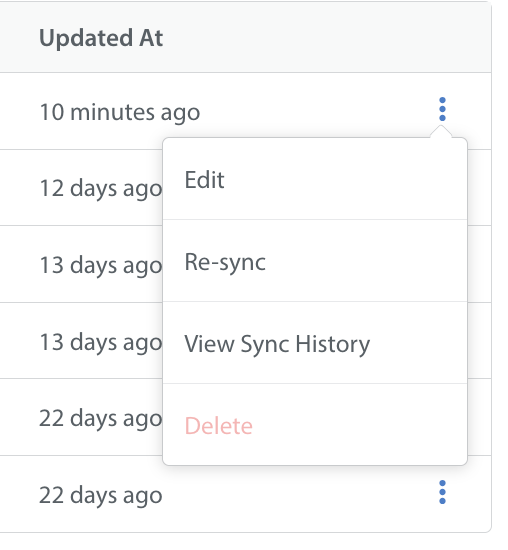
Note: The Delete action is disabled if at least 1 Sub-URL inside the website source is in any of the following states: Scanning, Ingesting, Live, Failed.
Viewing Sync History
You can view the sync history for all synced pages. The Sync History lets you track all status details and sync activities.
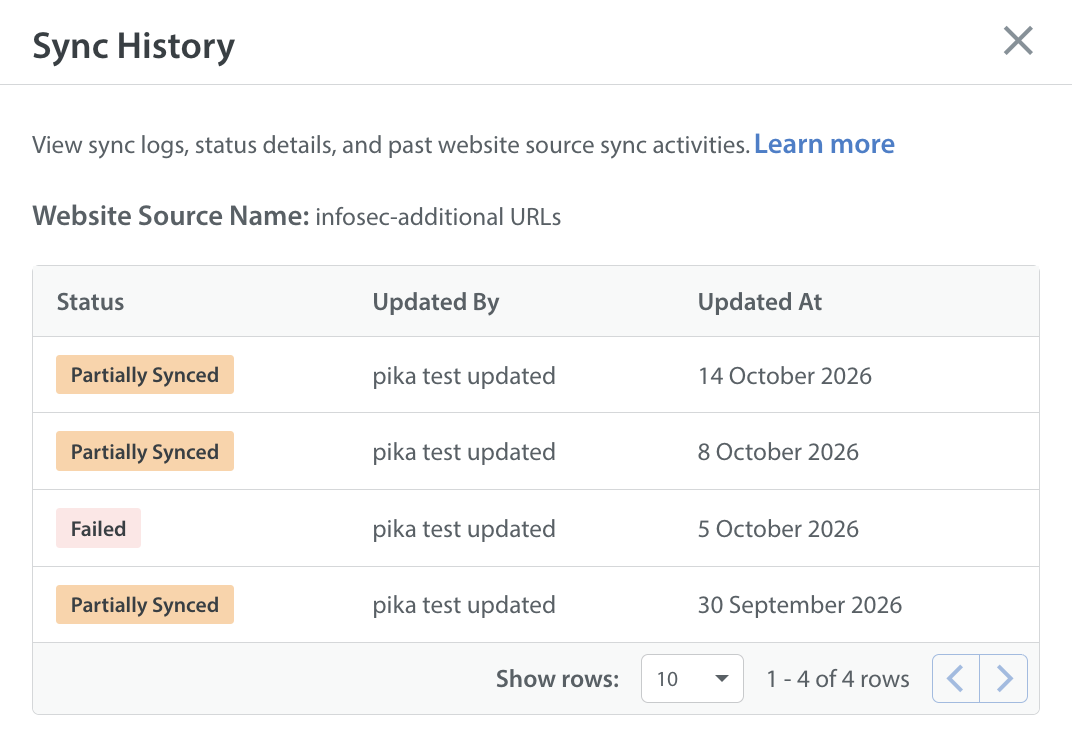
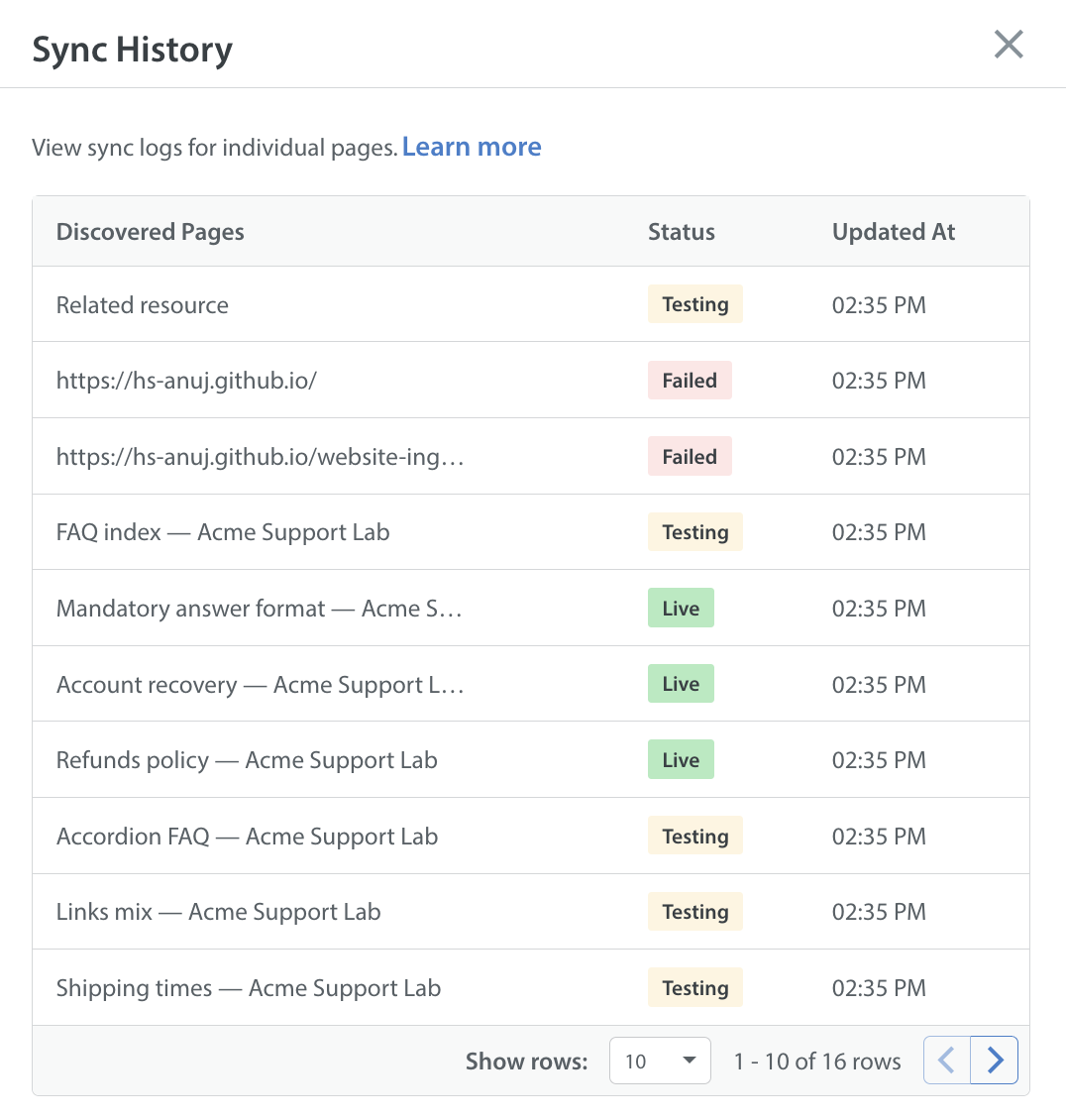
When you click on each row in the Sync History page, you can view the sync status and activities of each page that was synced.
Discovered Pages View (Sub-URLs)
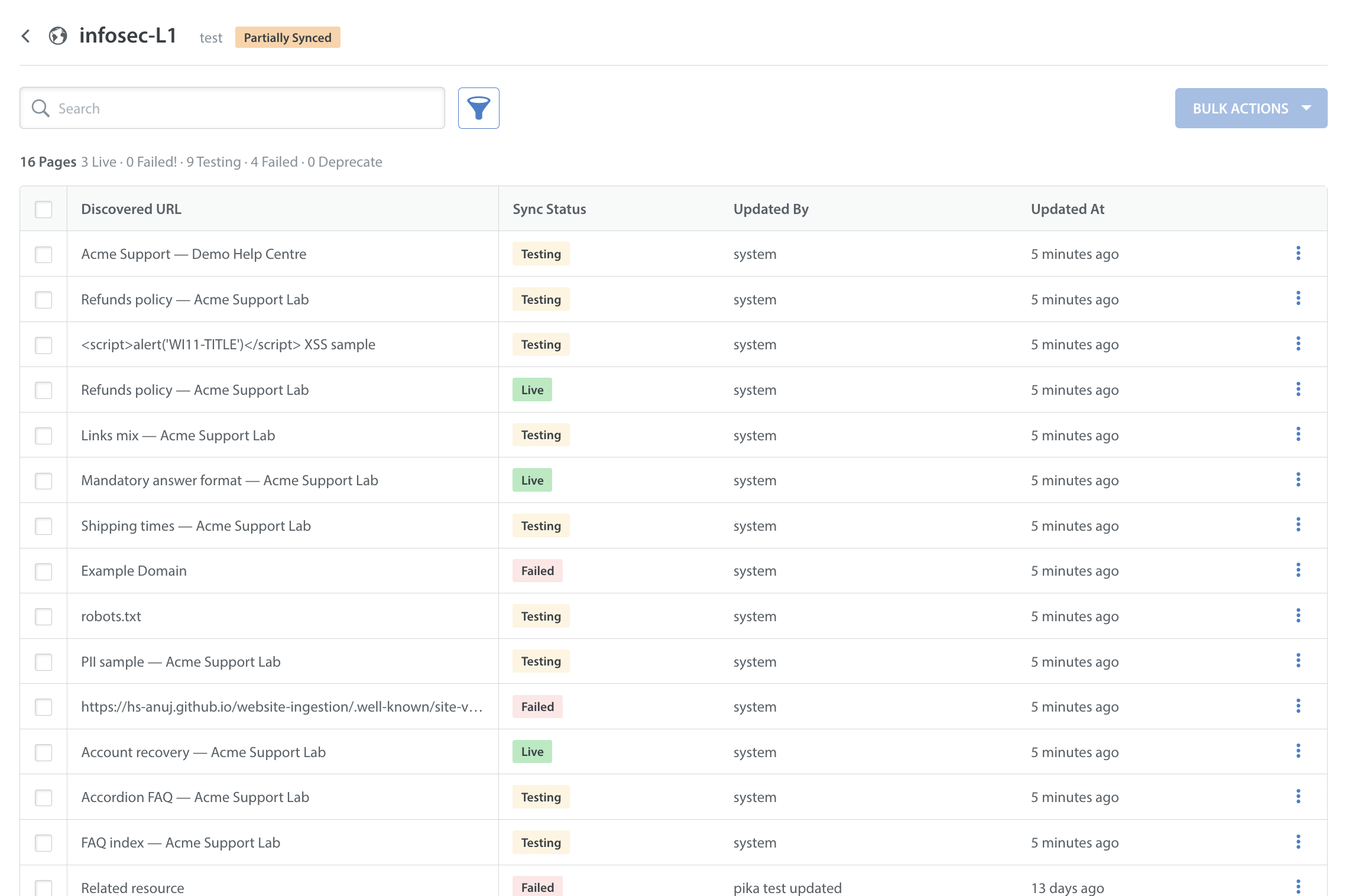
The Discovered Pages view displays discovered pages and their sync statuses, allowing you to manage sub-URL pages at a granular level.
- Discovered URL: Displays the static text URL or the Page Title.
- Sync Status: Displays the status of the individual page URL in real time.
- Updated By: Displays who performed the last update or edit.
- Updated At: Displays the timestamp of the last configuration change or Sub-URL update.
| Status | Description |
| Queued | An action has been applied to the Sub-URLs, but backend processing has not yet started. |
| Scanning | Discovering pages has started, but content sync has not been initiated. |
| Ingesting | Content sync is actively processing. |
| Testing | Newly synced or edited page content is undergoing review. |
| Live | Fully approved sub-page. |
| Deprecated | Deprecated page. |
| Failed | Sync failed. |
| Failed! | Previously, the live page failed during the re-sync. As “Retain last synced content" is enabled, AI Agents will continue using the last successfully synced version. |
Discovered Pages Actions
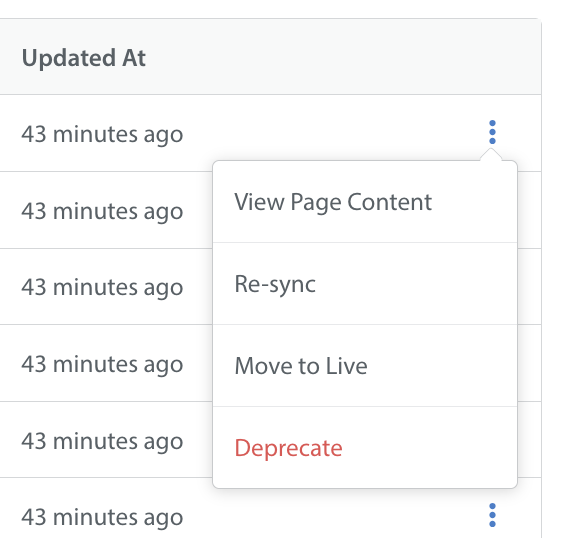
Click the More options button (⋮) on any discovered page row to perform the following actions.
- View Page Content: Opens a preview pane displaying extracted clean text body, title, and URL.
- Re-Sync: Triggers an immediate, isolated refresh for that specific URL.
- Move to Live: Moves a page from Testing to Live, immediately enabling it for Live Care AI Agents.
- Move to Testing: Moves a page from Live back to Testing, instantly removing it from Live Care AI Agents.
- Deprecate: Deprecates a page without deleting the record.
- Delete: Permanently removes the page record from the database.
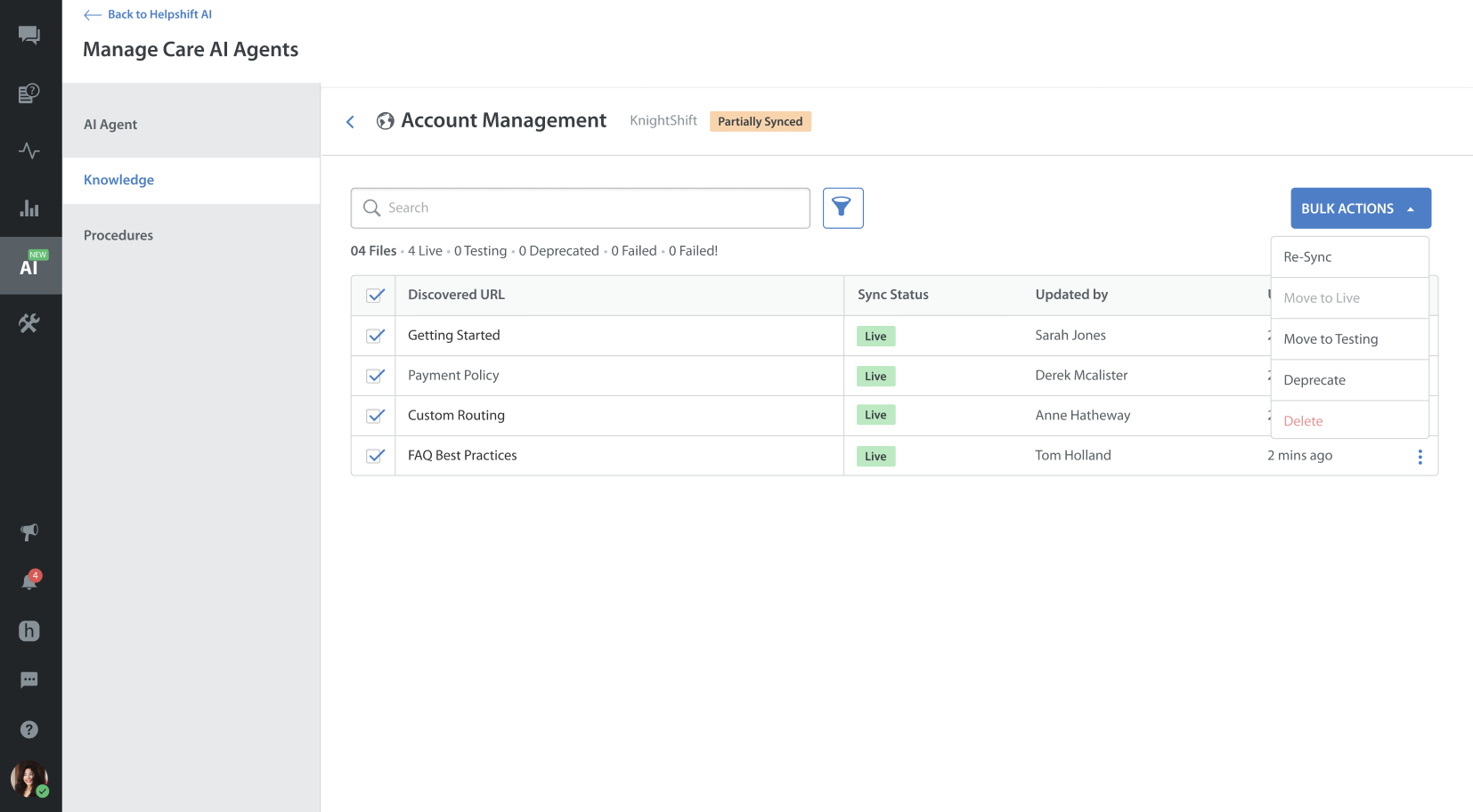
Bulk Actions
Perform bulk actions such as (Re-sync, Move to Live, Move to Testing, Deprecate, Delete) on selected pages.
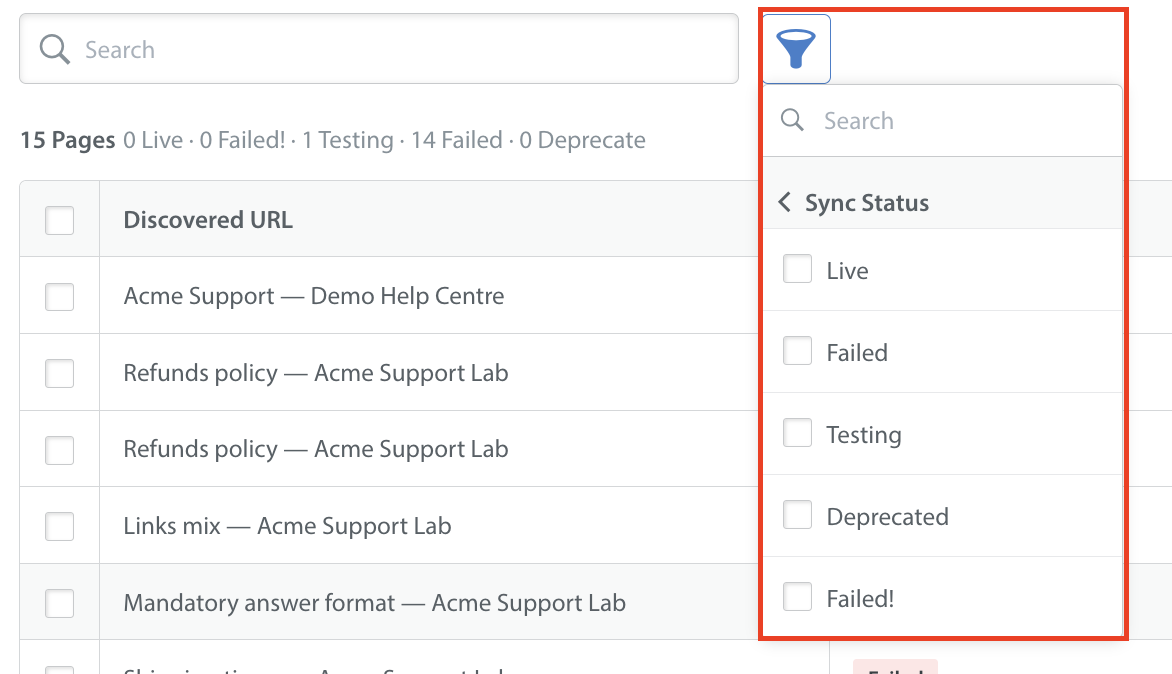
Filtering Page Views
You can filter page views by Website Sync Status and Sync Errors. For example, checking Live and Testing will filter and display all related pages that are both Live and in Testing.
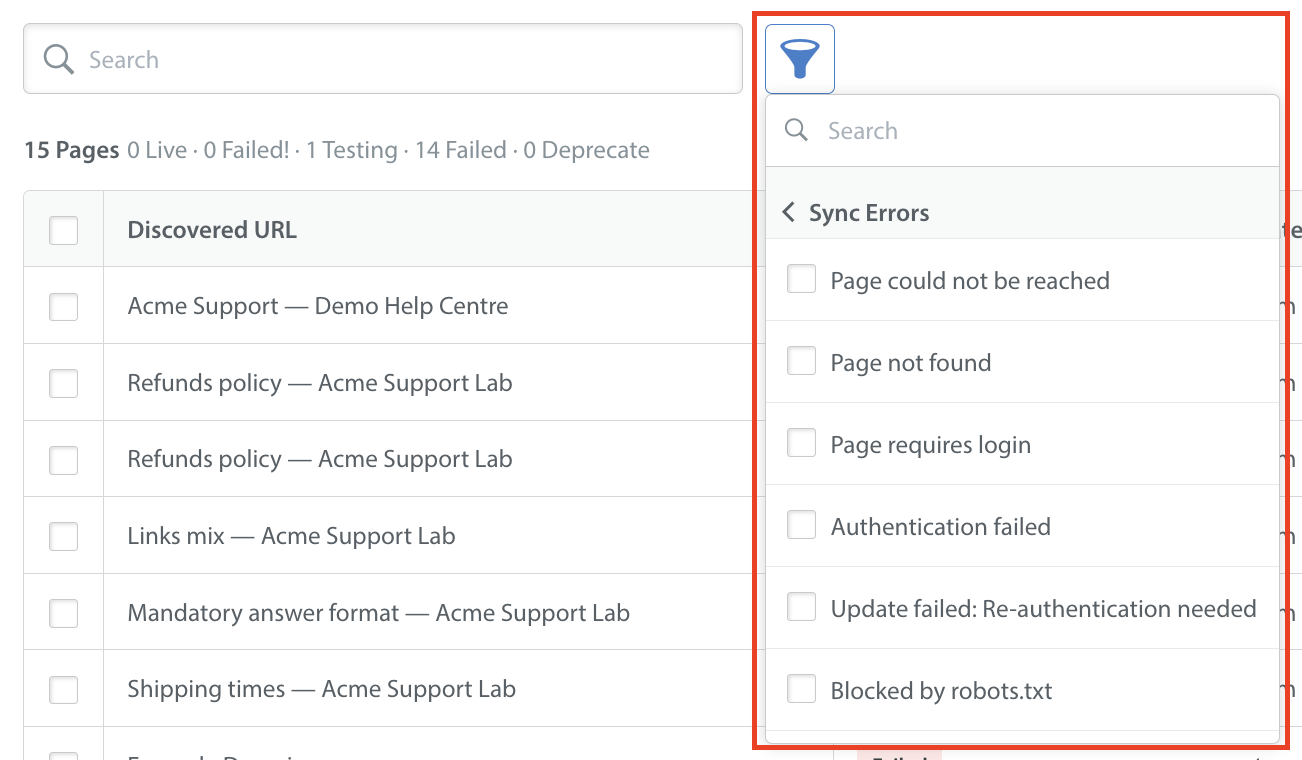
For Sync Errors, depending on the reason, you can check the errors and find the related pages.
Mapping Knowledge with Care AI Agents
When a folder is mapped to a Care AI Agent, all sub-URLs and files within that folder are automatically linked to the AI Agent based on their individual knowledge states and the Care AI Agent's state.
The table below outlines which synced files and sub-URLs can be accessed depending on the state of the Care AI Agent.
| Knowledge State | Live Care AI Agent | Draft AI Agent & Edit Live (Version) | Behavior & Access Rules |
| Live | Can be mapped | Can be mapped | Approved content accessible to both Live and Draft AI Agents. |
| Testing | Blocked | Can be mapped | Web pages in the Testing state are strictly blocked from Live AI Agents, but can be mapped to Draft Care AI Agents. This allows you to safely test Agent responses in the Chat Simulator without exposing unapproved content to end users. |
| Failed! | Can be mapped | Can be mapped | Live AI Agents continue using the previously synced content if the "retain last synced content" checkbox is checked, to prevent customer disruption. |
| Deprecate | Blocked | Blocked | Deprecated content is immediately removed from all AI Agents. |
| Failed | Blocked | Blocked | Failed pages are blocked from all AI Agents. |
Mapping Rules for Live State
- Live AI Agents can consume only files and sub-URLs in a Live state.
- Draft AI Agents and Editing Live version can freely consume all Live content alongside testing content.
- If a page is actively Live and undergoes a successful manual or scheduled re-sync, it remains Live so active customer conversations are not interrupted.
Mapping Rules for Testing State
- Draft AI Agents and Edit Live version can consume sub-URLs in a Testing state. This allows admins to test and validate newly ingested pages using the chat simulator without exposing unapproved content to end users.
- Live AI Agents are strictly blocked from accessing Testing Discovered pages (sub-URLs).
- Newly ingested pages default to Testing until an admin manually changes their status to Live.
Mapping Rules for Failed! State
- Live AI Agents can consume files and sub-URLs in a Failed! state.
- Draft AI Agents and Editing Live version of AI Agents can freely consume all Failed! content, provided the checkbox to retain last synced content is checked.
- If the checkbox "Retain last synced content if re-sync fails" is checked, and the previously live page failed during the re-sync. AI Agents can still use the last synced content.
Publishing & System Guardrails
- If an admin attempts to publish a Draft Care AI Agent to Live, any sub-URLs currently in Testing state are automatically excluded from Live Care AI Agent. The Care AI Agent goes Live using only approved Live sub-URLs.
- If an admin manually moves a page from Live to Testing, the system instantly unmaps it from all active Live AI Agents.
- Changing any file's status in the Knowledge Module (e.g., moving a page from Testing to Live or Deprecate) instantly updates its availability across all mapped AI Agents, as the mapping is managed at the folder level.
Website Sync URL Patterns
URL pattern filtering controls which pages are scanned or skipped during a website sync, using the supported style: Glob (for simple wildcards). If a URL matches both an include rule and an exclude rule, the exclude rule always takes priority, and the URL is skipped.
| Pattern Category | Syntax / Control Type | Rule / Meaning | Example Pattern | Matching Behavior / Usage Notes |
| Glob Symbol | * | Matches any text of any length. | https://www.myhelpcentre.com/FAQs/* | Matches any URL containing https://www.myhelpcentre.com/FAQs/ |
| Glob Symbol | ? | Matches exactly one character. | https://www.helpcentre.com/FAQs/?/ | Matches single-digit path variations like https://www.helpcentre.com/FAQs/3/ Only digits will be matched, not characters. |
| Glob Symbol | [abc] | Matches one character from a set. | https://www.helpcentre.com/FAQs/[xy]/ | Matches URLs starting with x or y https://www.helpcentre.com/FAQs/[xbox]/ https://www.helpcentre.com/FAQs/[youtube]/ |
| Glob Symbol | [!abc] | Matches one character NOT in the set. | https://www.helpcentre.com/FAQs/[!xy]/ | Matches URLs starting with x and y, and excludes URLs below. https://www.helpcentre.com/FAQs/[xase]/ https://www.helpcentre.com/FAQs/[yqqwer]/ |
Troubleshooting Website Sync Errors
When website sync fails for a web page during an initial scan or recurring re-sync, the system sets the page status to Failed or Failed! and provides an error hover tooltip detailing the cause of the failure.
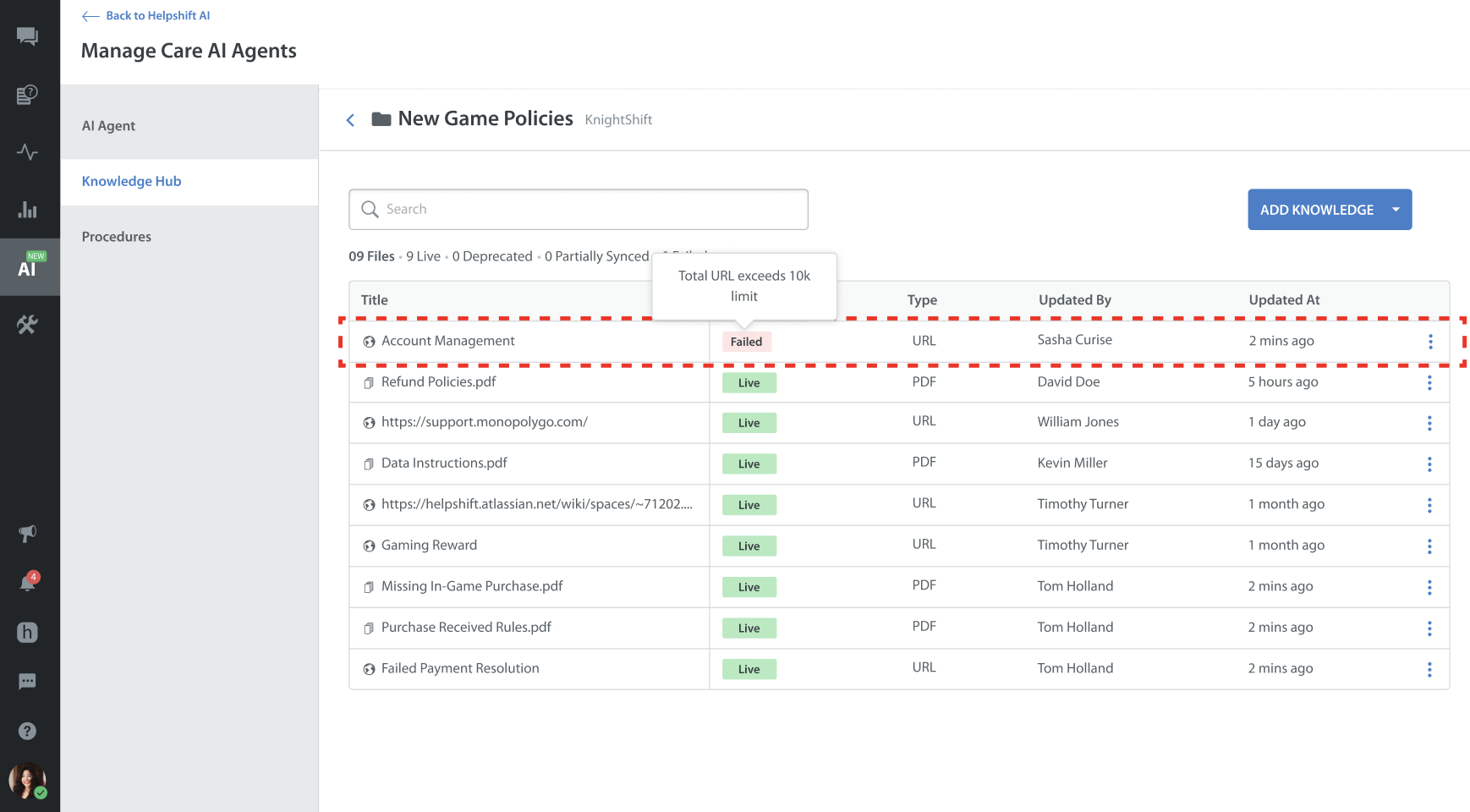
Sync Errors
The table below details sync errors, root causes, system impact, and resolution steps:
| Sync Errors | Reason | System & AI Agent Impact | Recommended Action |
| Internal server error | The website source encountered a system error or downloadable content. | Blocked: The update failed. Your AI Agent continues using previously saved text if available. | Verify your website is running normally, then click Re-Sync. |
| Page not found/ Page no longer exists at source | The web page was deleted, renamed, or has a broken web link. | Blocked: No new information can be read. The page will be automatically removed during the next scheduled sync. | Update the web link on your website, or manually delete/deprecate the page in your Knowledge Hub. |
| Page requires login/ Authentication failed | The web page is private and requires a password, login account, or internal company access. | Blocked: The page cannot be read or used by your Care AI Agent. | Website Sync only works with publicly accessible pages. Ensure the page can be opened in a private/incognito browser window without logging in. |
| Update failed: Re-authentication needed | The login session or security permission expired during an automated update. | Continuity / Blocked: If Retain Last Synced Content is turned on, your AI Agent safely keeps using the last saved version. Otherwise, the page is temporarily hidden. | Reconnect your website access in the settings, then click Re-Sync. |
| Blocked by robots.txt | Your website's backend rules (robots.txt) tell search engines and automated crawlers not to read this page. | Blocked: The page is skipped and cannot be used by your AI Agent. | Ask your web manager to update the robots.txt file on your server to allow the Helpshift crawler, or remove this URL from your sync list. |
| Blocked by source | Your website's security firewall (such as Cloudflare) blocked our crawler, treating it as automated traffic. | Blocked: Extraction halts and no text is saved for your bot. | Ask the support team to allowlist Helpshift proxy IP addresses in your firewall settings. |
| Duplicate already exists | This exact same web link is already being synced by another source inside the same Knowledge Hub folder. | Blocked: The duplicate page is stopped so your AI Agent doesn't index conflicting duplicate answers. | Delete the duplicate page row. (Note: Duplicate pages are allowed across separate folders, but not inside the exact same folder). |
| Page too large to process | The web page contains an unusually massive amount of text or underlying code. | Blocked: The page is skipped to prevent system slowdowns. | Split large articles into smaller sub-pages, or use Exclude Page Elements in settings to remove heavy sidebars or footers. |
| Source rate limit reached | Your website server received too many requests in a short time and asked us to slow down. | Blocked / Delayed: Syncing pauses temporarily for those specific pages. | Click Re-Sync during off-peak hours (like late at night). |
| Scheduled sync could not be started | A temporary queue delay prevented the automated background update from starting on time. | Delayed Update: Your AI Agent safely keeps using your current saved knowledge. | Click Re-Sync to run an update manually, or edit and re-save your source settings to reset the schedule. |
| Page redirects to a different domain | The link redirected the source to an entirely different website (for example, starting at helpcenter.com and landing on external.com). | Blocked: The external page is skipped to enforce strict domain security boundaries. | If you want to sync the new domain, set it up as a separate Website Source. |
Common Errors
While setting up website sync, errors can occur. The following scenarios are listed to help you resolve these errors.
| Error Scenario | Solution | Example |
Blocked by robots.txt Your website’s robots.txt file explicitly prohibits automated web sources from scanning or indexing the specified URL path. | Update the robots.txt file on your server to allow the Helpshift Website source user-agent, or remove the restricted URL path from your sync settings. | 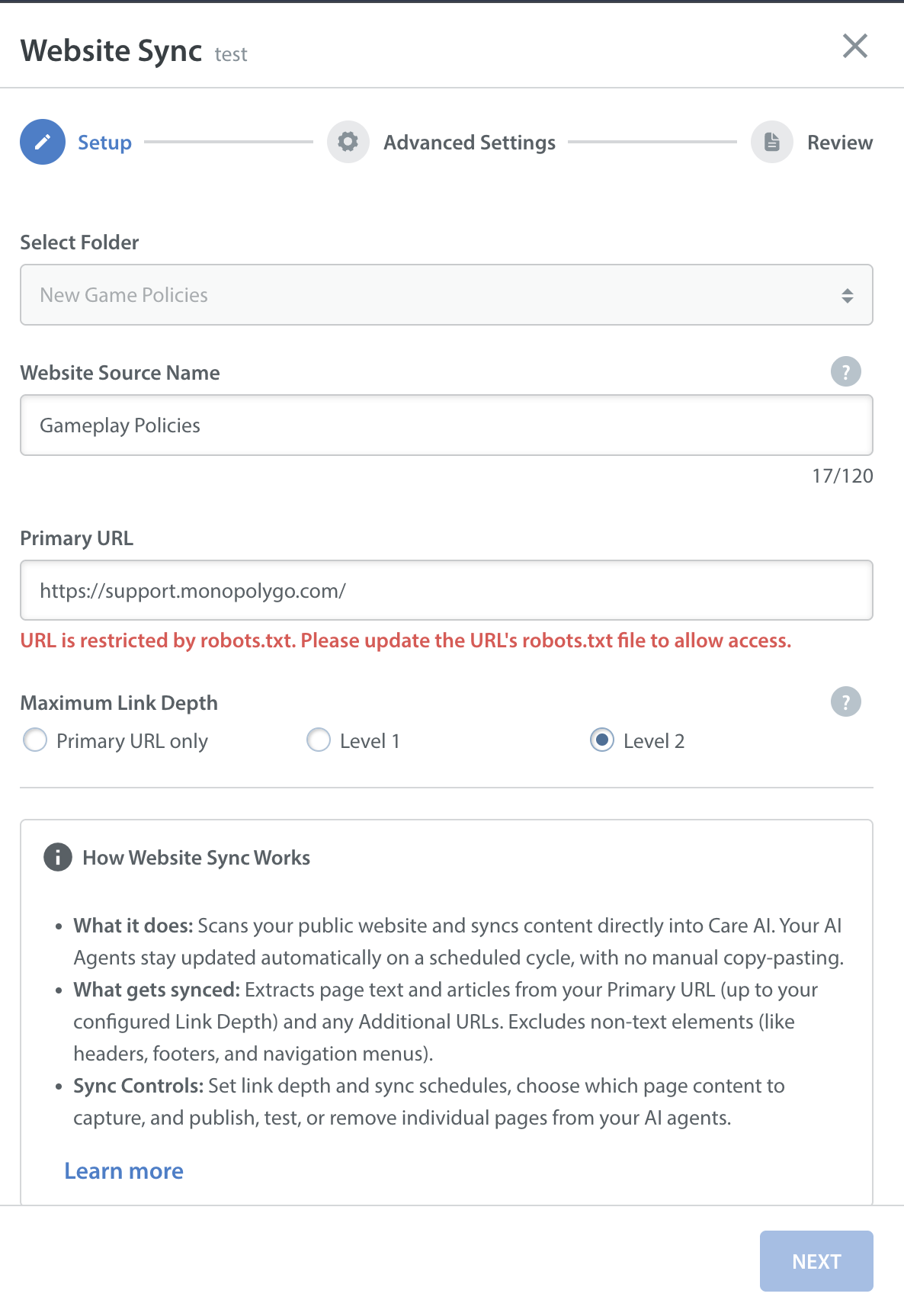 |
Invalid URL The URL entered in the setup field is malformed, missing the required https:// protocol, contains unsupported characters. Fields strictly accept valid https:// web addresses. | Check the URL format and make sure it starts with https://. The URL should include a domain, a subdomain, and a query parameter. Examples: https://example.com/ | 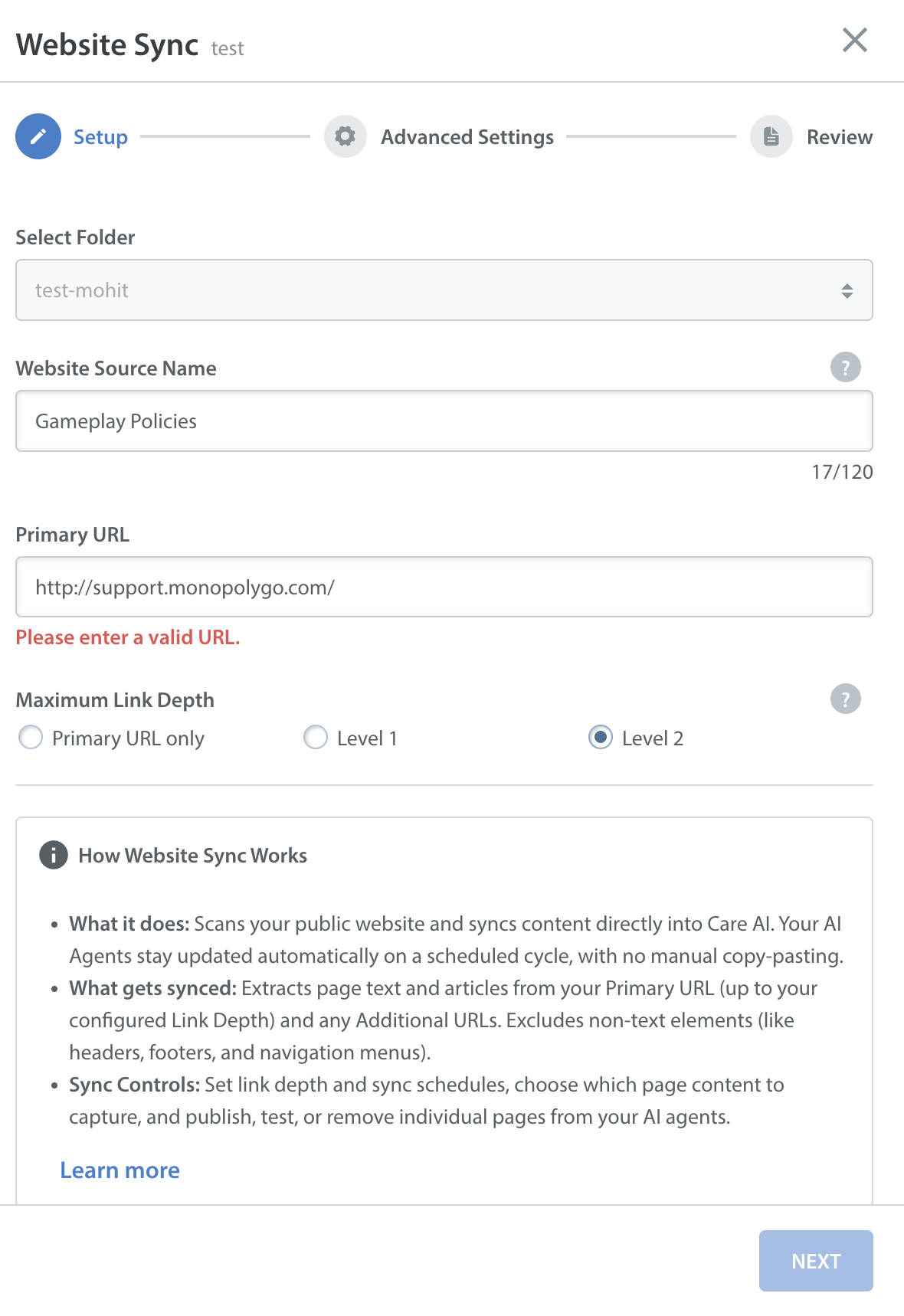 |
Domain Mismatch on Additional URLs An entered Additional URL belongs to an external domain that does not match the domain of your Primary URL. | Ensure all Additional URLs share the exact same primary domain as your Primary URL. If you need to sync an external domain, set it up as a separate Website Source. | 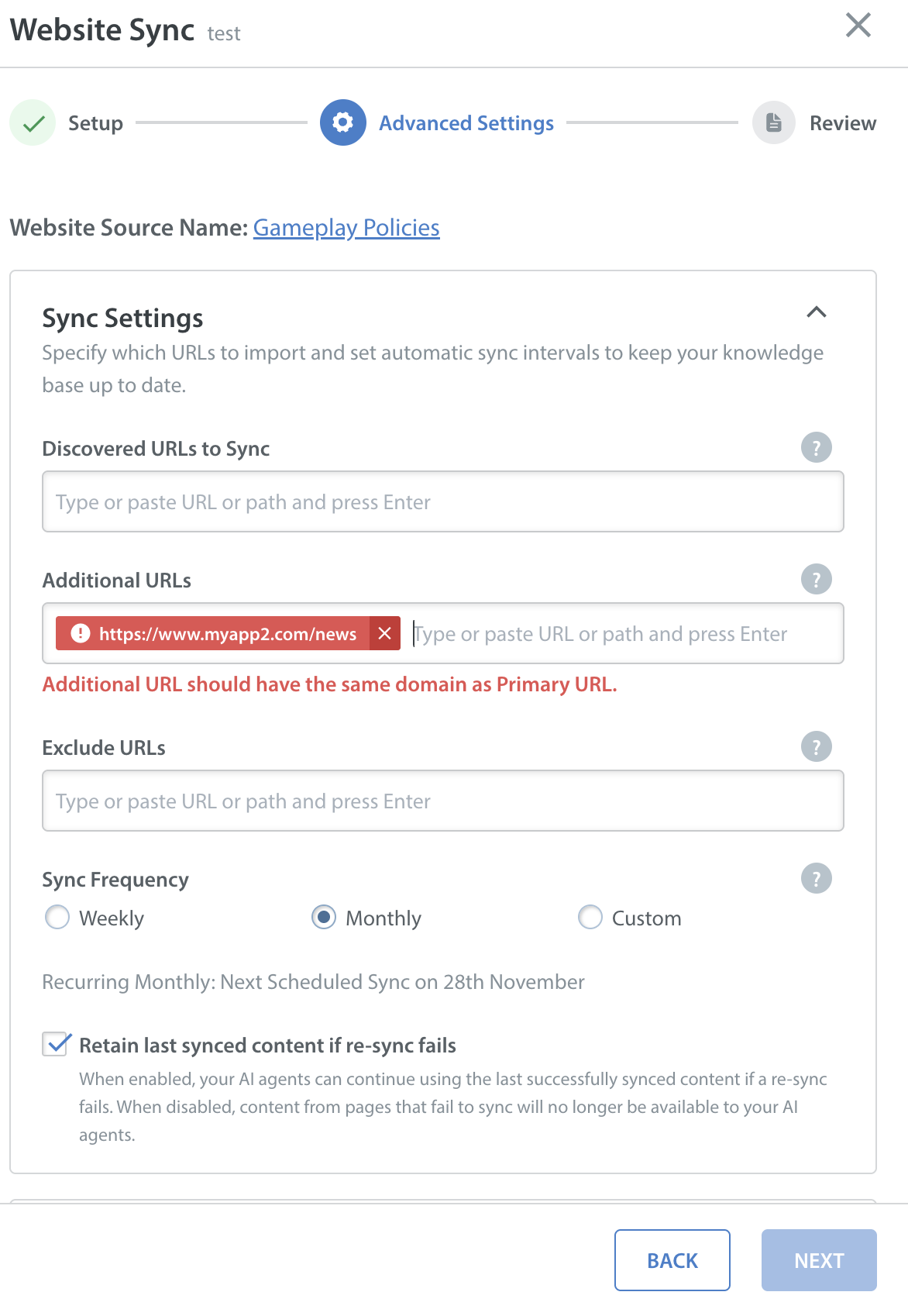 |
Duplicate URL in Fields The exact same URL was entered multiple times across configuration fields.
| Remove duplicate entries from your input fields so each web address appears only once in your source setup. Check the URL format and make sure it starts with https://. The URL should include a domain, a subdomain, and a query parameter. Examples: https://example.com/ | 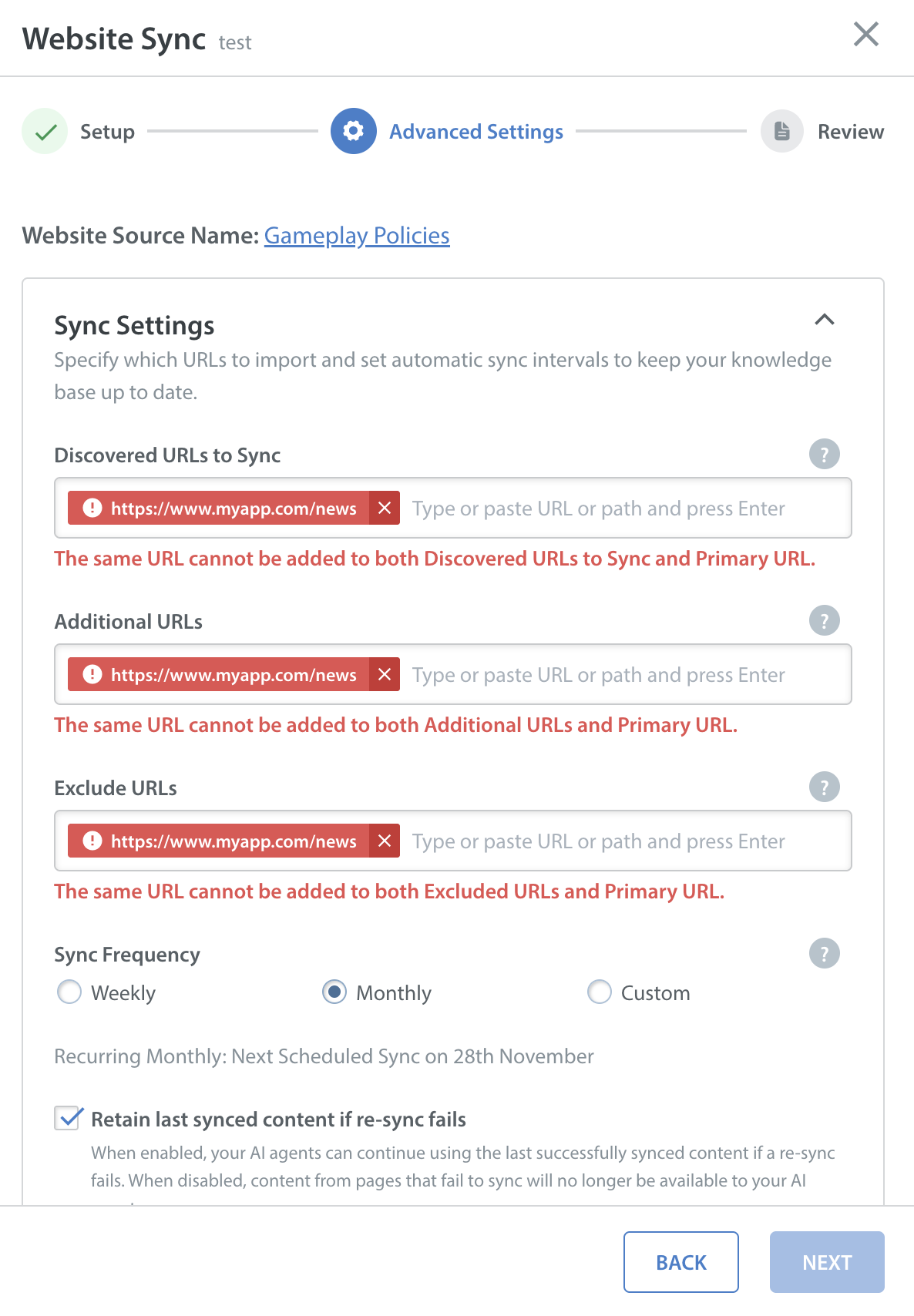 |
Conflicting HTML Page Elements The exact same CSS selector or HTML element (such as .main-content or article) was added to both the Include Page Elements and Exclude Page Elements fields. | Ensure a CSS selector is listed in only one field: put sections you want to extract in Include, and sections you want to remove (like headers or footers) in Exclude. | 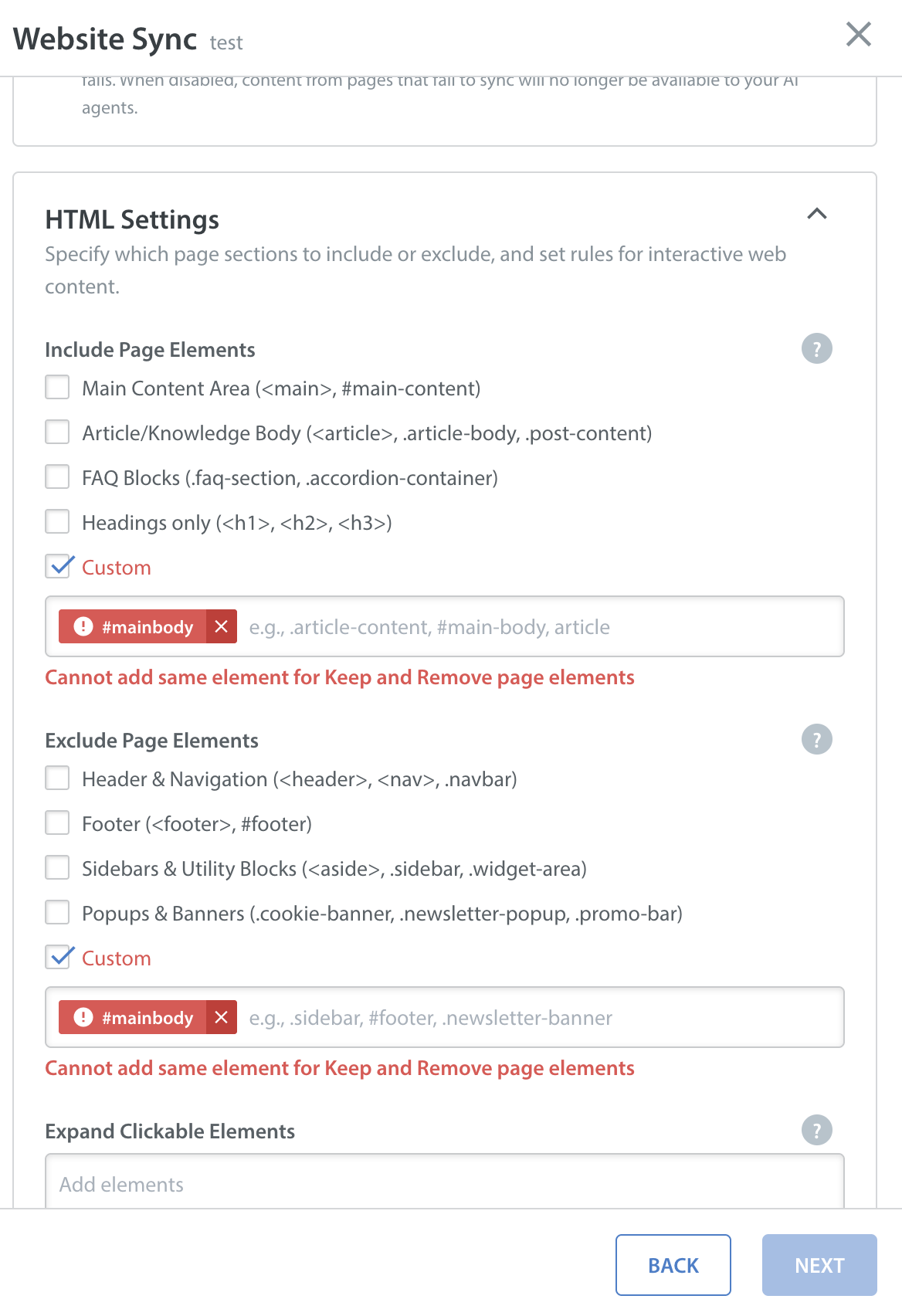 |