
Care AI Agents can integrate with external systems via APIs to send or retrieve data during conversations and to perform specific instructions. Depending on your setup requirements and workflow complexity, there are two available methods to achieve this:
Native Direct Integration: Care AI Agents directly invoke authenticated external APIs within Procedures and General Instructions. In a dedicated Integrations dashboard, Admins map the input parameters of an API call so the AI Agent can understand them—either by asking during the conversation, picking from Custom Issue Fields, or setting manual inputs. The API call is then inserted directly into the text editor of Procedures or General Instructions through a new action called "Call External API". When the AI Agent makes an API call, the execution logs along with the API request and response details are visible in the conversation view via system messages.
Bot-Based Integration via Custom Issue Fields (CIFs): Care AI Agents collect the required information from the user, store it in Custom Issue Fields (CIFs), and trigger an API step Bot using the "Escalate" action. The Bot executes the API request, reads from those CIFs, updates them, and must be instructed to hand the conversation back to the Care AI Agent to continue the workflow.
Note:
An administrator must configure and save an API request before it becomes available for you to choose.
Administrators prepare and save external API requests under Settings > External API Requests > [+ NEW API REQUEST]. Refer to this KB article to set up external APIs.
Native Direct Integration
1. How does the integration work?
To use Native Direct Integration and connect Care AI with external systems, administrators first set up the connection in the 'Integrations' tab by selecting an authenticated API and mapping its request payload to capture user inputs dynamically, from Custom Issue Fields (CIFs), or via manual entry. Once configured, the API integration can be easily used by inserting it as an action directly within a Procedure or General Instruction text editor, enabling the AI Agent to deterministically gather the required parameters and execute the API call, along with follow-up instructions, during a workflow. Finally, to ensure transparency and aid troubleshooting, every execution is recorded in the conversation view logs via collapsible system messages that prominently display the API call status, HTTP method, and the raw JSON input and output API data.
2. The 'Integrations' Dashboard
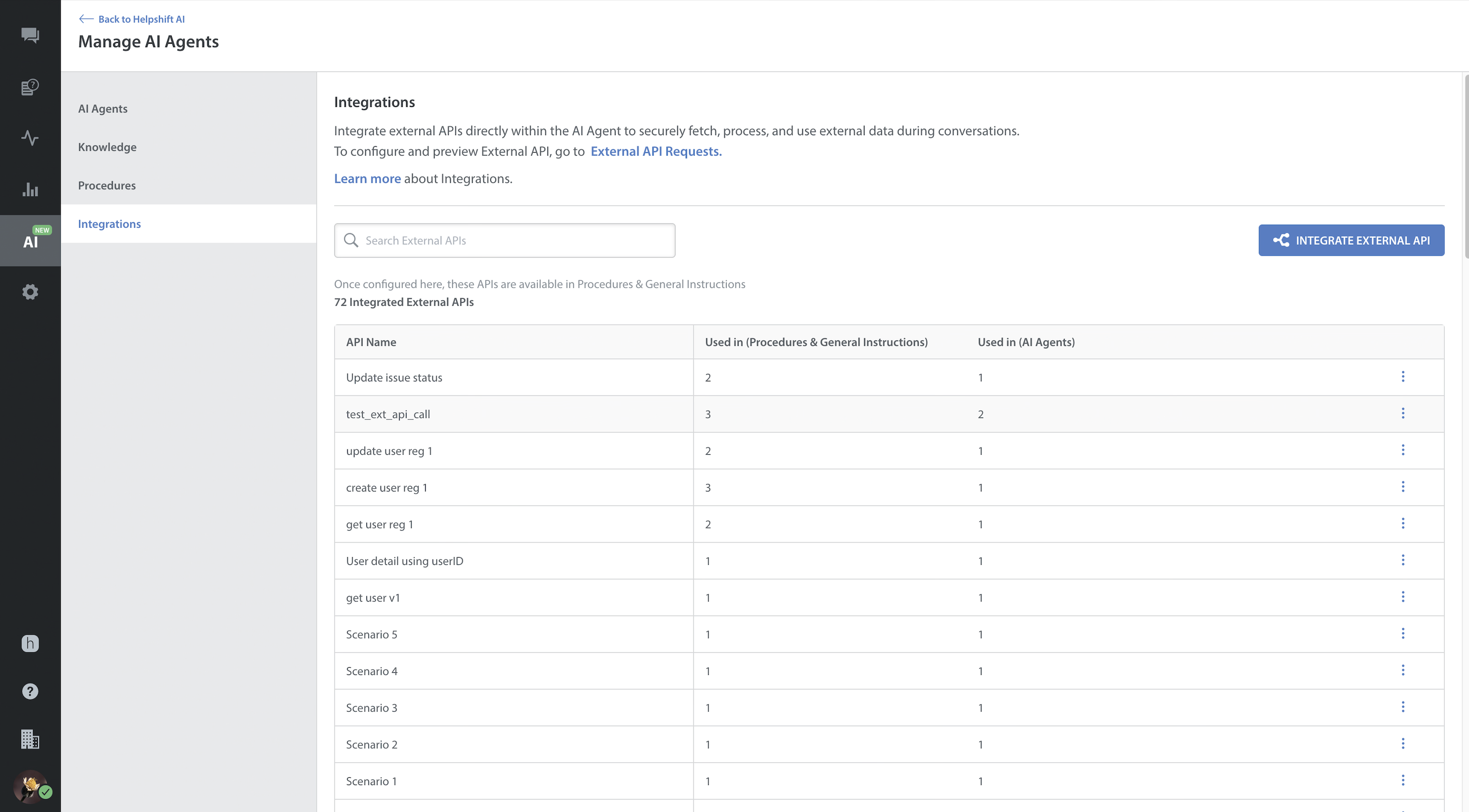
Administrators now have access to a dedicated 'Integrations' tab within the Manage AI Agents panel. An integration involves setting up an API input (request payload) for an AI Agent that can be used in Procedures or General Instructions:
- Centralized View: Admins can view, search, and manage all external API integrations configured for secure data retrieval.
- Usage Tracking: The dashboard displays how many unique Procedures and General Instructions, as well as AI Agents, are actively using a specific API integration.
- Reusability: Integrated APIs can be reused across multiple Procedures and apps without requiring duplicate configurations.
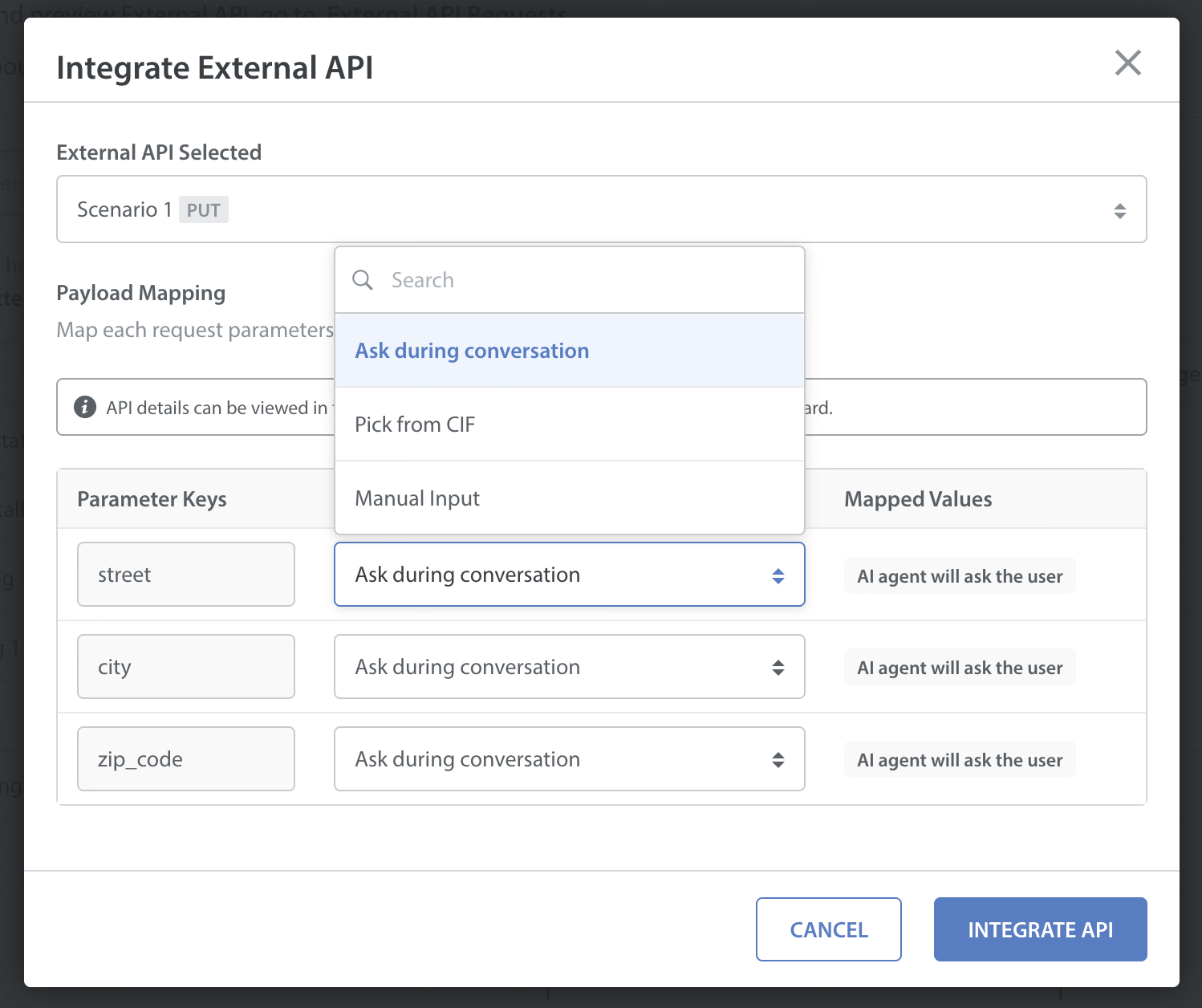
- Flexible Payload Mapping: The request payload can be deterministically mapped using multiple methods. The options include:
- Let the AI Agent ask the user: The AI Agent dynamically prompts the user for the required value during the conversation.
- Custom Issue Fields (CIFs): Pull values directly from the available CIFs.
- Manual Input: Hardcode specific values for the API request payload
3. Authoring Procedures with API Actions
Administrators can effortlessly embed these configured API integrations into Care AI workflows. While authoring a Procedure or General Instruction, administrators can:
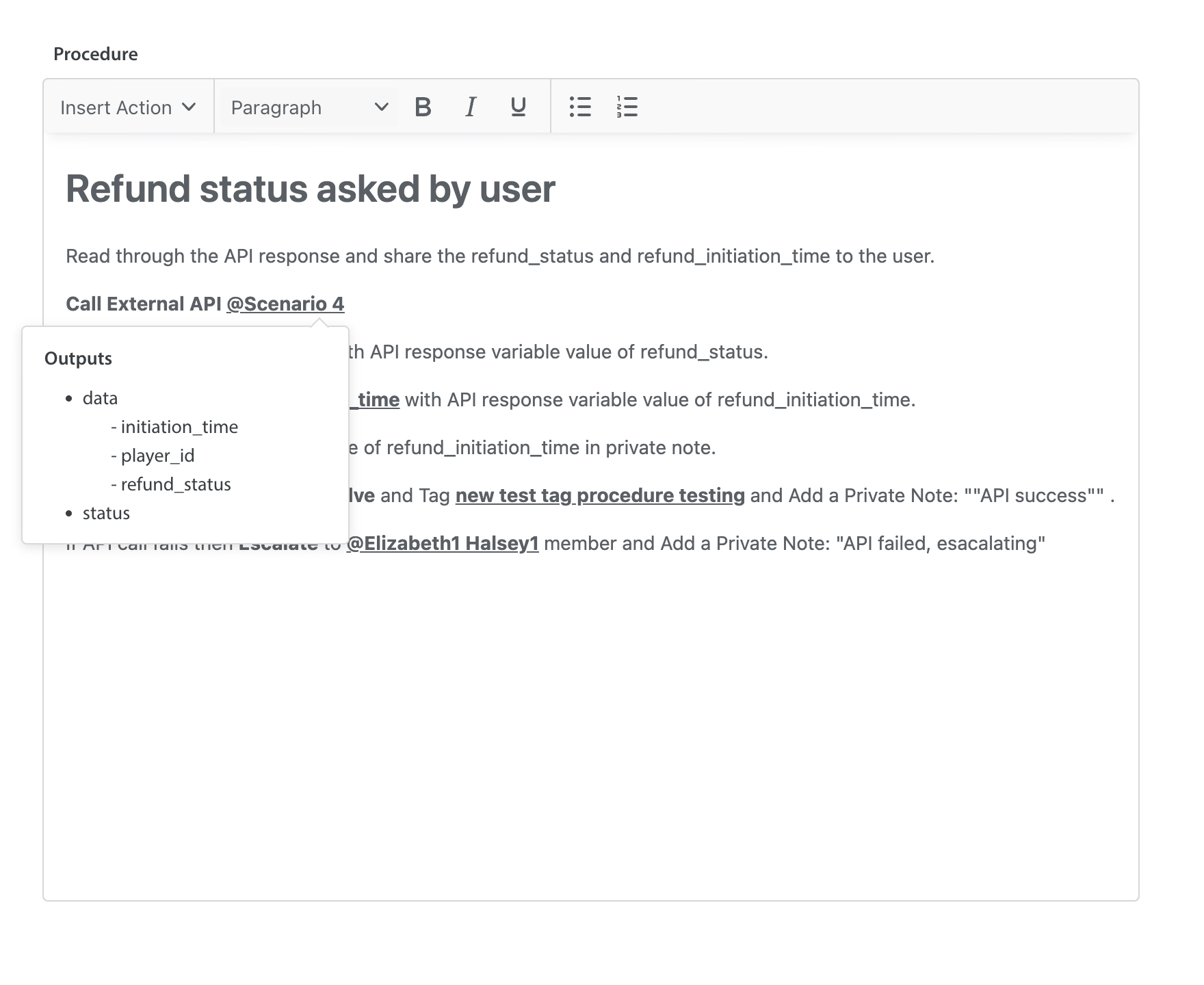
- Insert Action: A new "Call External API" option is available in the Procedure and General Instruction text editor toolbar.
- Preview and Validation: Before inserting, admins can preview the API's payload mappings, parameter types, and data types.
- Inline Tags: Once selected, the API call is rendered as an actionable inline tag (e.g., call external API @<API title>) directly in the editor. On hovering over the text editor, administrators can see the structured list of API response variables, which aids in writing specific instructions related to the API outputs.
- Autonomous Deterministic Execution: During a conversation, the AI Agent strictly follows the defined mapping to collect variables, asks clarifying questions if inputs are ambiguous, and executes the API call.
- Fallback and Retries: It is advisable to specify in the Procedures/General Instructions text what the AI Agent must do in the event of an API call failure. The AI Agent can also be given instructions regarding the API status codes received and the number of API call retries to be made. If no failure scenario is specified in the Procedures or General Instructions, the AI Agent follows the global fallback and a global retry logic, with 3 API call retries in case of failure.
4. Visibility and Logging via System Messages
To ensure transparency and aid in troubleshooting, API executions are prominently logged in the agent's conversation view.
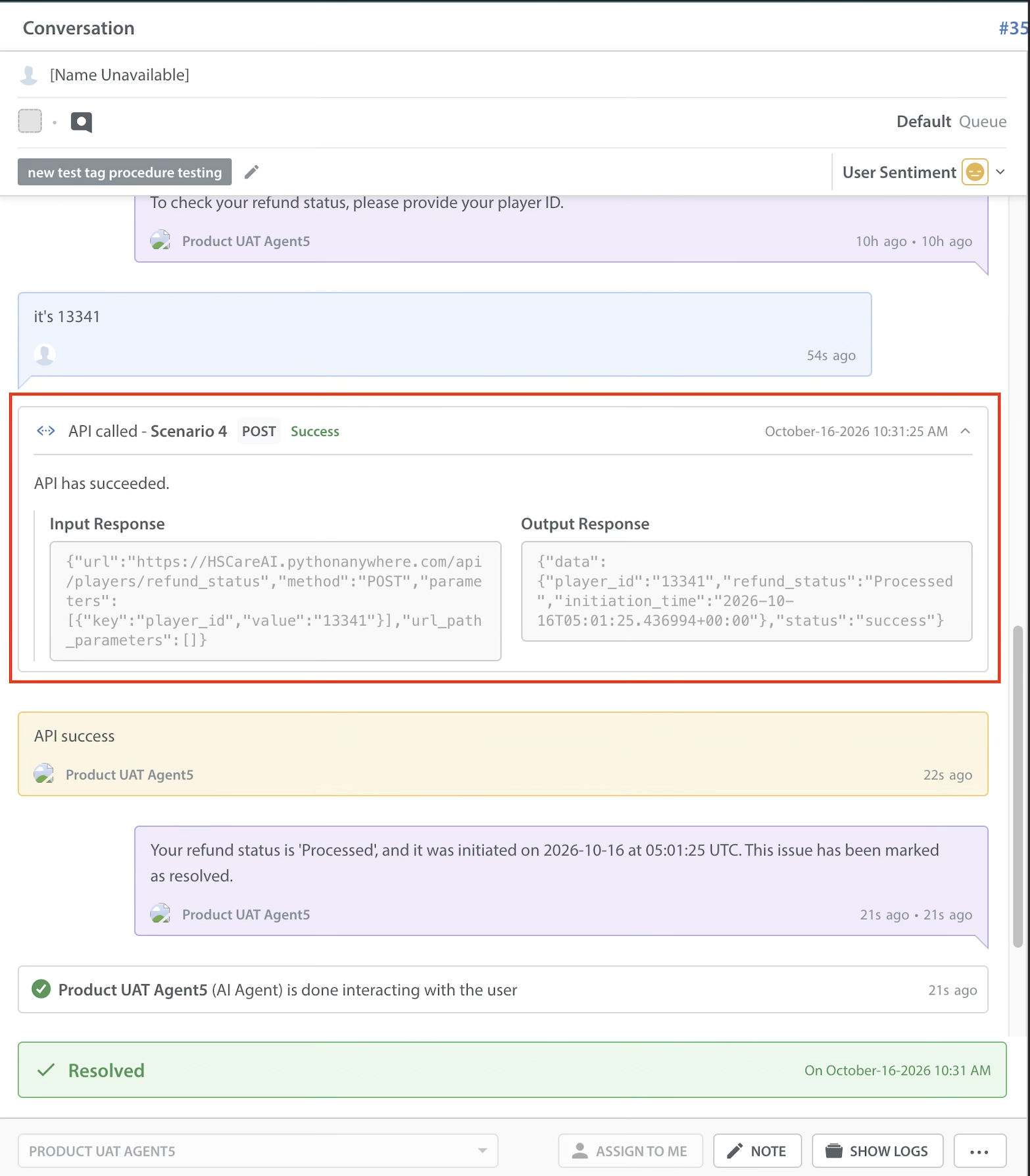
- Collapsible System Messages: When an AI Agent invokes an API, a system message appears displaying the API name, HTTP method, and API call status.
- Raw Data Access: Expanding the system message reveals the exact activity description, alongside the raw JSON request body sent and the raw JSON response returned by the external service.
Sample Use Case: Refund Flow
This scenario automates the handling of routine customer inquiries—specifically, players asking about their refund status. The Care AI Agent understands the user's request. It securely connects with the external billing system in real time, retrieves the refund status, and relays the information back to the user. Depending on the success or failure of the system lookup, the AI automatically manages the issue lifecycle by updating custom data fields, logging API call logs in the conversation view, and either resolving the ticket or escalating it to a human specialist.
How the Integration Was Set Up
The integration requires a secure connection between the AI Agent platform and the external system.
AI Agent Configuration
A refund status integration was set up using the external API that provides the refund status. The API requires player_id as a request payload, which was specified in the integration such that the AI Agent will ask the user for it during the conversation. (The other options were to fetch a pre-updated CIF or send a static value in the API.)
Procedure Authoring
A procedure was written in a sequential, step-by-step format that dictates exactly how the Agent should process inputs, trigger tools (including the API), handle API call failures, and route the conversation.
The procedure was defined as follows:
- Run when a refund status is asked about by the user.
- Call External API.
- Read through the API response and share the refund_status and refund_initiation_time with the user.
- Update CIF @refund_status with the API response variable value of refund_status.
- Update CIF @refund_initiation_time with the API response variable value of initiation_time.
- Send the API response variable value of initiation_time in a private note.
- Condition 1 (Success): If the API call is successful, then Resolve and add a custom tag, then Add a Private Note: "API success".
- Condition 2 (Failure): If the API call fails, then Escalate to a human agent member and Add a Private Note: "API failed, escalating".
The API logs were shown in the conversation view as expandable system log messages at the time the AI Agent executed this use case.
How the Integration Works?
Note: A typical integration involves three components:
Care AI Agent – Understands the user request and gathers the required information.
Bot – Connects to your external system through an API.
Custom Issue Fields (CIFs) – Store the data that is passed between the Care AI Agent and the Bot.
- Information Gathering & Preparation: The Care AI Agent follows its configured procedures to identify the user's request and gather necessary context, such as a Player ID or verification details. If the workflow requires sending data to your system, the Agent is instructed to update specific CIFs with this user-provided information immediately. Hence, the payload is ready for the Bots.
There can also be scenarios where a CIF is already updated with the required payload values, and those CIFs can be directly used in the Bot. Triggering the Bot to make an API Call: Once the required data has been collected, the Care AI Agent uses the Escalate action to transfer the conversation to a specialised Bot.
Making the API Request: The Bot uses a Make an API Request step to connect to your external servers. If it is sending data, the Bot is configured to read the payload values that the Agent just stored in the CIFs.
Mapping the Output to CIFs (Crucial Step): After executing the API request, the Bot must store the output or result in a CIF. This is mandatory because storing the response in a CIF is the only way the Care AI Agent can access the data later.
Handover Back to Care AI Agent and Final Action: The Bot hands the conversation back to the Care AI Agent once the API call and CIF updates are complete. The Care AI Agent then reads the newly updated CIF values and follows its rules to take the appropriate next action. This could include proceeding with the workflow if validation succeeds, requesting the correct information if validation fails, or escalating the ticket if a technical error occurs.
Let’s take into account a particular use case and see how it can be evaluated via both the methods:
Use Case: Account Recovery
To understand how to build these external integrations, let's look at a real-world example: A player wants to recover their lost account.
Refer to this table to understand what the Bots and CIFs are doing in the below example use case.
| CIF | player_user_id | Stores player id |
| CIF | player_account_check | Stores “Valid” if account exists and “Invalid” if account not exists |
| CIF | account_validation | Stores “Success” if account validate is successful or stores “Failure” |
| BOT | account_check | Checks if account exists or not |
| BOT | account_validation | Check if account is valid or not, based on the details provided by the player. |
| BOT | account_recovery | Recovers the account |
For the Care AI Agent to operate this workflow autonomously, it will need to verify that the account actually belongs to the user and, if so, take action to recover it. The Care AI Agent will need to fetch data from your external system to verify their identity, and then take action to recover their lost account.
Note: Values stored in CIFs by the Care AI Agent will serve as the API's payload. The Bot will make the API call and use the CIF values as the payload, so ensure the CIFs are updated before the call.
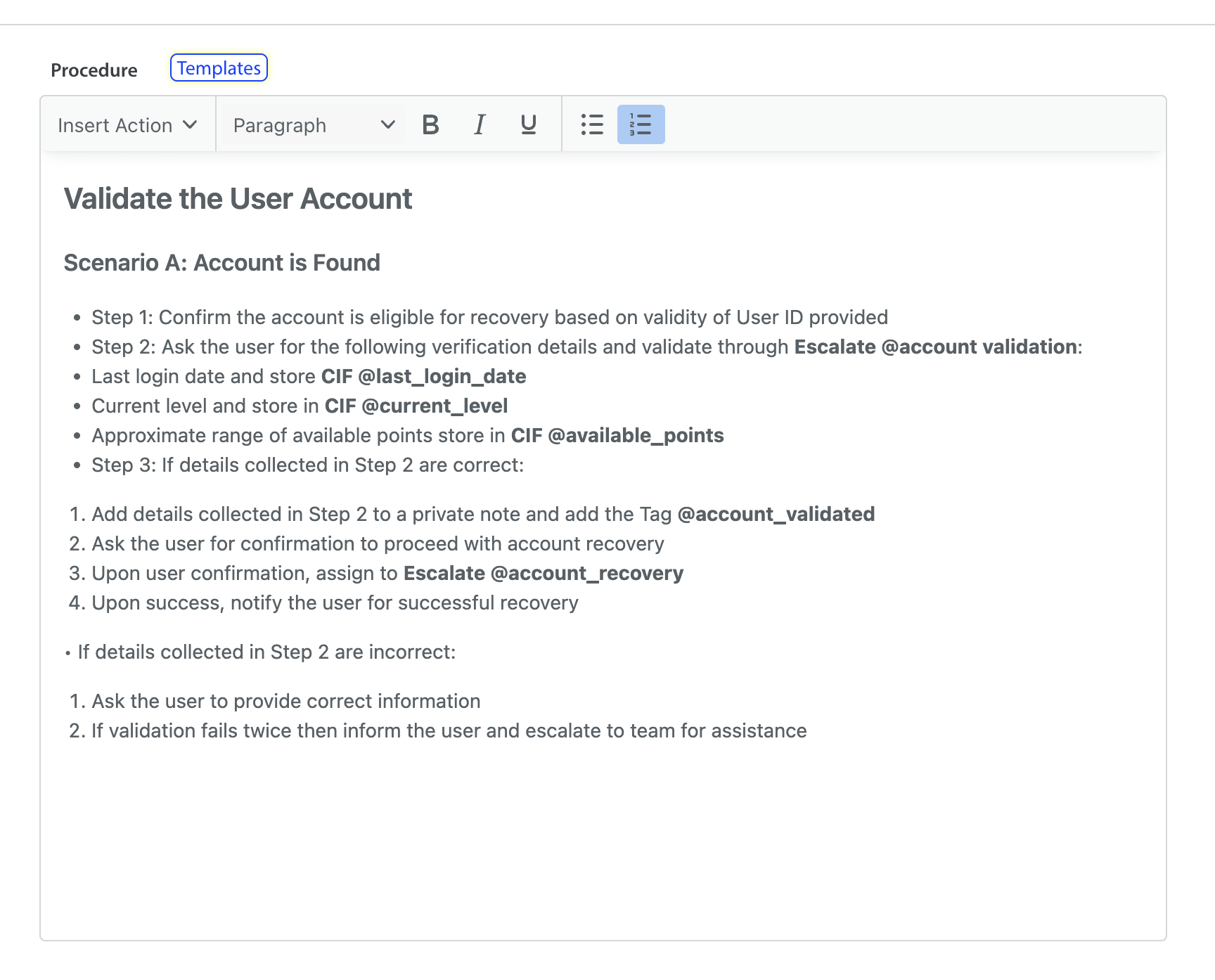
Use the following steps when the Care AI Agent needs to perform an action in your external system (e.g., recovering a player's account).
- Collect Required Information: Configure the Procedure to define how the Care AI Agent should collect the necessary details from the user.
Example: Once a Player ID is found, confirm if the account can be recovered. Configure the procedure to collect user-specific information for verification, such as Last login date, Current level, and approximate range of available points. Store Data in Custom Issue Fields (CIFs): Instruct the Care AI Agent to store the user's collected details in CIFs. These CIF values will be used by the Bot when making the API request. Capture the value using Insert Action > Add Custom Issue Fields.
Handover to the Bot: After updating the CIFs, the Care AI Agent hands the conversation to a Bot using the Escalate action.
Example: You configure the procedure to hand over the conversation to the @account_validation Bot for validation.
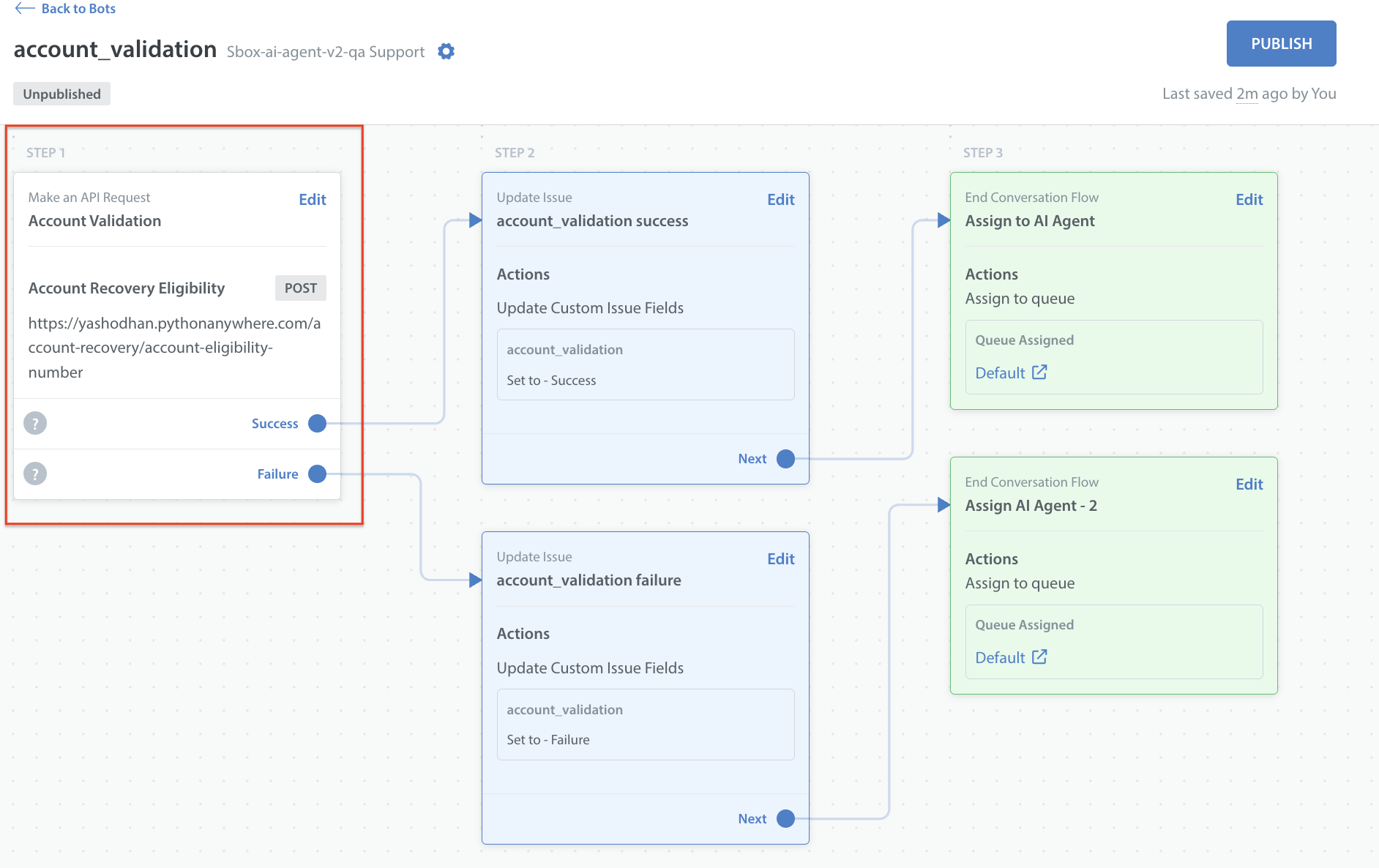
Bot Executes the API Request: Go to your Bot's configuration. Set up the Make an API Request step. The bot reads the values stored in the CIFs and sends them to your external system.
- Return the Conversation to the Care AI Agent: The bot hands over the conversation to the Care AI Agent once the API request completes.
Care AI Agent Handles the Outcome: Write a rule in your Procedure that instructs the Care AI Agent on how to handle outcomes based on the Bot’s action
Successful Validation
- Add a private note with verification details.
- Add the tag @account_validated.
- Ask the player for confirmation.
- Upon confirmation, assign to the @account_recovery Bot.
- Notify the player of successful account recovery.
Validation Failed
- Ask the player to provide the correct details.
- If validation fails twice, add a private note “Escalated as account validation failed 2 times,” inform the player, and escalate the issue to the @account validity Queue.
Technical Failure
- Add a private note describing the issue: “Some technical failure occurred”.
- Add a Technical_failure tag.
- Inform the player that the issue will be escalated to the support team.