Introduction
The Export Issues as CSV capability allows teams to quickly download issue data from the Helpshift Dashboard in a clean, structured CSV format. This enhancement makes it easier for admins, supervisors, and agents to extract, customize, and share issue information seamlessly to gain more actionable insights.
Granting Access to the Export Issues Feature
By default, only Admins have access to the CSV export functionality. To extend permission to other team members (agents, supervisors, or custom roles), admins need to follow the steps below:
- Navigate to Settings in the dashboard.
- Go to Roles & Permissions.
- Select the role you want to update (e.g., Agent, Supervisor, Custom Role).
- Look for the permission titled Export Issue Data.
- Turn on the toggle and confirm on the pop-up screen to grant access.
Exporting Issues as CSV
Users with access can export issues using filters or manual selection.
Follow the steps below to export issues as CSV:
- Open the Issues page.
- Apply any filters you need (Advanced Filters and/or Smart Views) or manually select individual issues.
Note: You can select up to 5,000 issues max. If you exceed this limit, an error message will appear indicating that the maximum export limit has been reached.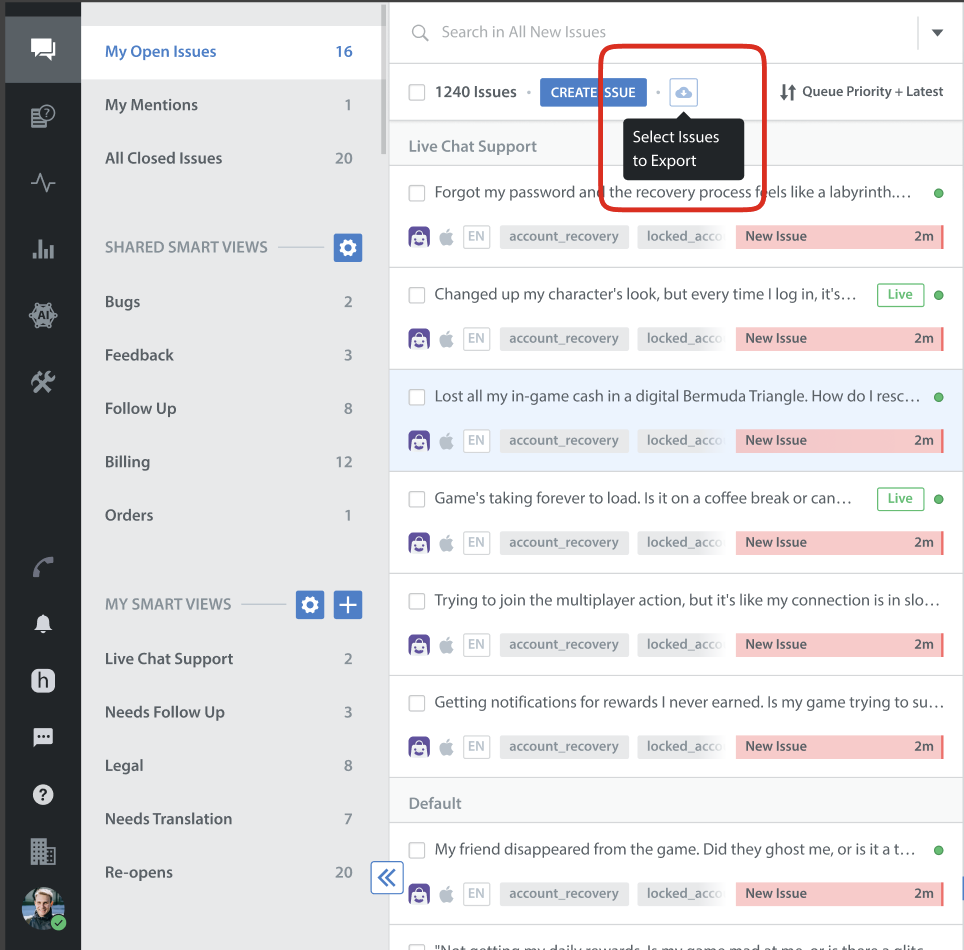
- Click the Export/Download icon.
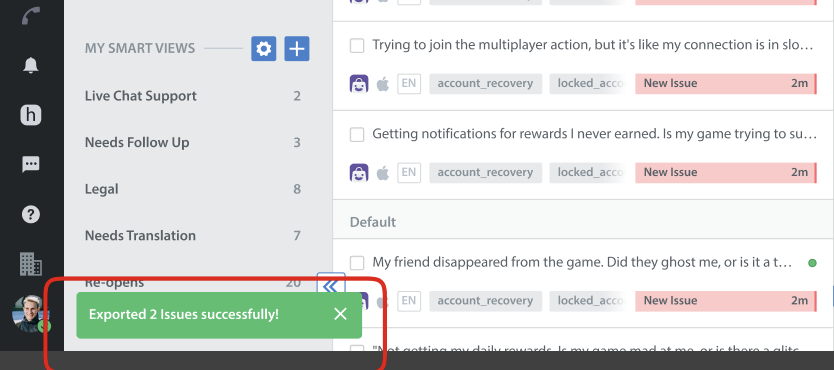
A confirmation message appears showing that the export is in progress. - Once complete, a success message appears, and your CSV file will be downloaded to your system.