
User Notes allow supervisors, agents, and admins to add important information about a user that any team member can view and use for additional context when interacting with the user.

Adding User Notes
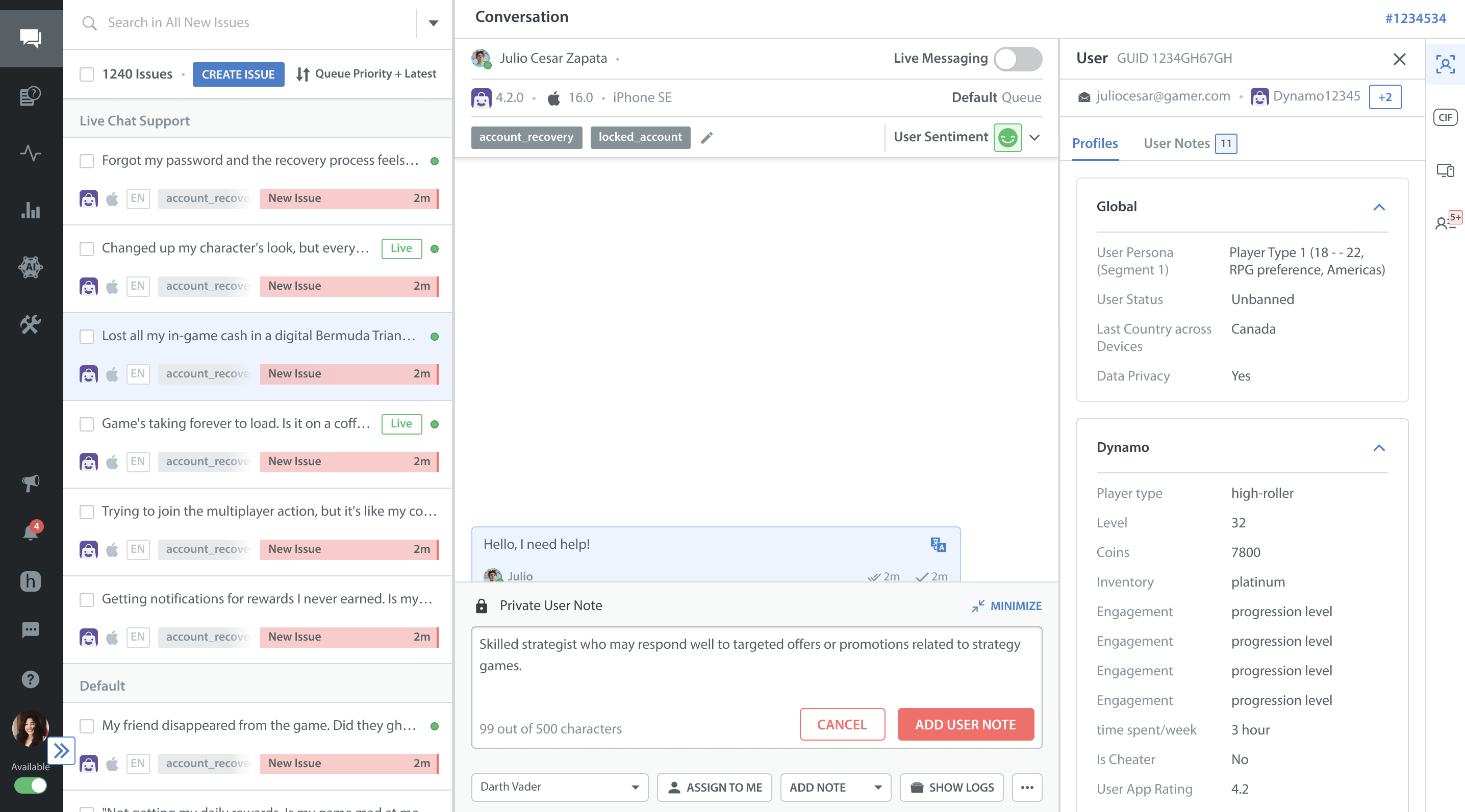
To add a User Note, follow these steps:
- Open an issue conversation in your Helpshift dashboard.
- Select ADD NOTE > Private User Note.

- Enter your note (up to 500 characters).
- If you leave the note unsaved, it will be automatically retained as a draft until you return it to that user’s Issue conversation. To discard an unsaved draft, click CANCEL.

- To add the note, click ADD USER NOTE. A success notification confirms the note has been added.

- If you leave the note unsaved, it will be automatically retained as a draft until you return it to that user’s Issue conversation. To discard an unsaved draft, click CANCEL.
Auto-Saving Draft Notes and Replies
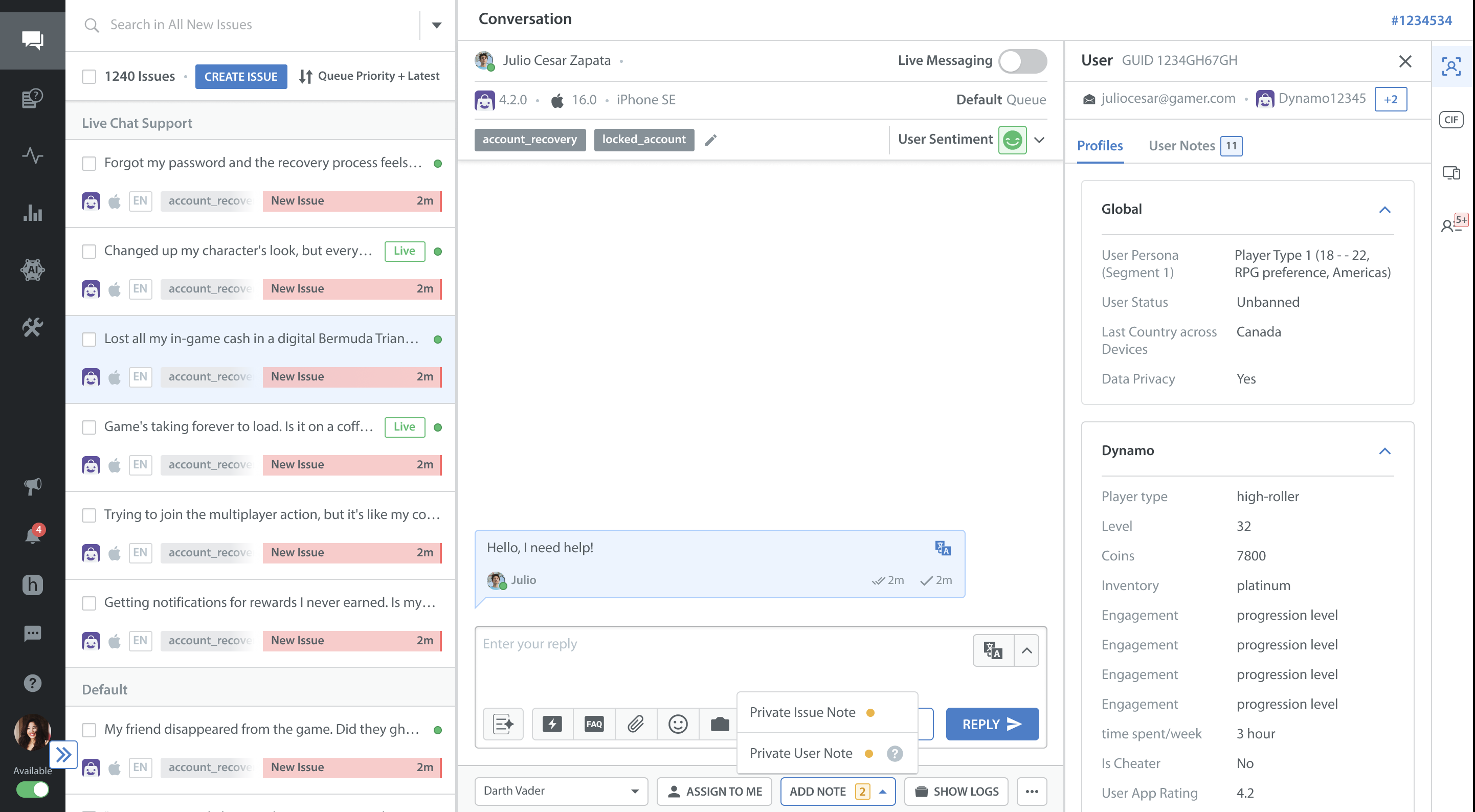
Any text entered in the Private User Note or Private Issue Note composer is saved automatically as a draft. The draft remains saved during your active session, regardless of where you navigate within your Helpshift domain.
An orange status dot appears on the ADD NOTE dropdown button (e.g., ADD NOTE 2) to indicate a draft note.
Viewing User Notes
User Notes are private and viewable only within the User Notes tab in the User Profile.
Unlike Issue Notes, which appear in conversation threads, User Notes are listed in reverse chronological order (latest first).

Accessing Source Issue ID
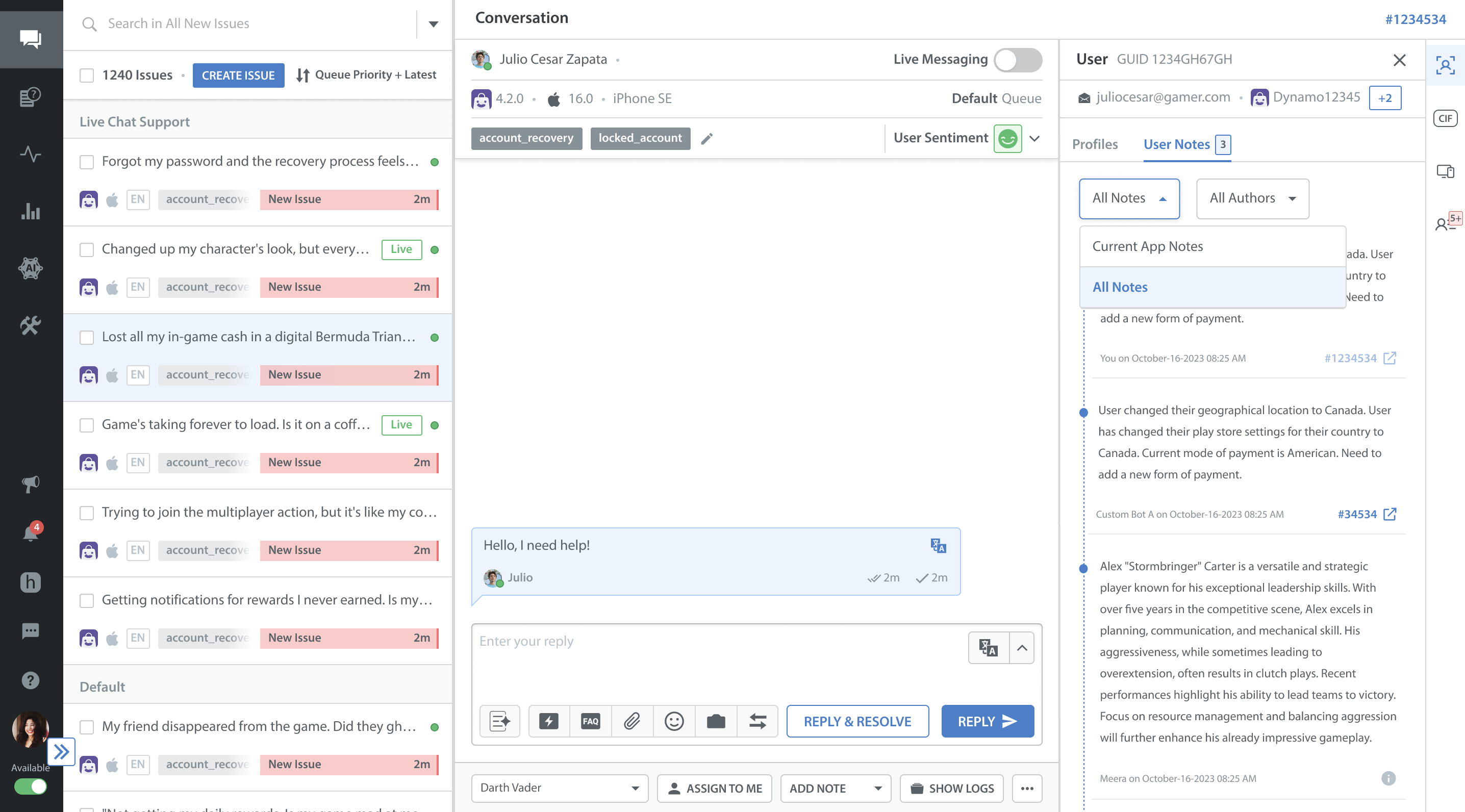
Each note listed under the User Notes tab displays its original source for better context. Every user note generated during a support conversation displays a clickable Source Issue ID (e.g., #1234534) next to the author name and timestamp.
Click the Issue ID hyperlink to open the original issue (only if the Agent has access to the Workzone in which the issue is created) and view the complete conversation history and context behind the note. Notes generated via API, bot, and automation are also shown for the user context.
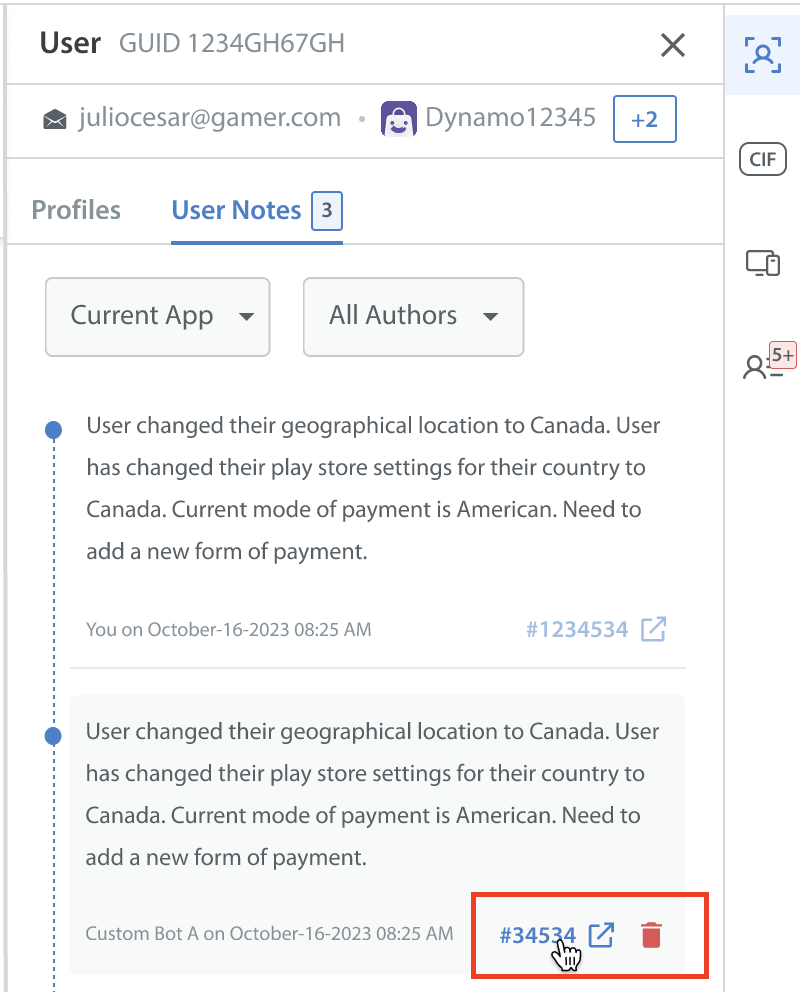
Note: User Notes are accessible in both the 2-pane (Issue overview) and 3-pane (Issue details) views. For more details, refer to User Context in Agent Dashboard.
Filtering User Notes
You can use the available filters to locate specific User Notes quickly created by a particular agent, bot, automation, or API.
Author Filter
- All Authors: Displays notes by all team members (default setting).
- My User Notes: Shows only the notes you have posted.
- Author Name: Allows you to filter notes by individual team members.
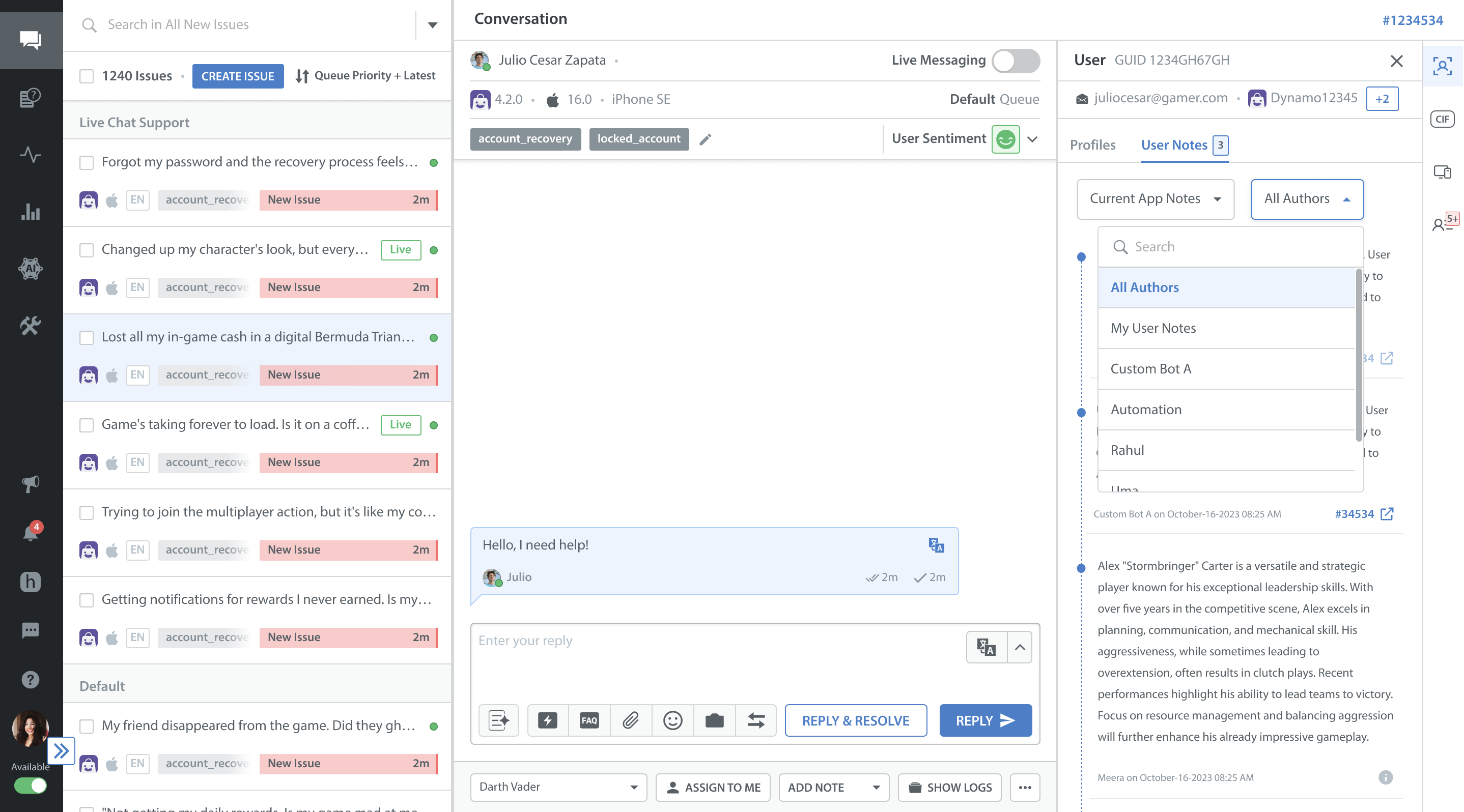
Note Filter
- Current App Notes: Displays user notes created within the currently selected app.
- All Notes: Displays user notes across all apps associated with the user, including those created via API and/or not associated with any issue.
Deleting User Notes
User notes can only be deleted by the Author (themselves) or an Admin. No other users have permission to delete notes.
To delete a note:
- Hover over the user note.
A delete icon will appear.

- Click the icon. A confirmation prompt will ask you to confirm this action.

- Once confirmed, the note is deleted.
The system will display who deleted the note and the time of deletion.
