
An Agent can request a screenshot from an in-app user to get a better view of their problem. This is useful when engaging with less technical users.
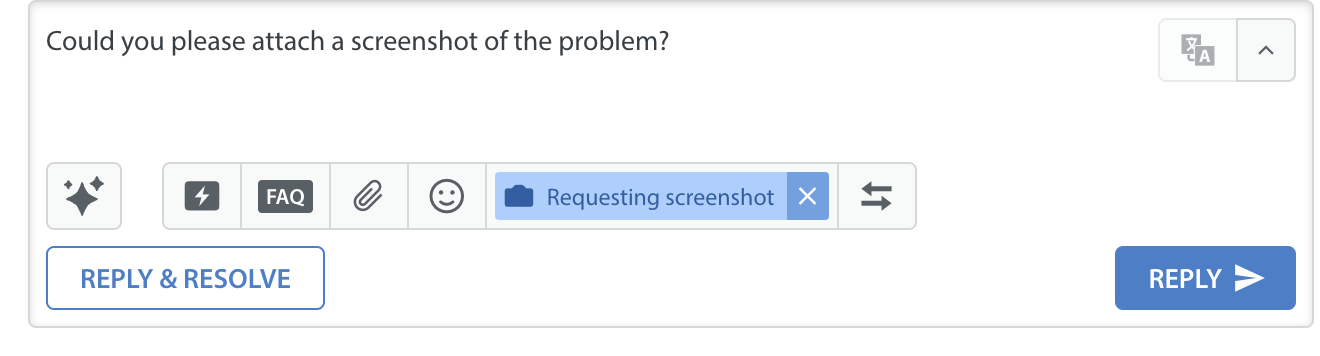
- To request a screenshot, go into the detailed view of the user’s Issue, then click the ‘camera icon’ below your text field.

- After you click this button, the message to request the screenshot will appear in the text box.
Note: The message will appear in the Issue language. - Click ‘Reply’ or ‘Reply & Resolve’ to send the request to the user.
From the end user perspective, the screenshot request will look like this: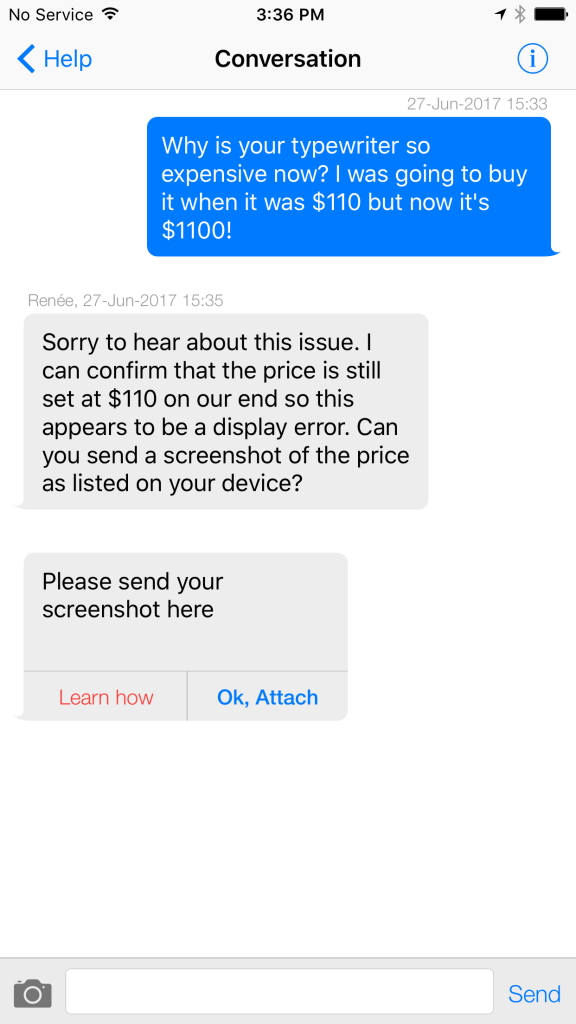
- Once it has been uploaded, the screenshot will appear in the Dashboard and to your in-app user.
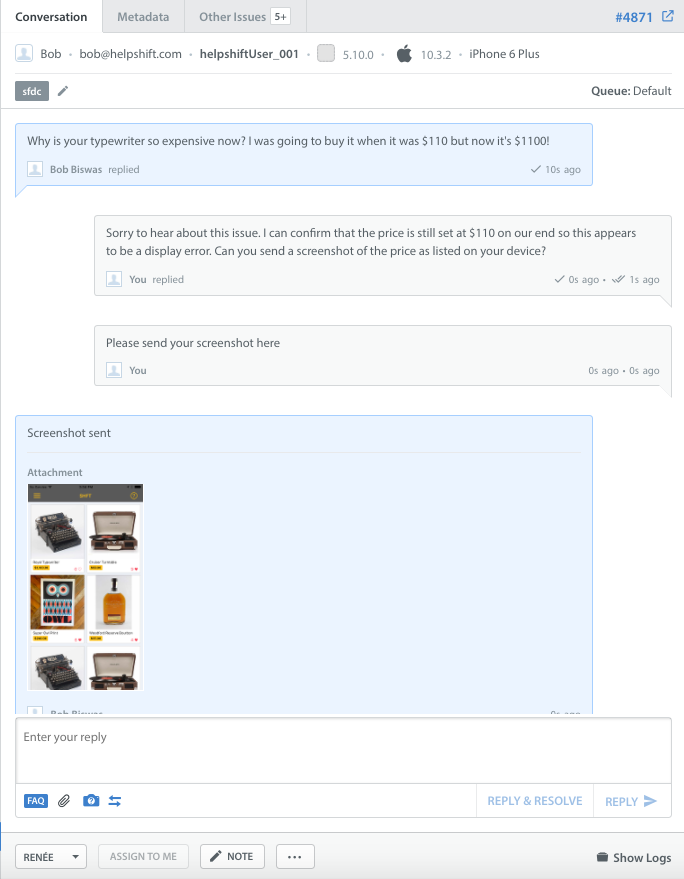
Screenshot as it appears in the Issue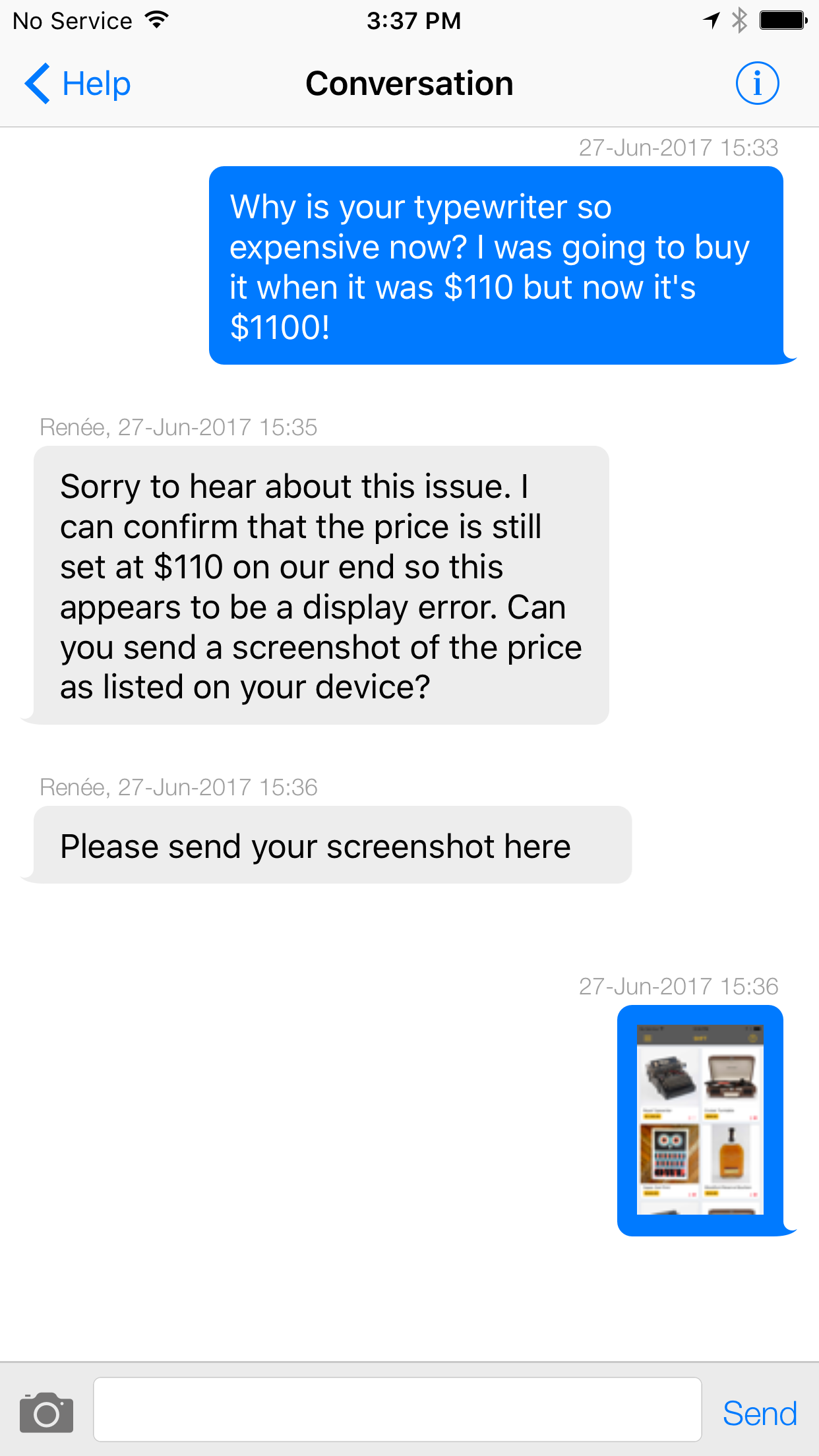
Screenshot as it appears to your end user in-app
Note :This function isn’t available for Email or Web issues, though there is no restriction on attachments.